Knowledge Base & AI Assistant
Every security team answers the same questions over and over — what is our password policy, how fast do we patch criticals, do you encrypt backups — from the same handful of documents. The Knowledge Base holds those documents once, answers questions from them with a citation and a confidence score, and fills whole security questionnaires the same way. Approved answers go into a bank, so the next questionnaire starts mostly done.
Where: left navigation → Management → Knowledge Base.
Documents
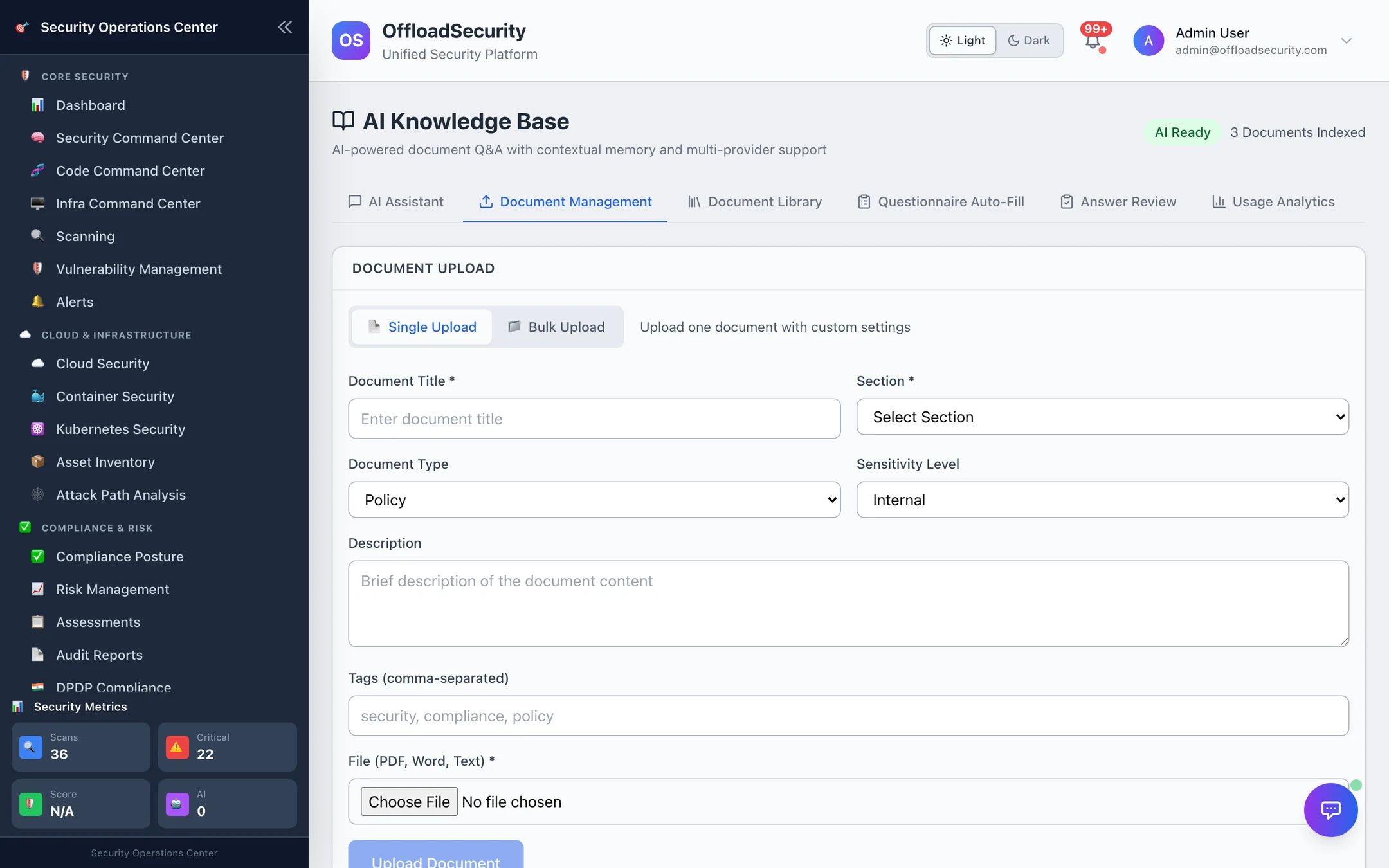
Document Management uploads one document with metadata, or several at once:
| Field | Values |
|---|---|
| Section | Security Policies · Compliance Frameworks · Technical Documentation · Incident Response · Risk Assessment — plus any section you add |
| Document type | policy · SOP · compliance framework · audit report · technical documentation · security playbook · incident response · risk assessment · training material · vendor documentation · regulatory guidance · best practices |
| Sensitivity | public · internal · confidential · restricted |
| File | PDF, Word (.docx) or plain text |
On upload the text is extracted, split into chunks and embedded for semantic retrieval; the status goes processing → ready. If extraction produced nothing useful (a scanned PDF, an image-only page) the document is flagged and Re-process documents on the Questionnaire tab re-extracts and re-embeds it.
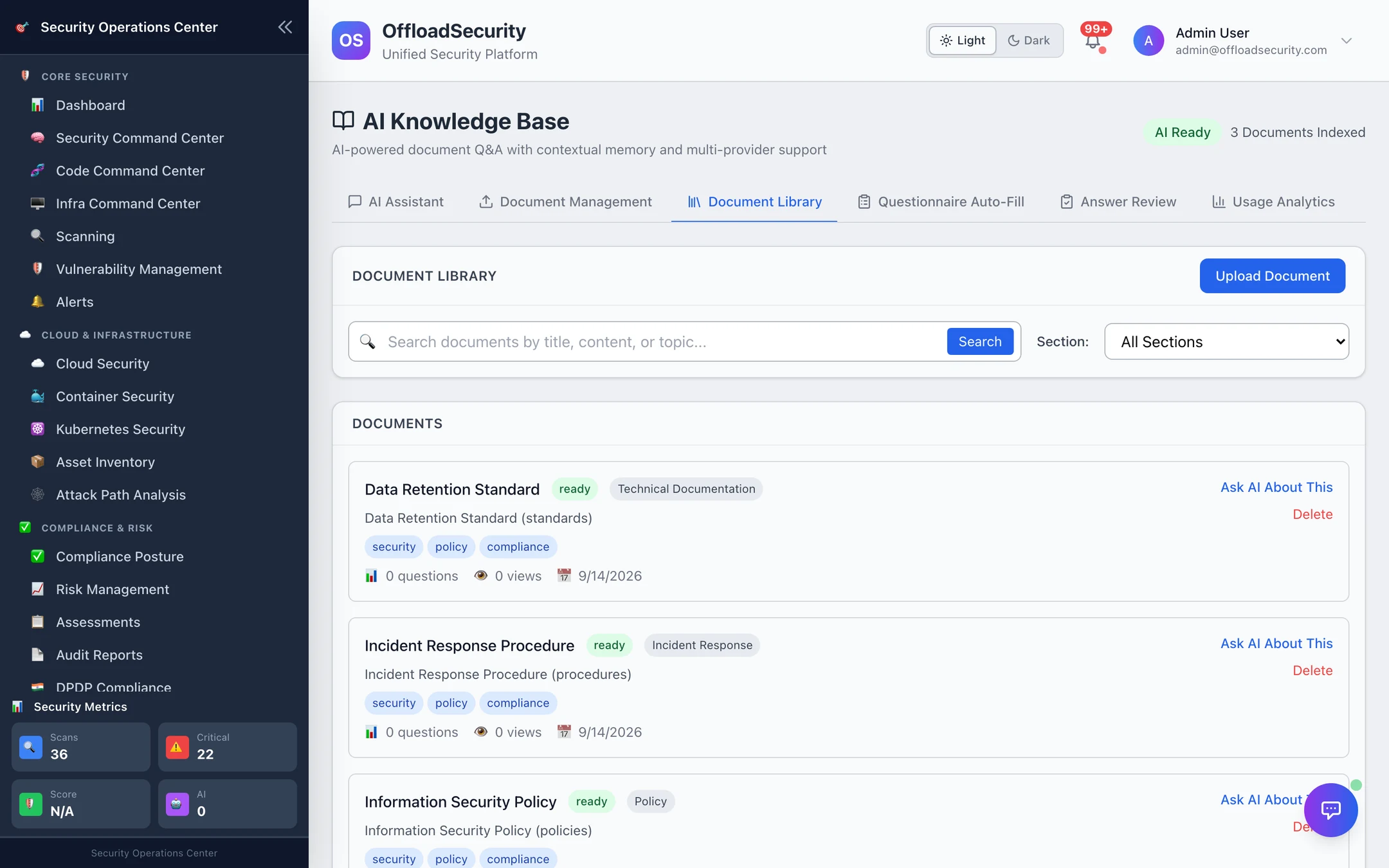
Document Library searches by title, content or topic, filters by section, and shows per document how many questions it has answered and how often it was viewed. Ask AI About This opens the assistant scoped to that document. Documents are team-scoped and sensitivity is metadata for your own handling rules — every member of the team can read the library.
AI Assistant
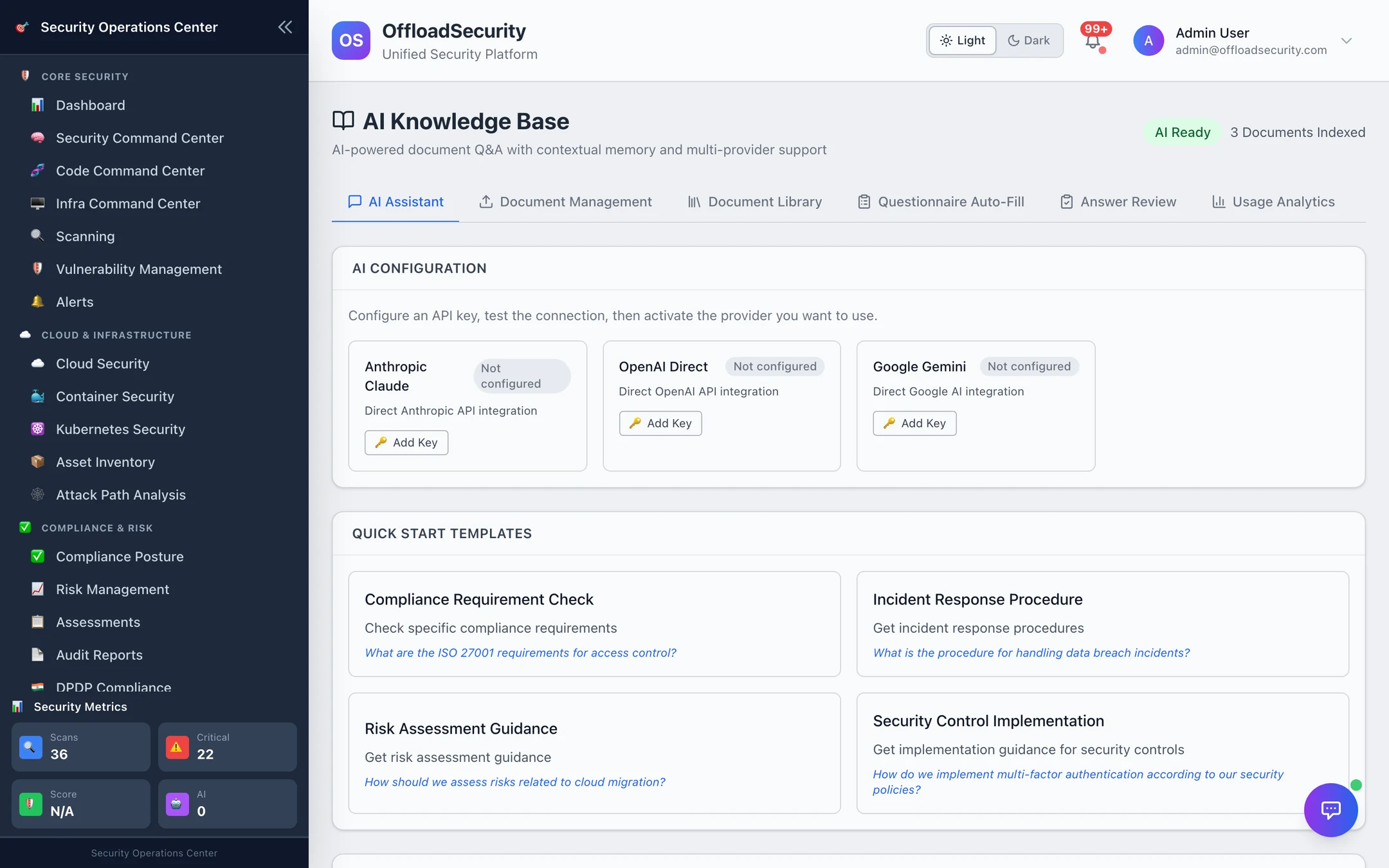
Ask in plain language and the assistant retrieves the most relevant chunks across your documents, answers from them, and returns the sources it used with a confidence level — high (85–100 %), medium (60–84 %) or low. Quick-start templates cover the common shapes: a compliance requirement check, an incident-response procedure, risk-assessment guidance, how a control is implemented. Thumbs up / down on an answer is recorded with the question for review.
The same tab hosts AI Configuration — the team's providers for every AI feature on the platform (Anthropic, OpenAI, Google: Add Key → Test → Activate). See AI Assistant for the full picture.
Document retrieval uses OpenAI embeddings (text-embedding-3-small). With only an Anthropic or Google key configured, uploads still index and the library works, but questions and questionnaire fills report that retrieval is unavailable rather than guessing — an honest error, not a low-confidence answer. Configure an OpenAI key alongside your preferred answering model.
Questionnaire auto-fill
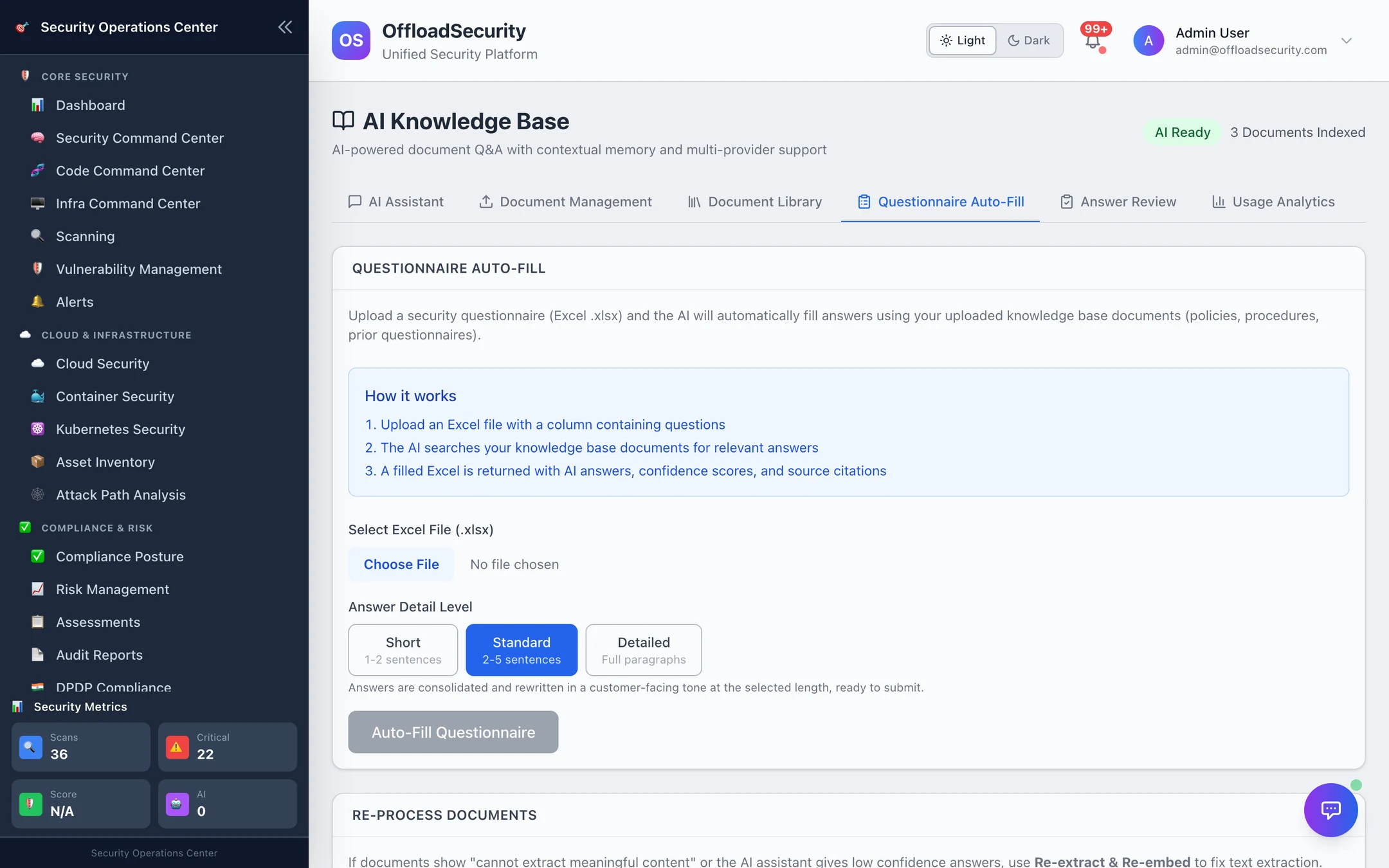
Upload the security questionnaire you received as Excel (.xlsx). The platform detects the question column, answers each question from your documents (and from the answer bank, below), writes the answers, confidence and source citations back into the sheet, and returns the filled file. Answer detail level — short (1–2 sentences), standard (2–5), detailed (full paragraphs) — sets the length; answers are consolidated and rewritten in a customer-facing tone at that length (refinement is on by default; the per-team word limits are adjustable over the API).
Answer review and the answer bank
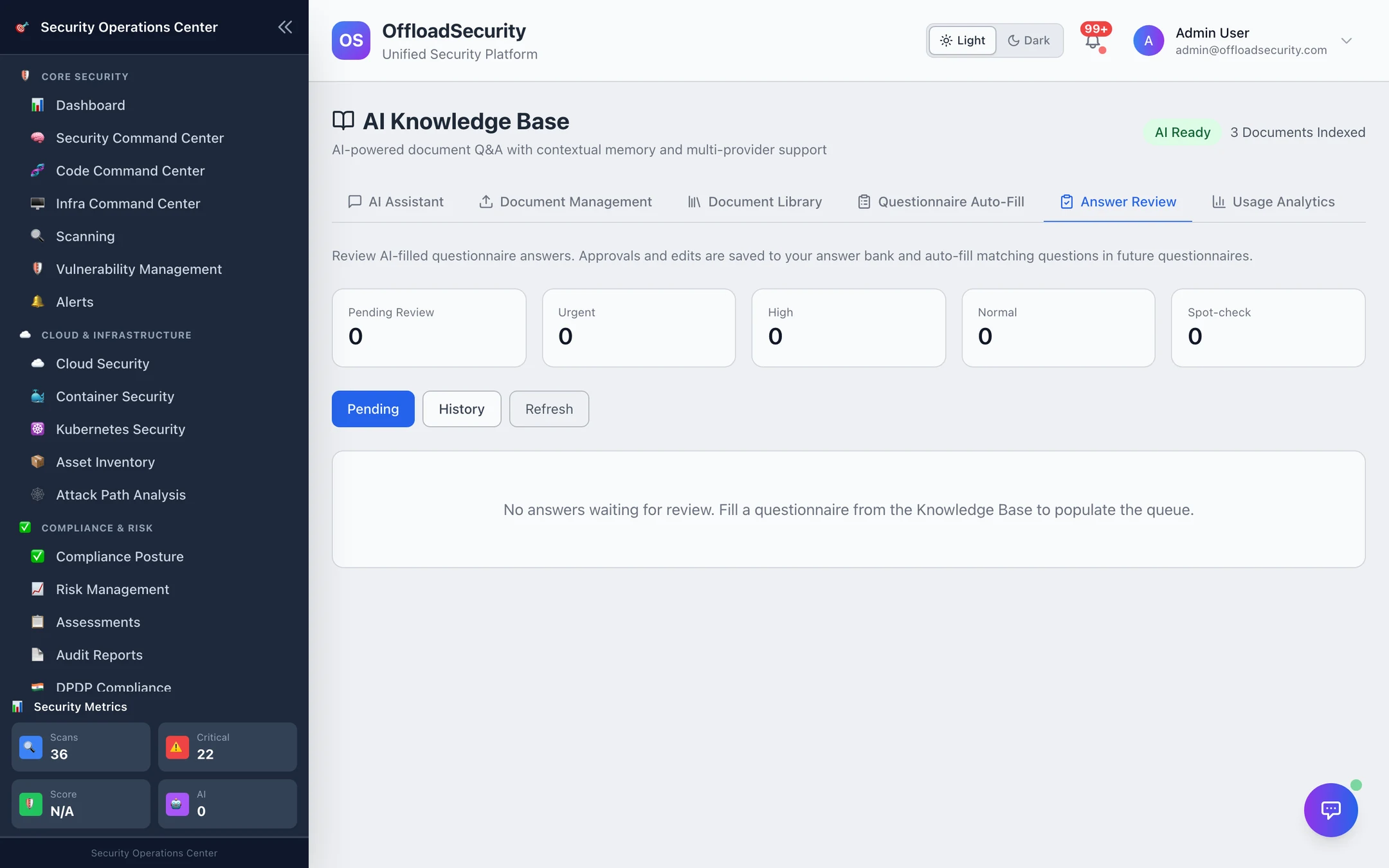
Every filled answer is queued for a person to approve, edit or reject, prioritised so the queue is worked in the right order:
| Priority | When |
|---|---|
| Urgent | The filler flagged the answer as needing review |
| High | Confidence below 50 %, or the answer came from the platform's knowledge rather than your documents |
| Normal | Everything else answered from your documents |
| Spot-check (low) | The answer was auto-filled from the bank — approved once already |
Approved and edited answers are written to the team's question bank; the next questionnaire that asks a semantically matching question is filled from the bank first. That loop is what turns the third questionnaire of the quarter into a review job rather than a writing job.
Usage analytics
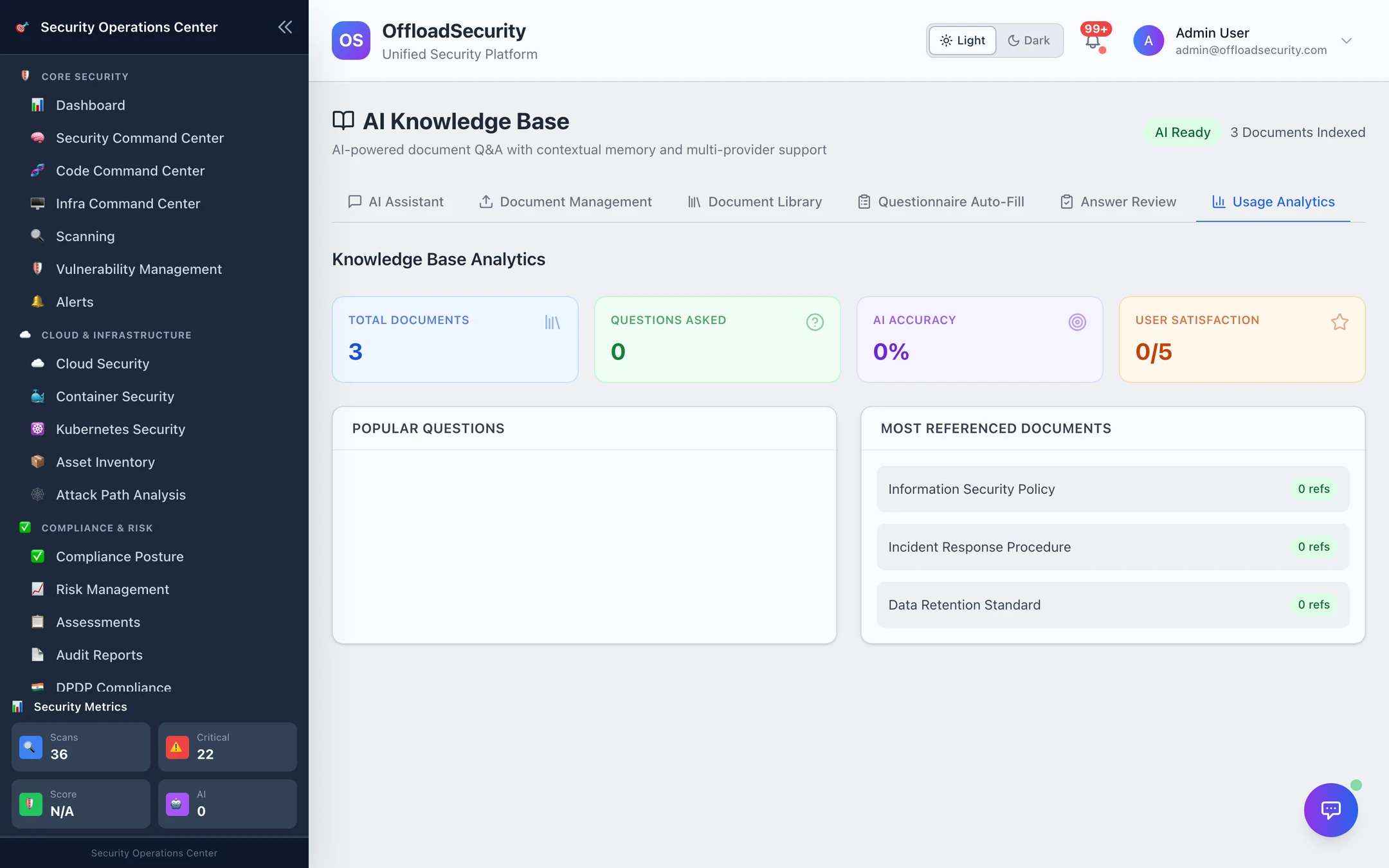
Documents, questions asked (today / week / month), AI accuracy (the average confidence of the answers given), user satisfaction (1–5, from answer feedback), the most-asked questions and the most-referenced documents — a plain view of whether the library is answering what people actually ask, and which document to write next.
Uploading and deleting documents, asking questions, filling questionnaires and working the review queue need Manage Assessments. The library, analytics and templates are readable by any team member.
Related
- AI Assistant — provider configuration and the assistant that lives on every page.
- Assessments — the SCF-based auto-fill for framework assessments is a different mechanism and works without a provider.
- AI Data & Privacy — what leaves the platform when a question is asked.