Platform Administration
Each deployment of Offload Security — a SaaS tenant or an on-premises install — has one platform administrator: the first account created when the platform was set up. It is not a team role. A team Admin governs one team; the platform administrator governs the deployment, sees across every team, and is the break-glass account when single sign-on is enforced.
Where: account menu → Platform Setup (any Admin); left navigation → Management → Client Menu Settings, User Activity (platform administrator only).
What the platform administrator can do
| Capability | Team Admin | Platform administrator |
|---|---|---|
| Everything inside their own teams | ✓ | ✓ |
| Read the audit trail across all teams; export all of it | ✓ | |
| See every account, live session and login attempt; sign sessions out; issue password resets | ✓ | |
| Rerun Platform Setup (connectivity, keys, storage, platform URL, SMTP) | ✓ (Admin role) | ✓ |
| Choose which menu sections the deployment's users see | ✓ | |
Read the authentication event log (/api/auth/audit-log) | ✓ | |
| Sign in with a password while SSO is enforced | ✓ | |
List users of the deployment (/api/auth/users) | Admin role | ✓ |
The flag (is_platform_admin) is set once, on the first registration; it is not assignable from the UI. Protect this account accordingly: strong password, MFA, and a recorded owner.
Platform Setup
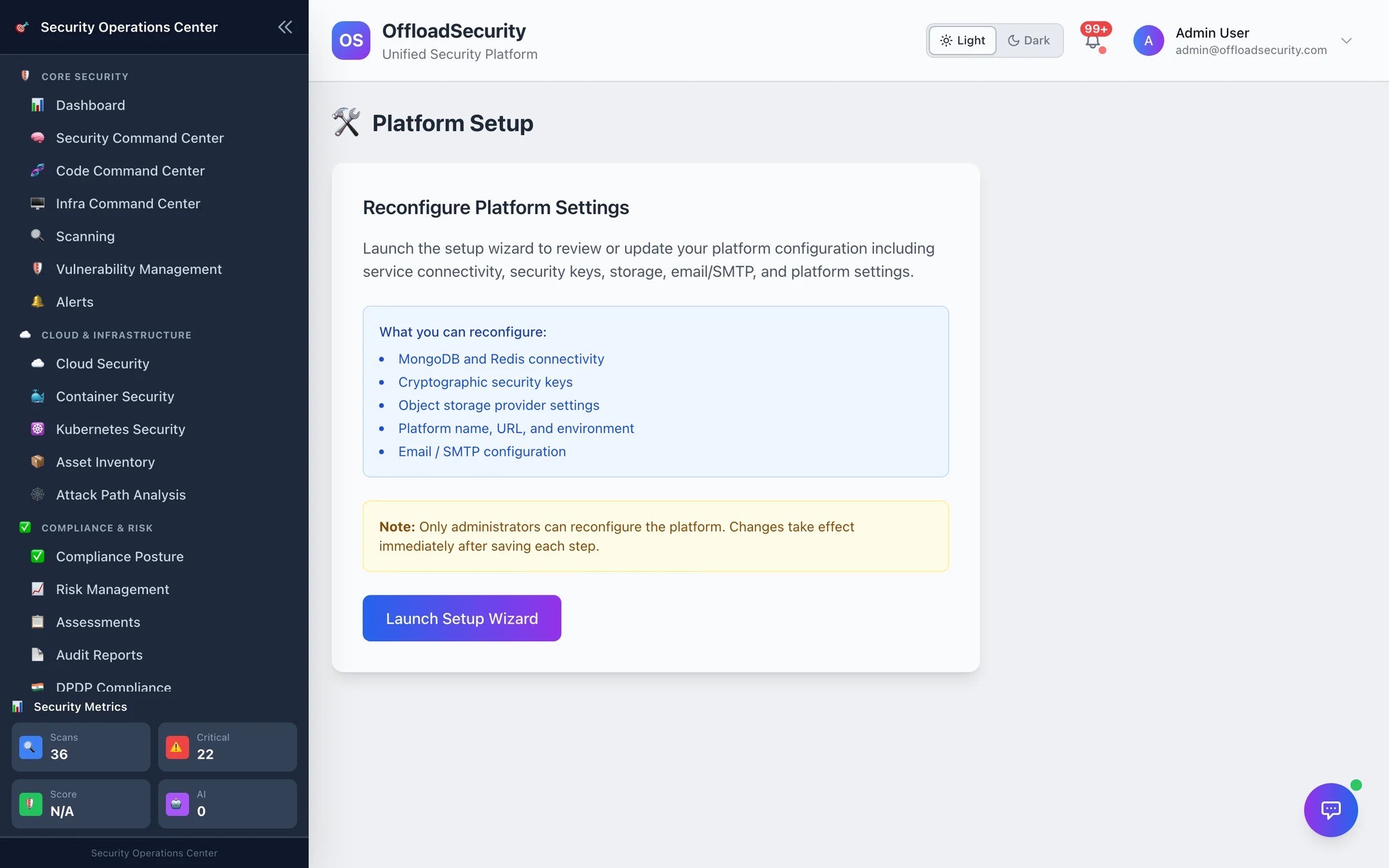
The setup wizard that ran on first boot can be relaunched at any time by an account with the Admin role. Its steps: Welcome → Service Connectivity (MongoDB, Redis) → Security Keys (generated secrets for sessions, credential encryption, webhooks) → Storage (object storage for evidence and reports) → Platform Settings (name, public URL, environment) → Email / SMTP → Admin Account (first run only) → Complete. Each step validates before saving — the SMTP step authenticates to the server, the storage step writes and reads a test object — and changes apply immediately.
SMTP set here is the platform mail server: it sends invitations, password-reset links and platform notifications, and is the fallback when a team has not connected its own under Integrations. The deployment environment (SMTP_HOST) still overrides both.
Client Menu Settings
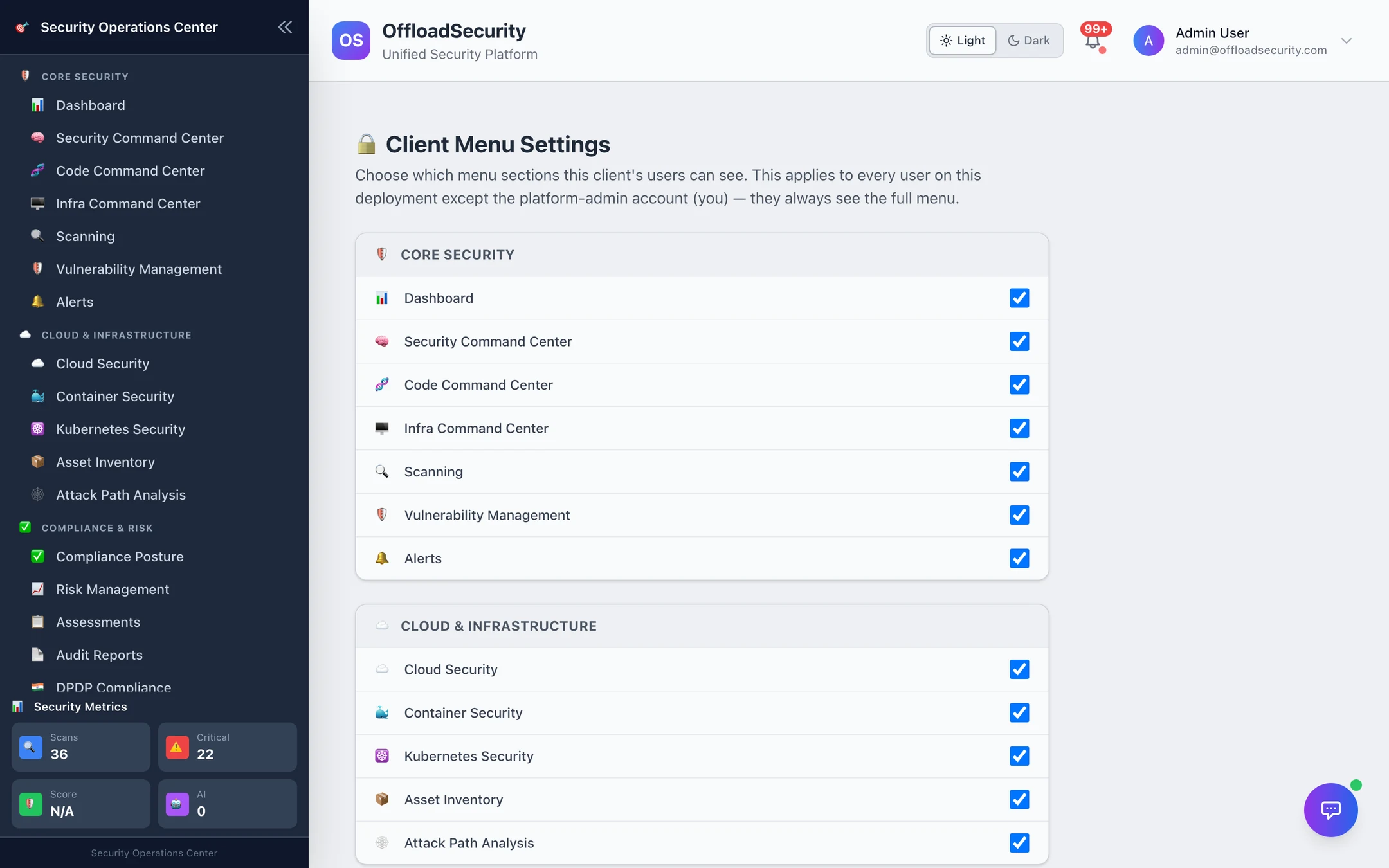
Choose which sections of the left navigation the deployment's users see. Untick a module a customer has not licensed or a team is not ready for and it disappears from the menu for everyone — except the platform administrator, who always sees the full menu. This is a presentation control: it does not change permissions, and the API behind a hidden section still enforces roles as usual. Settings are stored per deployment (PUT /api/admin/menu-config; the sidebar reads GET /api/menu-config).
User Activity
Accounts, presence, live sessions and login history for the whole deployment, with Sign out, Reset password and Require change per user — described on Audit Trail & User Activity.
Related
- Signing In & Sessions — the SSO-enforced break-glass rule and the registration bootstrap.
- Production configuration — environment variables an operator sets outside the wizard.
- On-Premises — where the deployment itself lives.