Roles, Teams & API Keys
Everything in the platform belongs to a team, and what a person may do inside a team is decided by one role. Automation gets the same treatment through API keys that act as the person who created them, narrowed to a set of scopes. This page is the reference for all three.
Where: account menu → Team Management and API Keys.
The role catalog
Every member holds exactly one of six roles per team. Admin holds every permission; the others are fixed sets (roles are not editable):
| Permission | Security Manager | Security Analyst | Compliance Officer | Auditor | Viewer |
|---|---|---|---|---|---|
| View dashboard · scans · IaC scans · risks · assessments · reports · alerts · cloud accounts | ✓ | ✓ | ✓ | ✓ | ✓ |
| View triage | ✓ | ✓ | |||
| Export reports | ✓ | ✓ | ✓ | ✓ | |
| View executive dashboard | ✓ | ✓ | |||
| View integrations · remediations | ✓ | ✓ | ✓ | ✓ | |
| View threat intelligence · container security | ✓ | ✓ | ✓ | ||
| View cloud credentials | ✓ | ✓ | |||
| Create cloud scans · run scans · run IaC scans | ✓ | ✓ | |||
| Create and manage risks | ✓ | ✓ | |||
| Manage assessments | ✓ | ✓ | ✓ | ||
| Manage triage | ✓ | ||||
| Acknowledge alerts | ✓ | ✓ | |||
| Run AI agents | ✓ | ✓ | ✓ | ||
| Manage cloud accounts · scans · integrations · threat intelligence · container security · alerts | ✓ | ||||
| Approve and execute remediations · execute AI remediation | ✓ | ||||
| Manage team · manage users | ✓ |
Two things only an Admin can do: invite or promote someone to Admin, and read the whole team's audit trail (others see their own entries). A seventh role, Integration, is not assignable — it is the permission set an API key falls back to.
Permissions are checked on every request, in the API as well as the UI; a role that lacks a permission does not see the button and cannot call the endpoint.
Teams
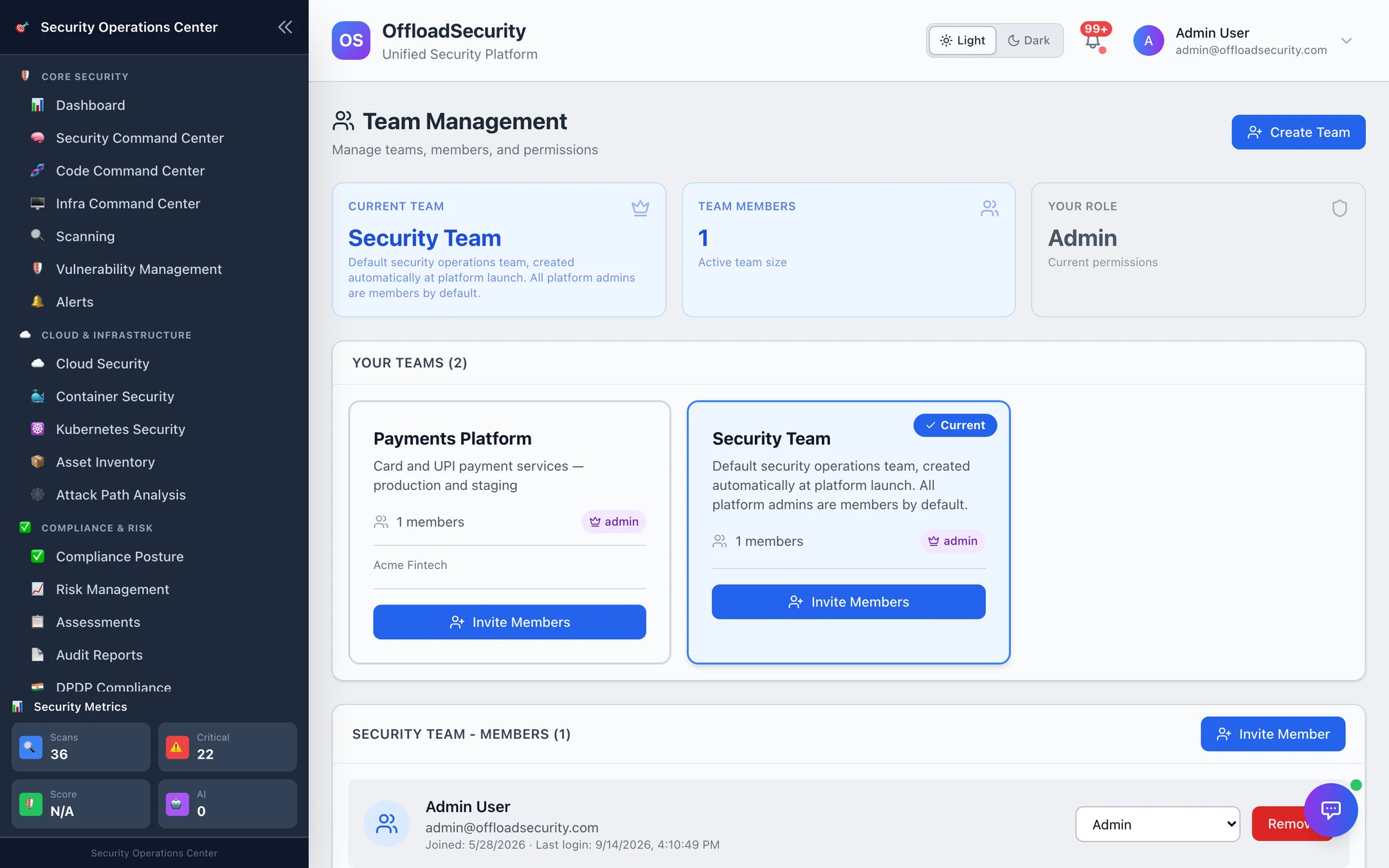
A team is the tenancy boundary: scans, findings, assets, risks, evidence, reports, integrations and API keys are stamped with the team that created them and read back only within it. A person can belong to several teams and works in one active team at a time.
- Create Team (Admin or Security Manager of your current team) makes a new team with you as its Admin. Name, description and organisation; a risk-appetite threshold and default compliance frameworks can be set on creation.
- Switch by selecting a team card. The session is re-issued for the new team, so every subsequent request — and every API key created afterwards — is scoped to it.
- Remove a member (Admin or Security Manager) revokes their access at once; their past actions stay in the audit trail.
Everything you create — a scan, a cloud account, an API key — belongs to the team that is active when you create it. The current team is shown at the top of Team Management and in the account menu.
Invite a teammate and assign a role
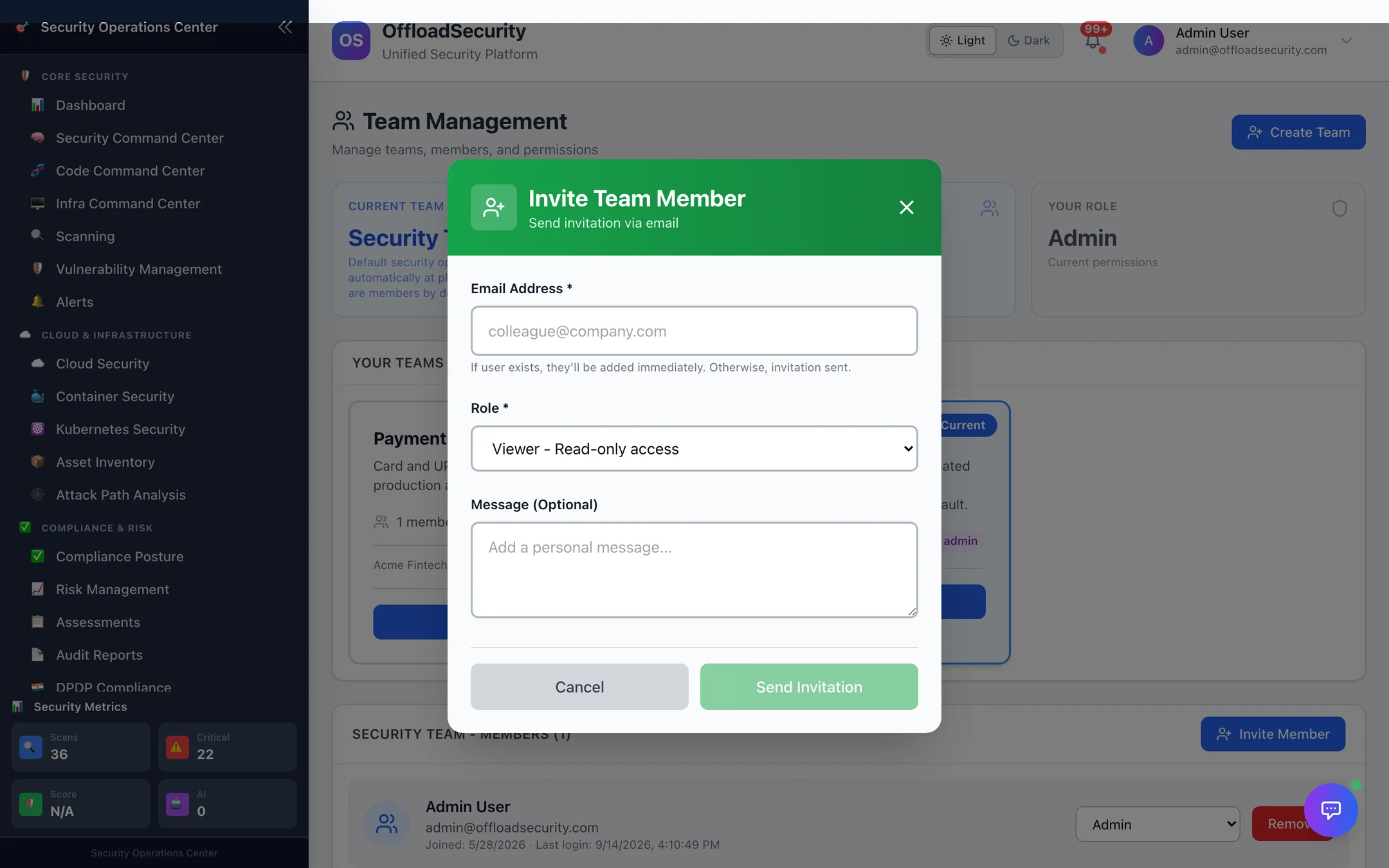
- Invite Member on the team card (Admin or Security Manager).
- Enter the email and choose a role. Only an Admin can choose Admin.
- Send Invitation. An existing user is added immediately; a new user receives a registration link bound to that email, valid for 7 days. Invitations are rate-limited to 20 per inviter per hour, and refused for addresses outside the deployment's allowed domain when one is set.
Change a role from the dropdown next to a member; it applies on their next request. Security Managers cannot promote anyone (including themselves) to Admin.
API keys for automation
Where: account menu → API Keys.
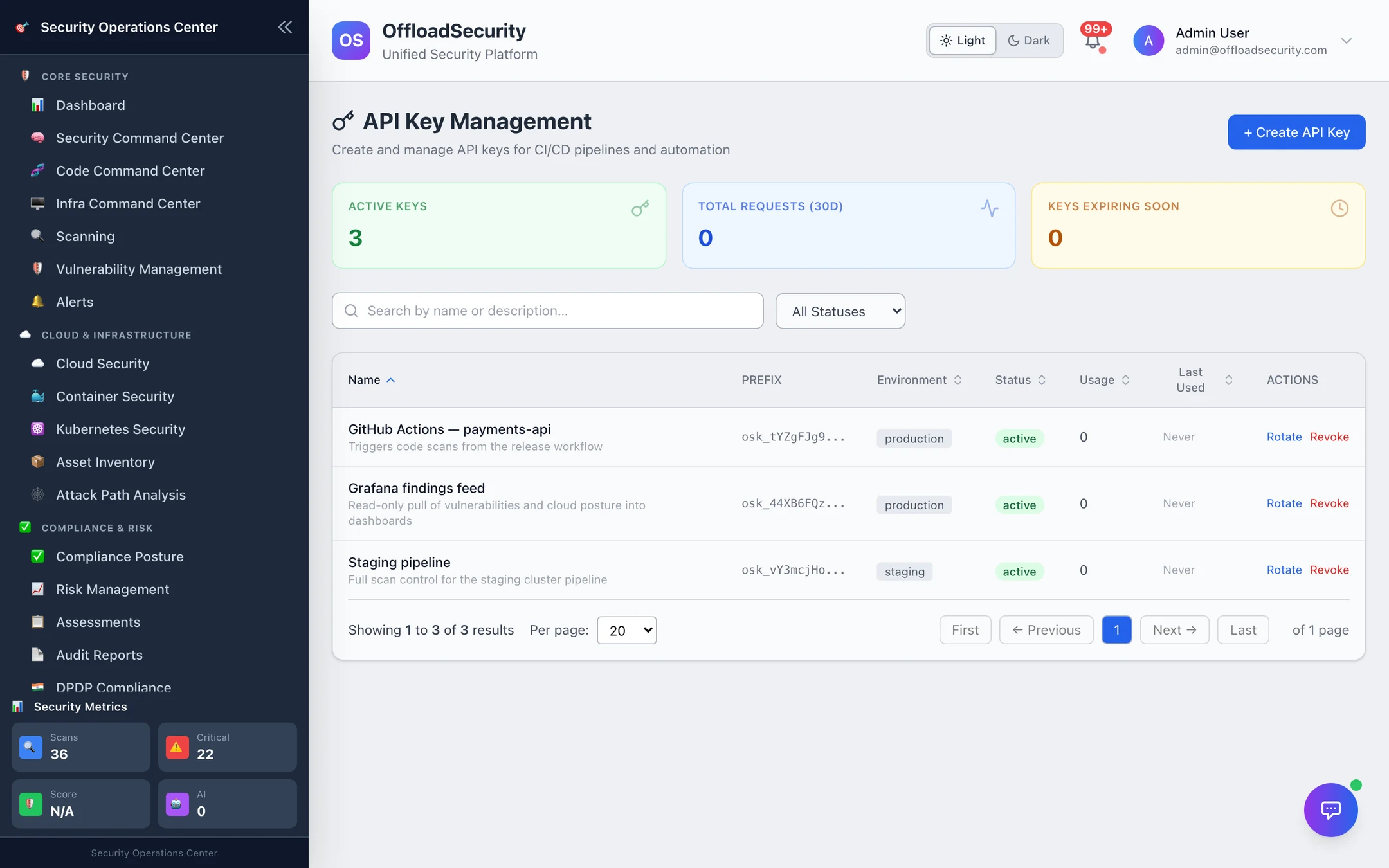
An API key is osk_ followed by 48 random characters. It authenticates as the user who created it, in the team that was active when it was created, and is further limited to its scopes — a session user implicitly has every scope, an API key only the ones it was given.
Create a key
| Field | Options |
|---|---|
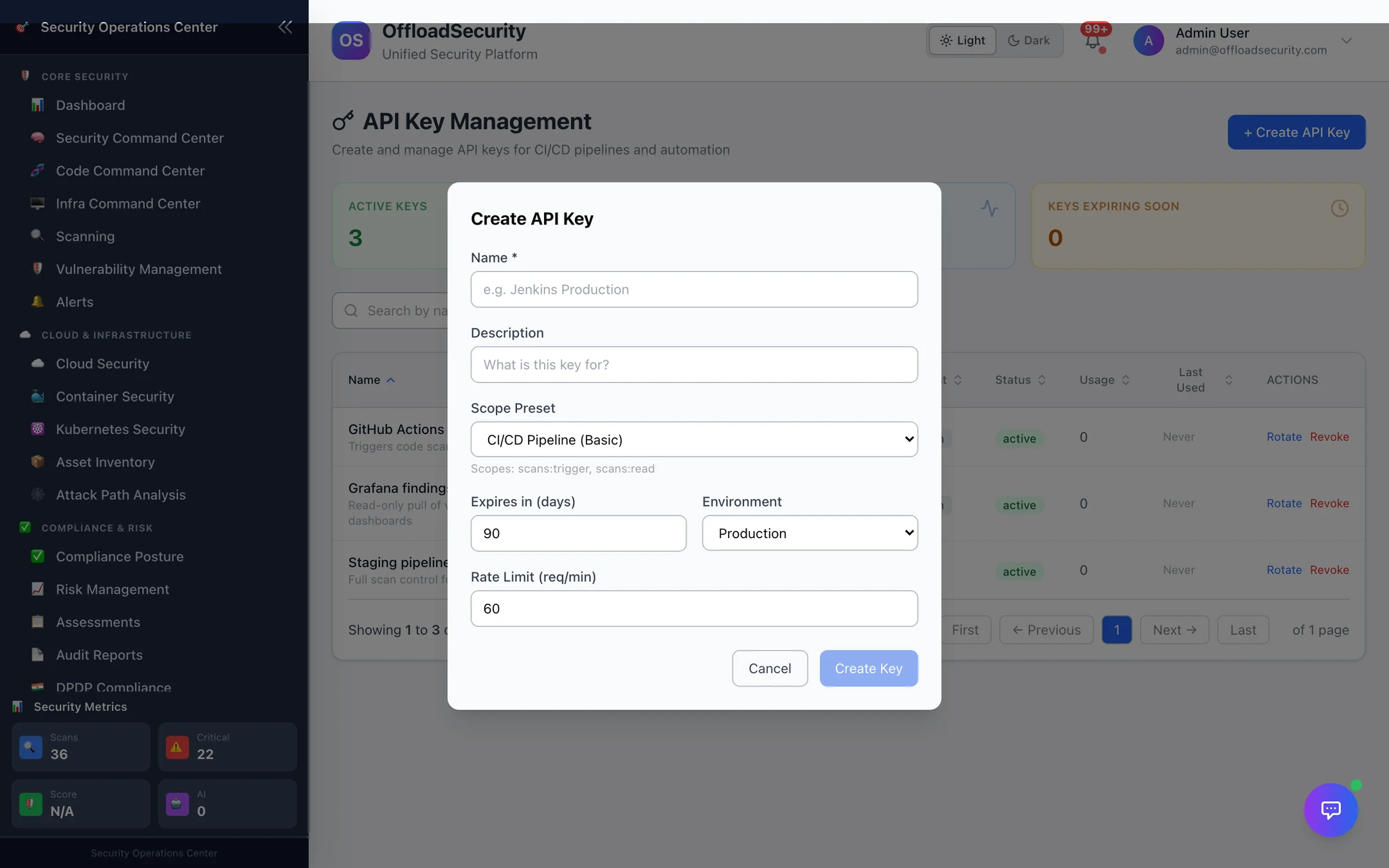
| Scope preset | CI/CD Pipeline (Basic) scans:trigger scans:read · CI/CD Pipeline (Full) + scans:manage vulnerabilities:read · Read Only scans vulnerabilities assessments cloud risks reports :read · Security Automation scans trigger/read/manage, vulnerabilities read/manage, cloud:read, reports read/generate · Full Access every scope — or pick scopes individually over the API |
| Scopes available | scans:trigger scans:read scans:manage · vulnerabilities:read vulnerabilities:manage · assessments:read assessments:manage · cloud:read cloud:manage · risks:read risks:manage · reports:read reports:generate · admin:keys admin:audit |
| Expires in | 90 days by default; 0 = never; 365 maximum |
| Environment | production · staging · development · ci — a label for your own tracking, and a bulk-revoke selector |
| Rate limit | Requests per minute for this key, 60 by default (1–600) |
| IP allowlist (API) | Up to 50 addresses or CIDRs; requests from elsewhere are refused |
The full key is shown once. Only a SHA-256 hash is stored; the list shows the prefix so you can tell keys apart.
There is no way to display a key again. Put it straight into your CI secret store; if it is lost, Rotate.
Use, rotate, revoke
- Send the key as
X-API-Key: osk_…. Endpoints accept a session or a key; a key is refused for any endpoint outside its scopes, its team, or its IP allowlist, and after its expiry. - Rotate issues a new key with the same scopes and keeps the old one working for a grace period — 48 hours by default, 0–168 over the API — so pipelines can be updated without downtime.
- Revoke disables a key immediately and permanently; a team admin can revoke several at once, and can see and revoke any key in the team (
/api/api-keys/admin/team-keys). - Usage — request count, last used, and a 30-day analytics view per key; the key audit log records creation, rotation, revocation and blocked requests.
- Each user may hold 25 active keys.
Related
- Signing In & Sessions — how users and SSO accounts get their role.
- Audit Trail & User Activity — who invited whom, who changed a role, which key called what.
- API & Automation · Authentication — using keys from pipelines.