Signing In & Sessions
Two ways in — a password (with MFA on top) or your identity provider — and one kind of session behind both. This page is what a user needs to sign in and stay safe, and what an administrator needs to set the deployment's policy.
Password sign-in
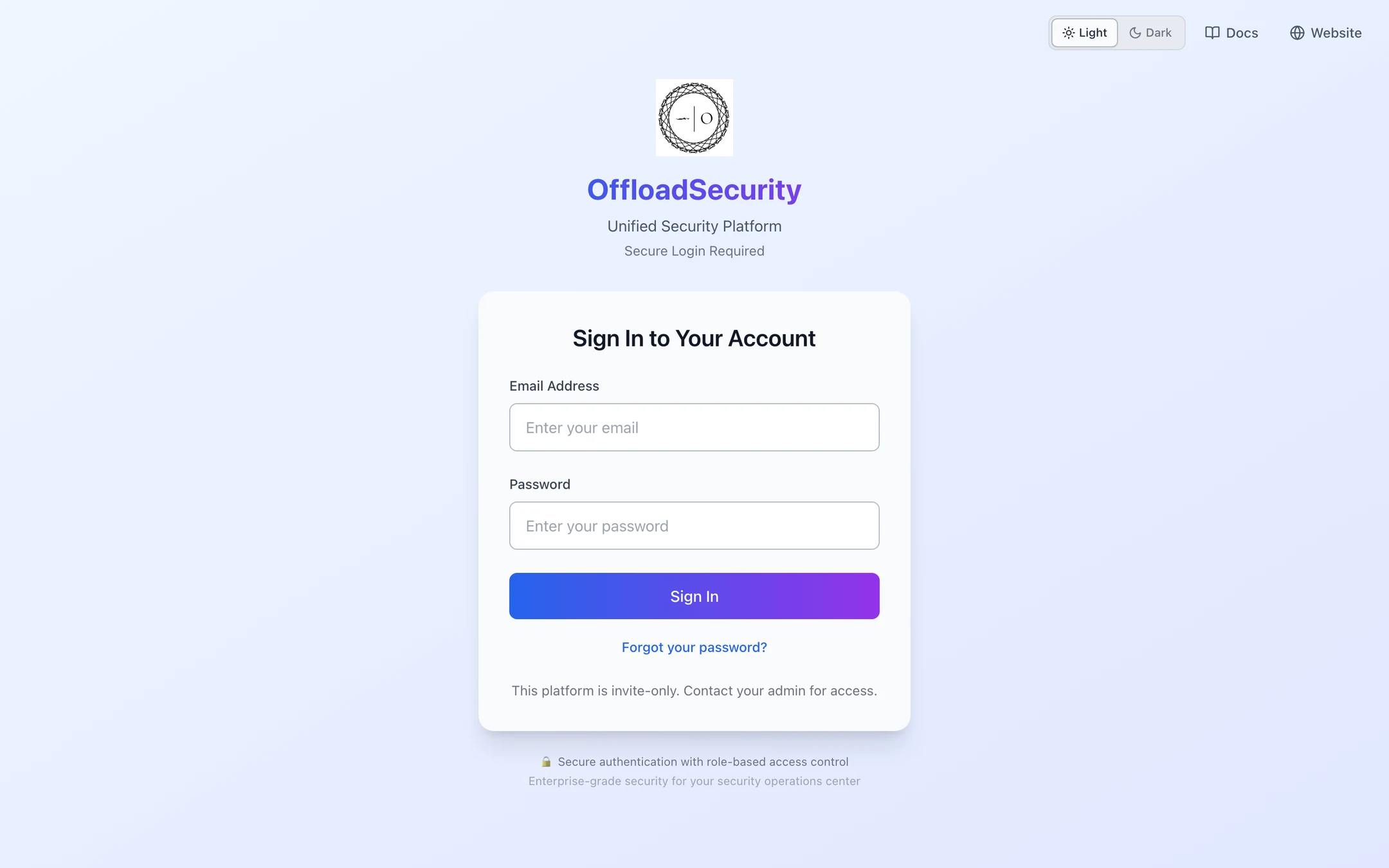
| Rule | Value |
|---|---|
| Password | At least 12 characters with an uppercase letter, a lowercase letter, a digit and a special character |
| Storage | PBKDF2-SHA256, 600,000 iterations, a unique salt per user — never reversible |
| Lockout | 5 failed attempts lock the account for 15 minutes; the lock clears itself |
| Enumeration | A wrong email and a wrong password take the same time and give the same answer |
| First sign-in | An account created by an administrator with a temporary password is sent to Change password before anything else |
Multi-factor authentication
Where: account menu → Multi-Factor Auth.
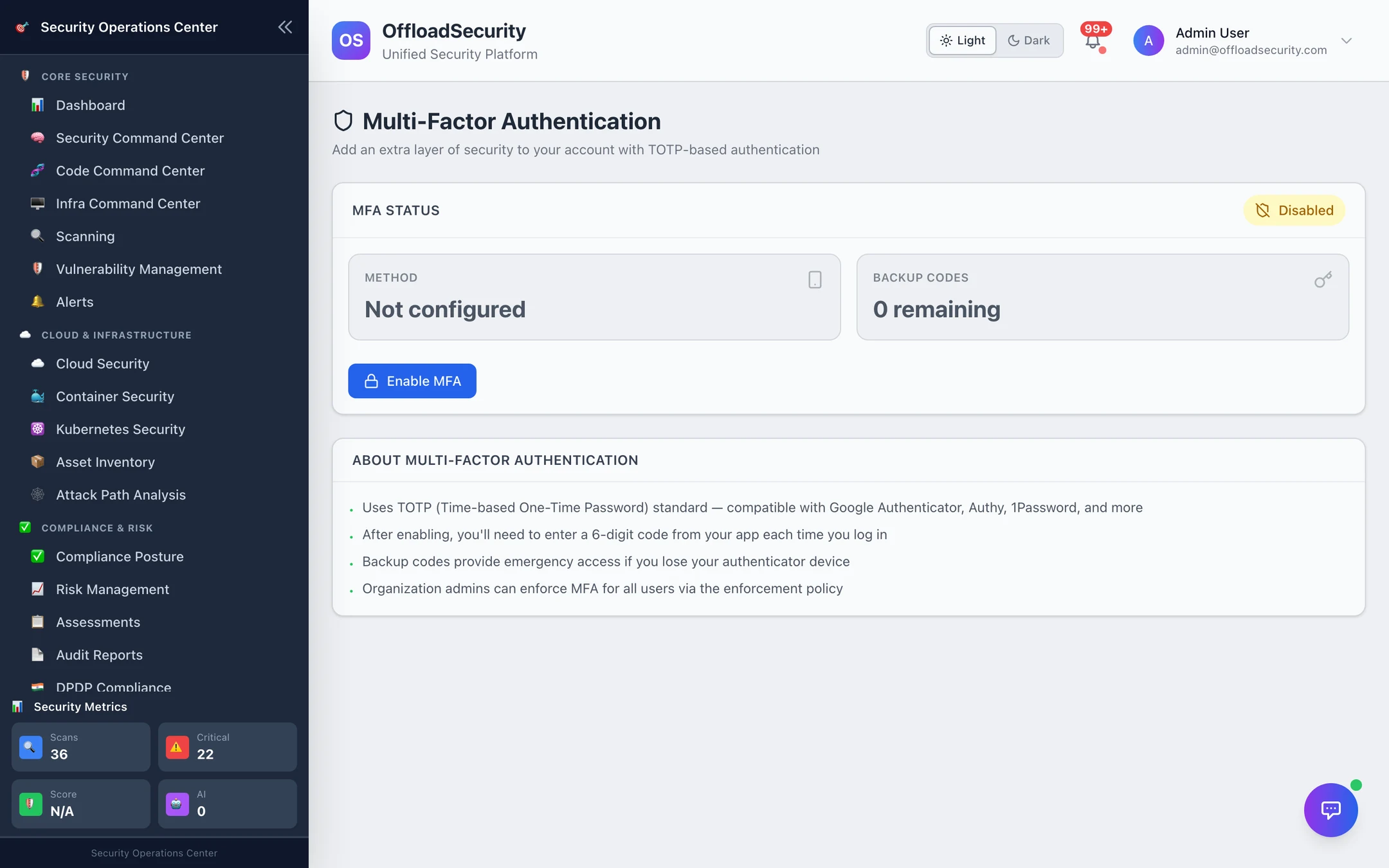
- Enable MFA shows a QR code (and the key, for manual entry) for any TOTP app — Google Authenticator, Authy, 1Password, Microsoft Authenticator.
- Enter the 6-digit code from the app to confirm. MFA is on from the next sign-in.
- Save the 10 backup codes shown once; each works exactly once in place of a code. Regenerate replaces the set.
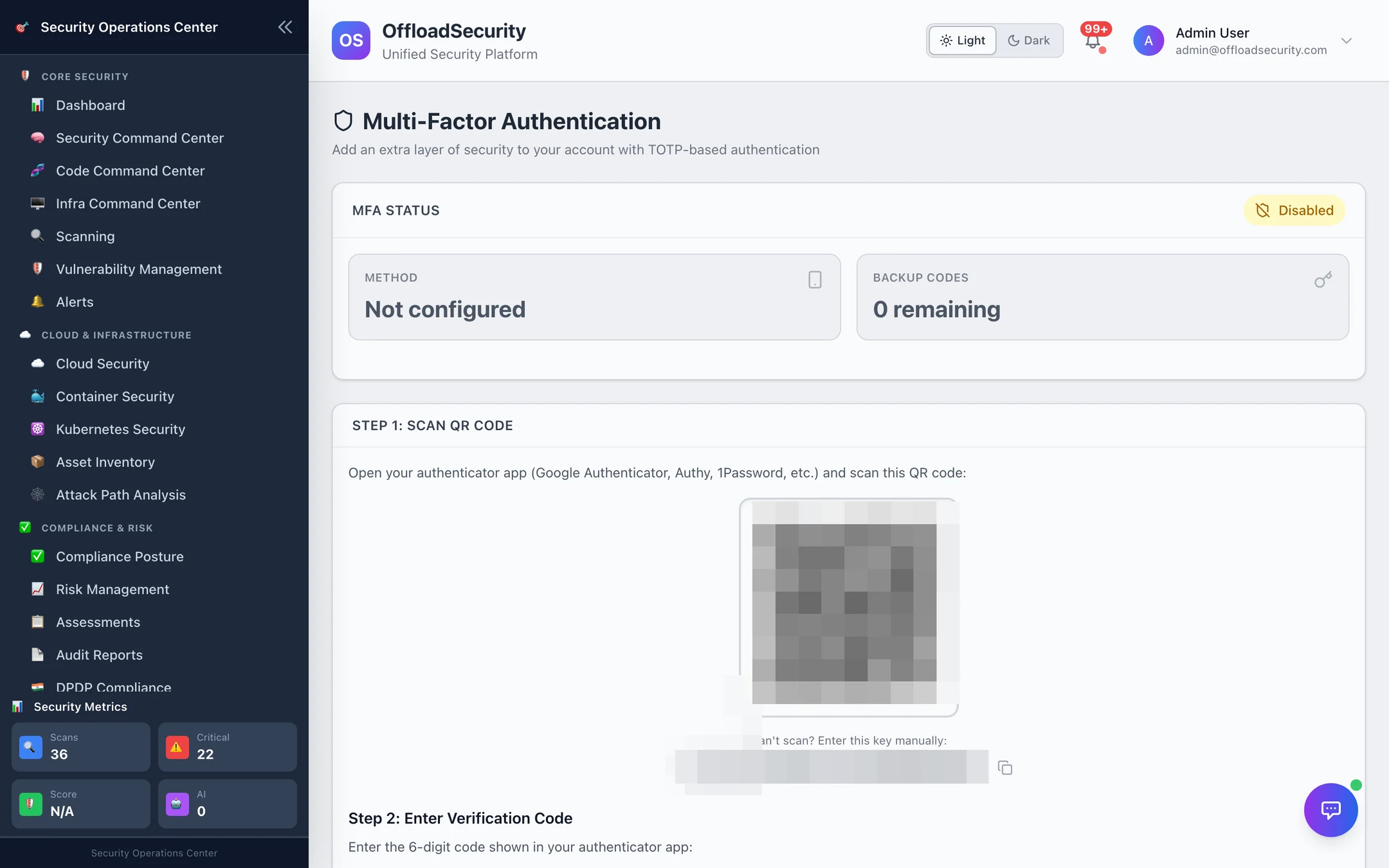
With MFA on, a correct password returns an MFA challenge rather than a session; the code (or a backup code) completes the sign-in within five minutes. Disable asks for your password, not a code.
A team admin can turn on MFA enforcement for the deployment (POST /api/auth/mfa/enforce). Sign-in then flags accounts without MFA (mfa_setup_required) and the MFA page shows the policy; it is a prompt, not a hard block on the password sign-in itself. When SSO is used and the identity provider already performs MFA, the operator can set OIDC_TRUST_IDP_MFA=true so SSO users are not asked twice.
Single sign-on (OIDC)
The platform is an OpenID Connect relying party (authorization code + PKCE) for any compliant provider — Okta, Microsoft Entra ID, Google Workspace, Keycloak, Auth0. SAML-only providers are supported through an OIDC broker such as Keycloak. The operator configures it in the deployment environment:
| Variable | Purpose |
|---|---|
OIDC_ENABLED · OIDC_ISSUER · OIDC_CLIENT_ID · OIDC_CLIENT_SECRET | Turn SSO on and point it at the provider (discovery from the issuer URL) |
OIDC_PROVIDER_NAME | The label on the Sign in with … button |
OIDC_SCOPES | openid email profile by default |
OIDC_ENFORCED | Refuse password sign-in for everyone except the platform administrator (the break-glass account); the login page hides the password form |
OIDC_AUTO_PROVISION · OIDC_DEFAULT_ROLE | Create an account on first SSO sign-in (on by default) with this role (viewer by default) |
OIDC_ALLOWED_EMAIL_DOMAINS | Only provision users from these domains; the deployment's registration domain restriction is honoured too |
OIDC_GROUPS_CLAIM · OIDC_GROUP_ROLE_MAPPING | Map identity-provider groups to platform roles on every sign-in — a JSON object, e.g. {"sec-admins":"admin","sec-analysts":"security_analyst"}; a mapping naming an unknown role disables group sync rather than mass-demoting |
OIDC_TRUST_IDP_MFA | Accept the provider's MFA instead of the platform's |
PUBLIC_APP_URL | The redirect base; the callback is /api/auth/sso/callback |
The flow ends on the platform: after the provider's callback the platform mints an ordinary session and hands it to the browser through a single-use code in the URL fragment (never a query string, so it never reaches proxies or logs). SSO sign-ins are audited as user.sso_login. GET /api/auth/sso/status tells the login page whether SSO is enabled, enforced and what to call it.
Sessions
- A session is an opaque random token stored hashed server-side (Redis, with MongoDB as fallback); the browser holds the token and sends it as
Authorization: Bearer. - Sessions last 24 hours from sign-in. There is no silent extension — sign in again after a day.
- A user may hold 5 sessions at once (laptop, phone, a second browser); the oldest is evicted when a sixth is created.
- Sign Out deletes the session server-side. The platform administrator can sign out any session from User Activity; switching teams re-issues the session bound to the new team.
Changing and resetting passwords
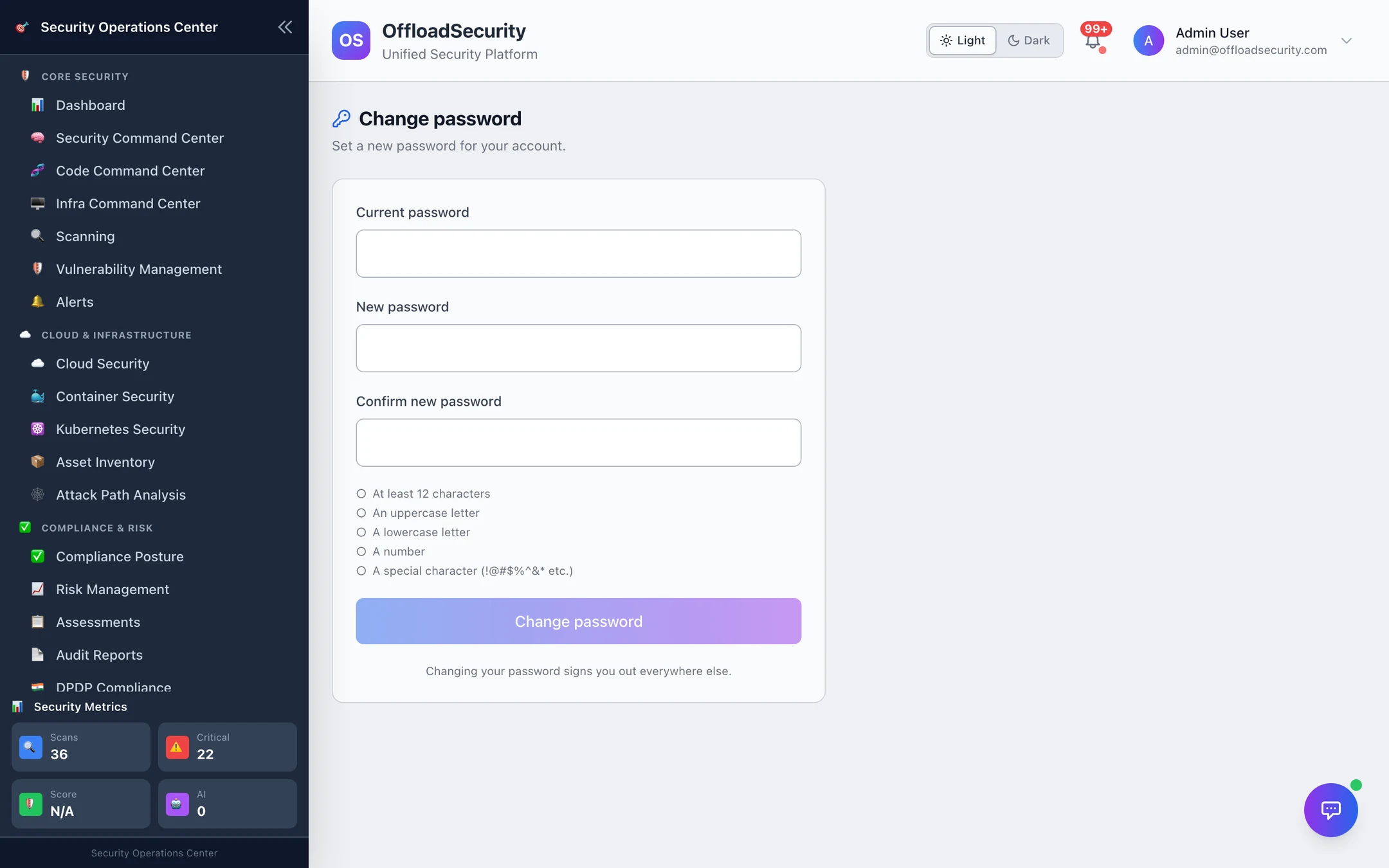
- Change password (account menu) needs the current password and a new one meeting the rules; every other session of yours is ended.
- Forgot your password? on the login page emails a single-use link valid for 30 minutes — always with the same "if an account exists…" answer. It needs the deployment's SMTP to be configured.
- Without SMTP, or for a locked-out colleague, the platform administrator issues a reset link from User Activity (Reset password, valid 24 hours) or flags the account with Require change so the next sign-in goes straight to Change password.
Registration and invitations
The first account on a new deployment registers itself and becomes the platform administrator; from then on registration is invitation-only. An invitation carries the team and role, is bound to the invited email, expires after 7 days (INVITATION_EXPIRY_DAYS) and is stored hashed. A team admin may send 20 invitations an hour (INVITE_RATE_LIMIT_COUNT / …_WINDOW_SECONDS). Where the deployment set an allowed email domain at bootstrap, invitations and SSO provisioning outside it are refused. See Roles, Teams & API Keys.
Related
- Roles, Teams & API Keys — what a signed-in user can do.
- Audit Trail & User Activity — every sign-in, MFA change and session in the record.
- Platform Security API — the endpoints behind this page.