Cloud Asset Inventory
Asset Inventory is the searchable catalog of everything you run in the cloud. Every scan's discovery jobs feed it, so once accounts are connected it fills itself — across AWS, GCP and Azure, every configured region, with no agents to install. It is also the foundation the rest of Cloud Security builds on: public-exposure and encryption summaries, and Attack Path Analysis, all read from the same inventory.
Where: left navigation → Asset Inventory (under Cloud & Infrastructure).
What it does
-
Multi-cloud discovery — resources from all connected accounts, discovered with the same read-only credentials used for scanning.
-
One normalized shape — name, type, service, account, project, region, status, tags and metadata, whichever cloud they came from, so AWS, GCP and Azure sit side by side in one table.
-
Categories — every resource lands in a functional bucket for reporting:
Category Examples Compute EC2, Compute Engine, Azure VMs, ECS/EKS/GKE/AKS nodes Storage S3, EBS/EFS, Cloud Storage, Persistent Disk, Storage Accounts, Managed Disks Database RDS, DynamoDB, ElastiCache, Cloud SQL, Firestore, Azure SQL, Cosmos DB Network VPCs, security groups, load balancers, CloudFront, VNets, NSGs Security IAM, KMS, Certificate Manager, Key Vault, Entra ID Serverless Lambda, API Gateway, Cloud Functions, Cloud Run, Azure Functions Containers ECR, Artifact Registry, ACR, ECS/EKS/GKE clusters Management CloudFormation, Systems Manager, Deployment Manager, ARM -
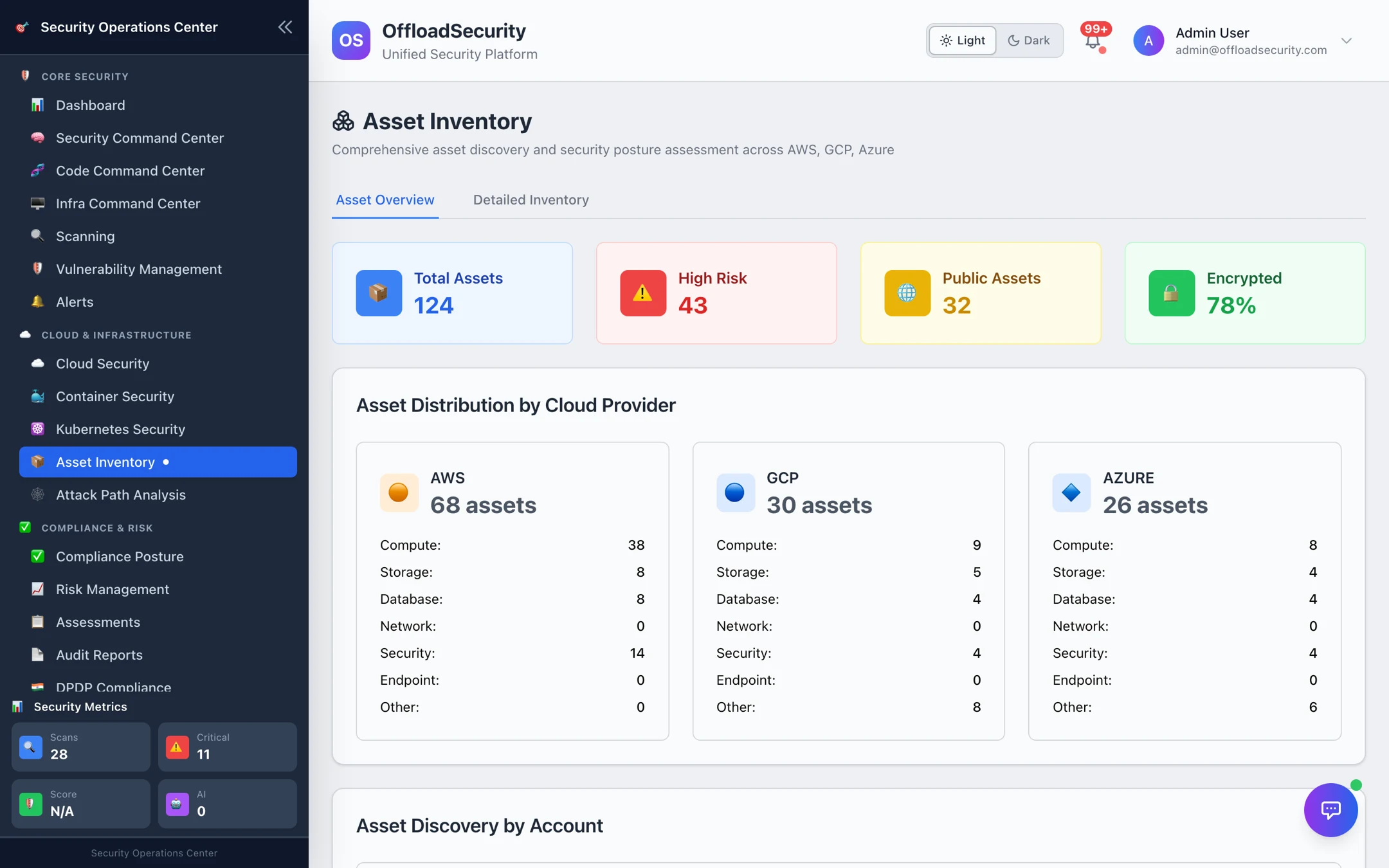
Security at a glance — headline counts of total assets, high-risk assets, public assets and the share that is encrypted.
-
Change tracking — each asset records when it was first discovered and last seen. Re-discovery updates assets in place (no duplicates) and refreshes last seen, so you can tell what is new and what may have gone away.
-
Export — download the current view as CSV.
Asset Overview
The Asset Overview tab summarises your estate: the four headline tiles, Asset Distribution by Cloud Provider (per-provider counts by category) and Asset Discovery by Account — one row per connected account with its asset count and last discovery time, plus Refresh Assets to re-run discovery for that account.
Discovery runs as a background job and typically finishes in a few minutes; the tiles and table update when it completes. You do not normally need to refresh by hand — every scheduled scan refreshes the inventory.
Detailed Inventory
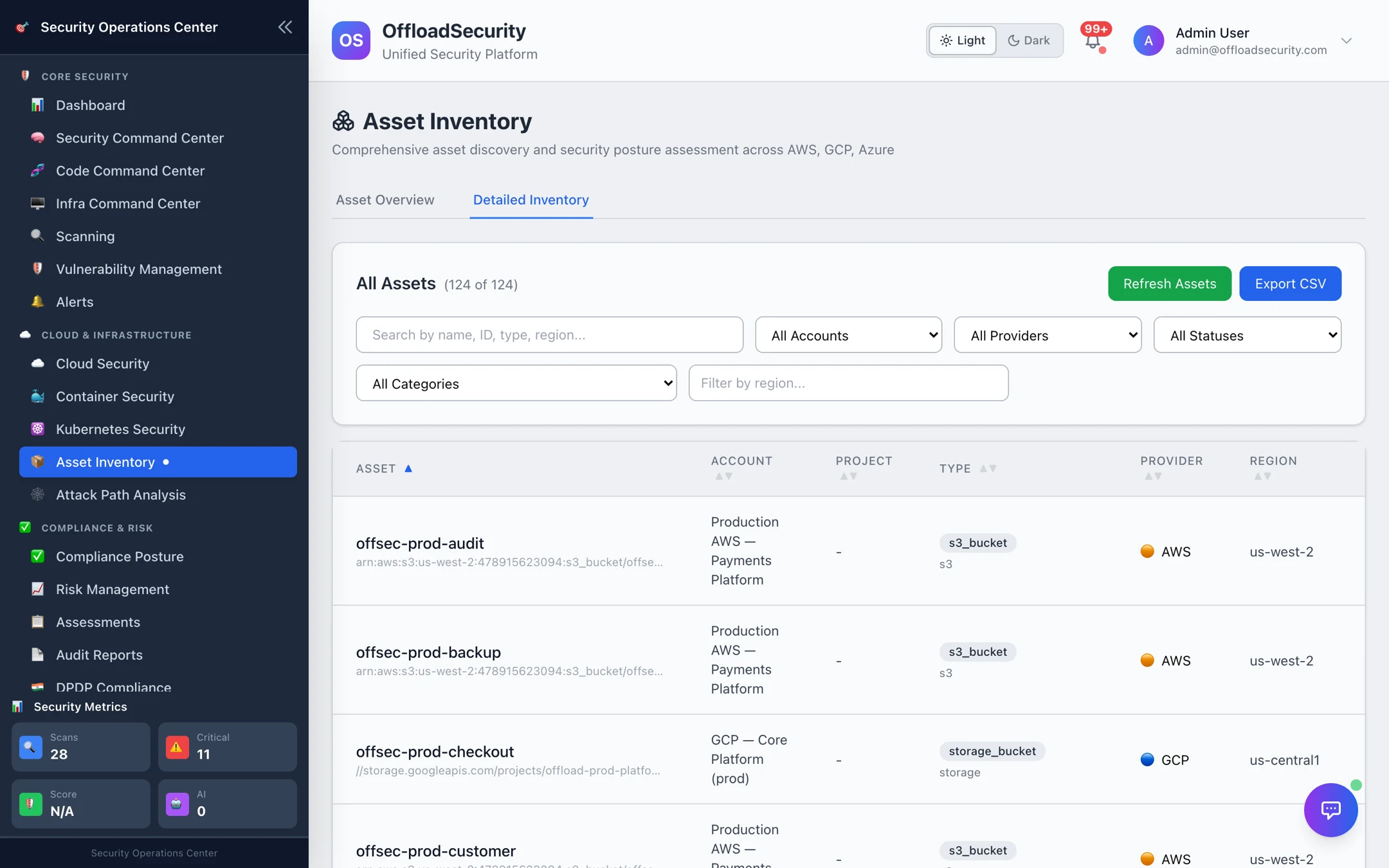
Switch to Detailed Inventory for the full list. The table shows Asset (name and native ID), Account, Project, Type, Provider, Region, Status and Last Seen; every column sorts.
Narrow it with search (name, native ID, type, region or account), and the Account, Provider, Status (running, stopped, active, inactive), Category and Region filters. Select a row to expand it: native ID, service, discovery method, Discovered At, Last Seen, the cloud tags, and the raw metadata the provider returned (for example instance type, VPC, public and private IPs).
Export CSV downloads the rows currently shown, with the columns Name, Account, Project, Provider, Type, Service, Region, Status, Native ID, Last Seen, Discovered At — ready for a CMDB reconciliation or an auditor's asset-scope request.
How it feeds Attack Path Analysis
Discovered resources become the nodes of the security graph: cloud resources (and whether they are public-facing), identities, data stores and network controls. Findings and vulnerabilities attach to those nodes, and Attack Path Analysis then looks for chains from an internet-exposed entry point to a sensitive target. A more complete inventory means more accurate paths — see Attack Path Analysis.
Good to know
The inventory shows assets discovered for your active team. Switch teams from the account menu if you expect different resources.
A resource you provisioned five minutes ago will show up after the next scan of its account. Trigger Refresh Assets on that account if you cannot wait for the schedule.
Related
- Connecting Cloud Accounts — populate the inventory.
- Running Cloud Scans — how discovery jobs run and are scheduled.
- Attack Path Analysis — what the inventory makes possible.