import Tabs from '@theme/Tabs'; import TabItem from '@theme/TabItem';
Connecting Cloud Accounts
You connect each cloud account once. Offload Security validates the credentials against the provider before saving them, stores them encrypted at rest, kicks off a first posture scan and registers a recurring schedule — so a newly connected account shows results within minutes and stays current without further setup.
Where: left navigation → Account Setup → Add Account (also reachable from the + Add Account button on the Cloud Security → Accounts tab).
Almost every failed connection is a missing permission, not a wrong credential. Grant the read-only roles from Required Permissions before you open the wizard — that page has ready-to-apply Terraform, CloudFormation and CLI for each cloud.
Before you start
| You need | AWS | GCP | Azure |
|---|---|---|---|
| Identity the platform uses | Cross-account IAM role (recommended) or an IAM user's access keys | Service account JSON key, or Workload Identity Federation | Service principal (client ID + secret), or a managed identity |
| Identifier | 12-digit account ID | Project ID | Subscription ID + tenant ID |
| Access level | SecurityAudit + ReadOnlyAccess (+ a small inline supplement) | roles/viewer, cloudasset.viewer, iam.securityReviewer, … | Reader, Security Reader, … |
| Platform permission | Manage Cloud Accounts (see RBAC) | same | same |
The connect wizard
The wizard has six steps. Your progress is saved per step, so you can leave and come back.
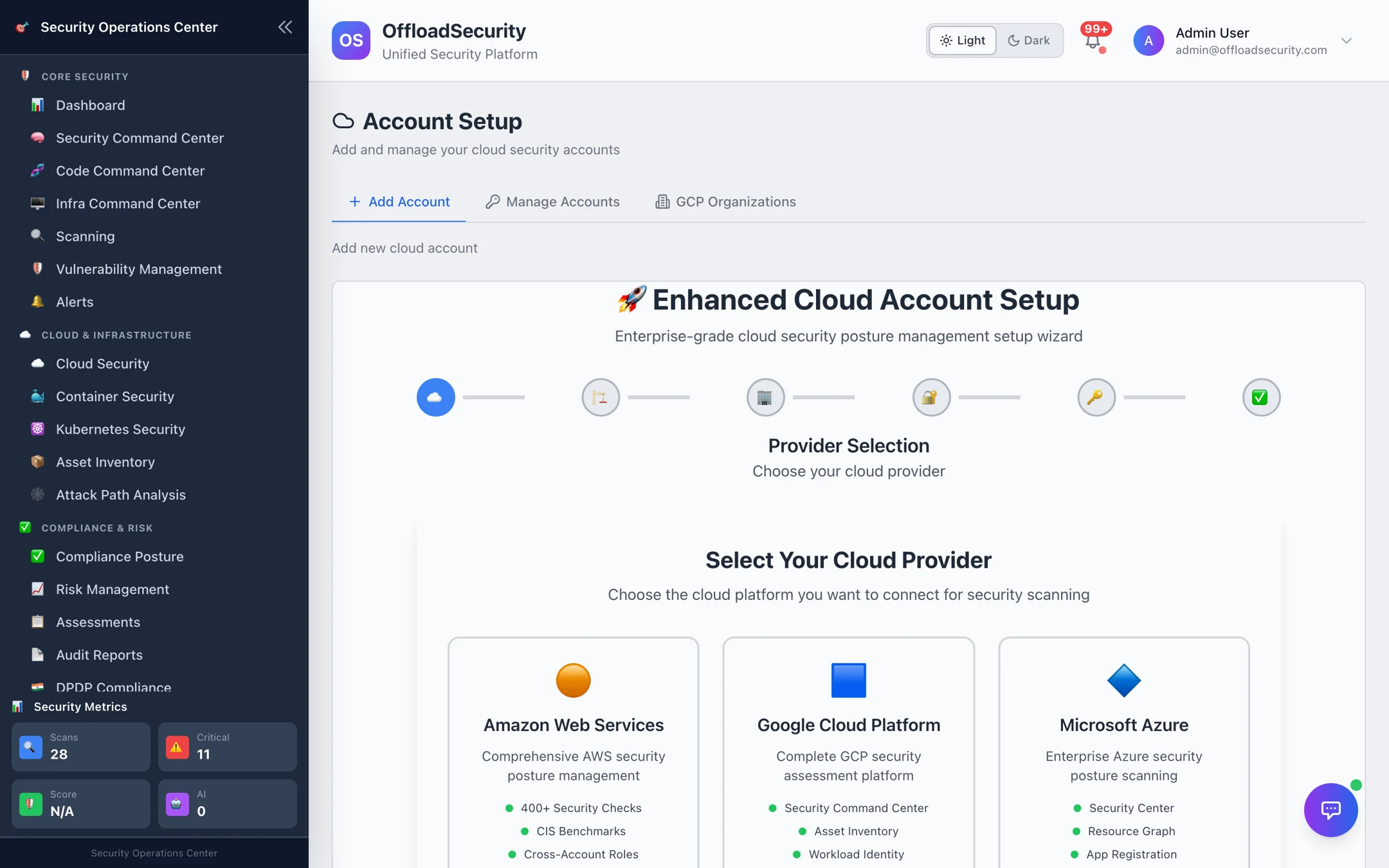
1. Provider
Pick Amazon Web Services, Google Cloud Platform or Microsoft Azure.
2. Environment
Give the account a display name you will recognise in dashboards (for example Production AWS — Payments Platform), classify it as Production / Staging / Development / Testing / Sandbox, enter the provider's account identifier, and choose the regions to scan.
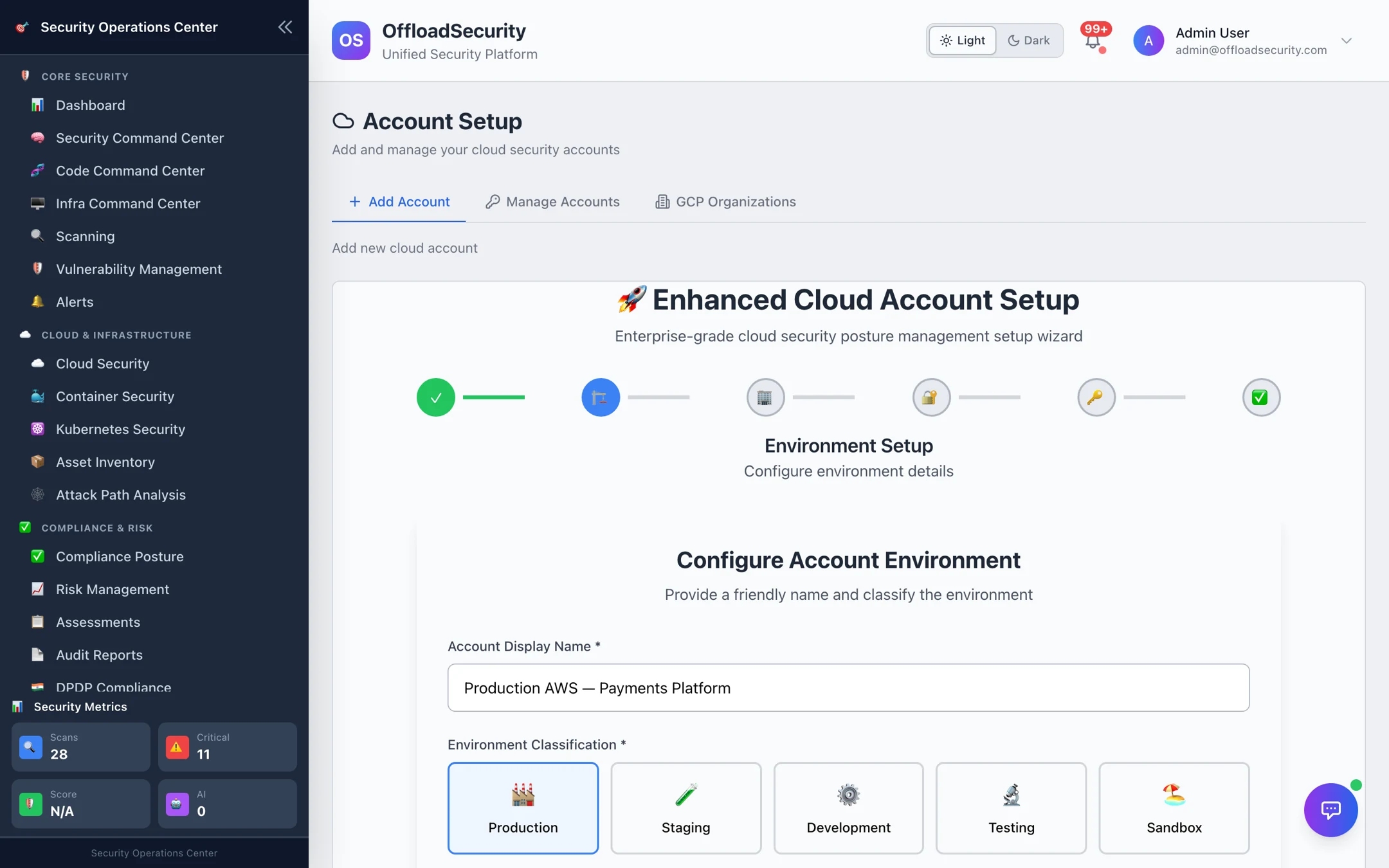
- AWS: tick the regions you use. Scans target only the selected regions, which keeps scan time and API calls down. You can add a region that is not in the list (for example a newly launched one) under Add custom region.
- GCP / Azure: region selection does not partition the scan — a project or subscription is always scanned as one unit. See How scans partition work by provider.
3. Business context
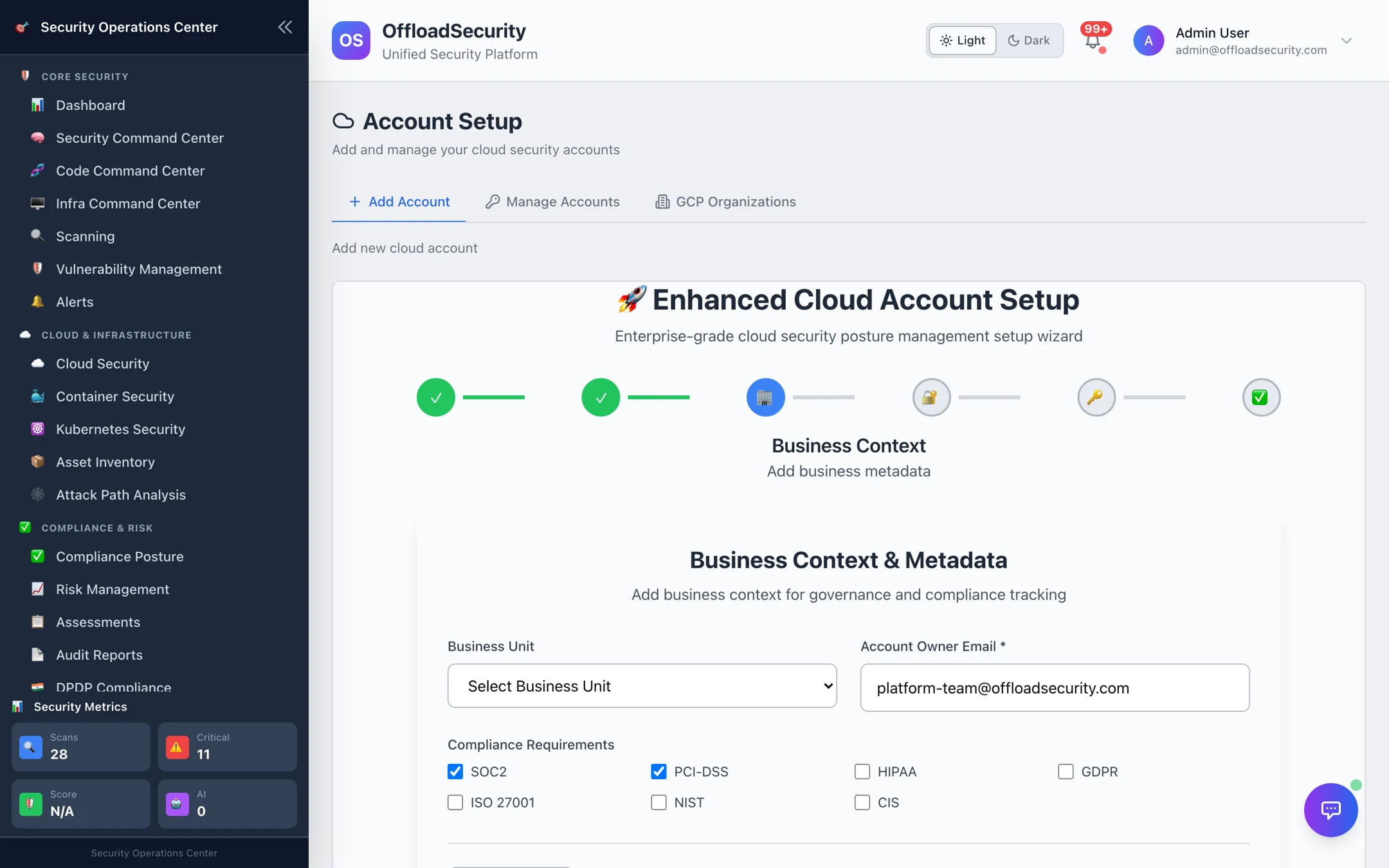
Record the business unit, the account owner's email (required) and the compliance requirements that apply (SOC 2, PCI DSS, HIPAA, GDPR, ISO 27001, NIST, CIS). Owner and business unit appear on findings and reports, so that a critical finding can be routed to the right team.
4. Authentication method
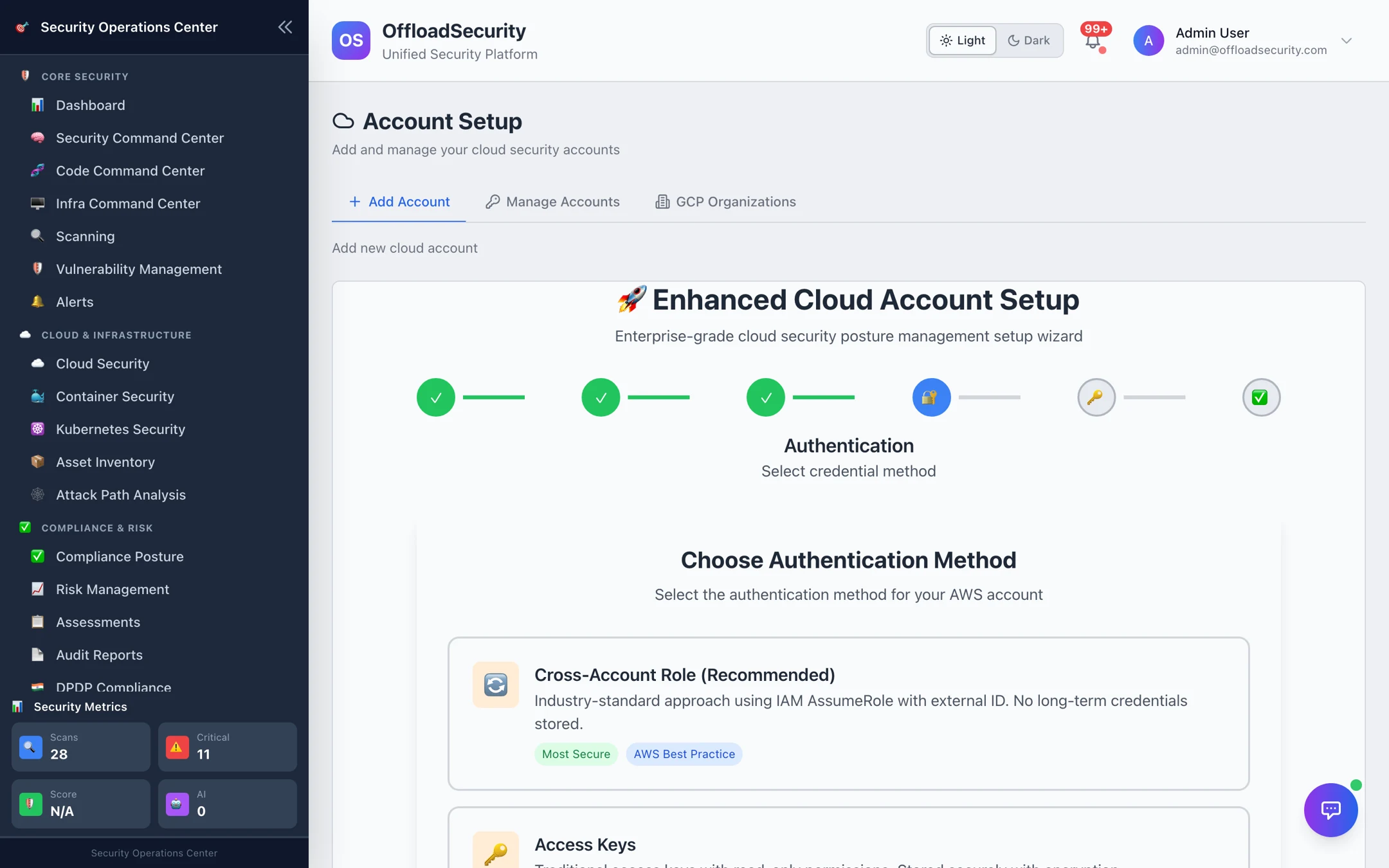
Choose how the platform will authenticate. The recommended option is listed first for each provider:
| Provider | Methods |
|---|---|
| AWS | Cross-Account Role (recommended) — sts:AssumeRole with an external ID; no long-lived keys. Access Keys — access key ID + secret (+ optional session token). |
| GCP | Service Account — JSON key. Workload Identity — pool + provider + service-account email; keyless. |
| Azure | Service Principal — tenant, client ID, client secret, subscription. Managed Identity — when the platform itself runs in Azure. |
5. Credentials
Paste the values for the method you chose. For an AWS cross-account role the step shows the exact setup summary — create the role with ReadOnlyAccess and SecurityAudit, trust the platform's principal, and use the external ID displayed here — then asks for the Role ARN and External ID.
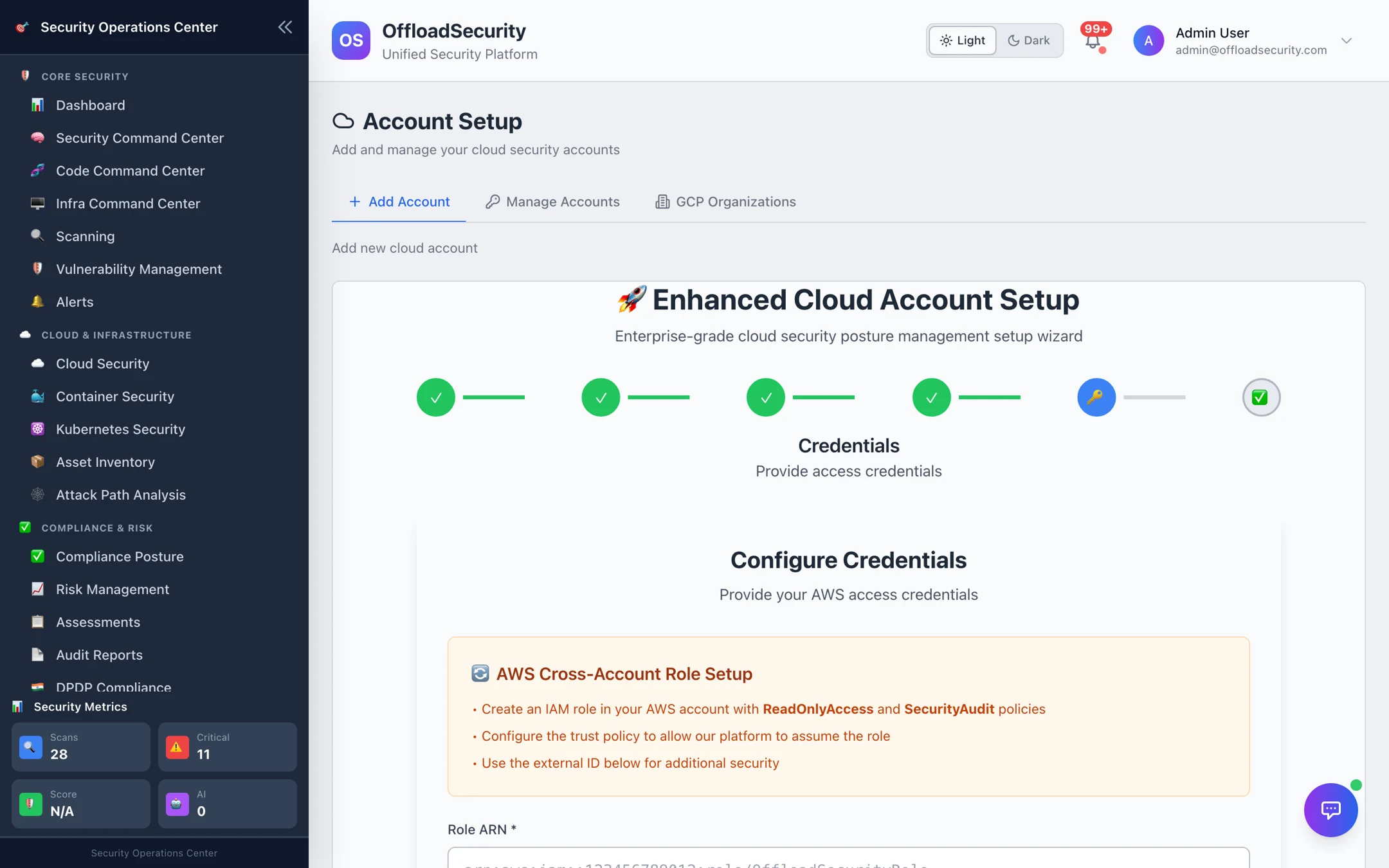
Secrets are encrypted before they are written and are never returned by the API afterwards.
6. Validation
The platform performs a live connection test using the provider SDK (an STS GetCallerIdentity on AWS, a Resource Manager / Asset lookup on GCP, a subscription lookup on Azure) and checks that it can enumerate resources. On success the account is created as active, an initial scan is queued and the recurring schedule is registered. On failure you see the provider's error verbatim so you can fix the role or key and retry — nothing is saved until validation passes.
What happens right after connecting
- A first scan starts in the background. Watch it on Cloud Security → Accounts (the card shows Scanning… with a progress bar) or Cloud Scans.
- Recurring scans are registered in the Unified Scheduler: a daily incremental scan (02:00 UTC) and a weekly full scan (Sunday 03:00 UTC). You can retime or pause them from Unified Scheduler. Operators can disable auto-scheduling platform-wide with
CSPM_AUTO_SCHEDULE_ON_ACCOUNT_ADD=false. - Resources appear in Asset Inventory as discovery jobs complete.
- Kubernetes clusters and container registries in the account are discovered automatically and offered in Kubernetes Security and Container Security.
Onboarding a GCP organization
If you run many GCP projects, connect the organization or a folder once instead of each project. Account Setup → GCP Organizations → Connect GCP Organization.
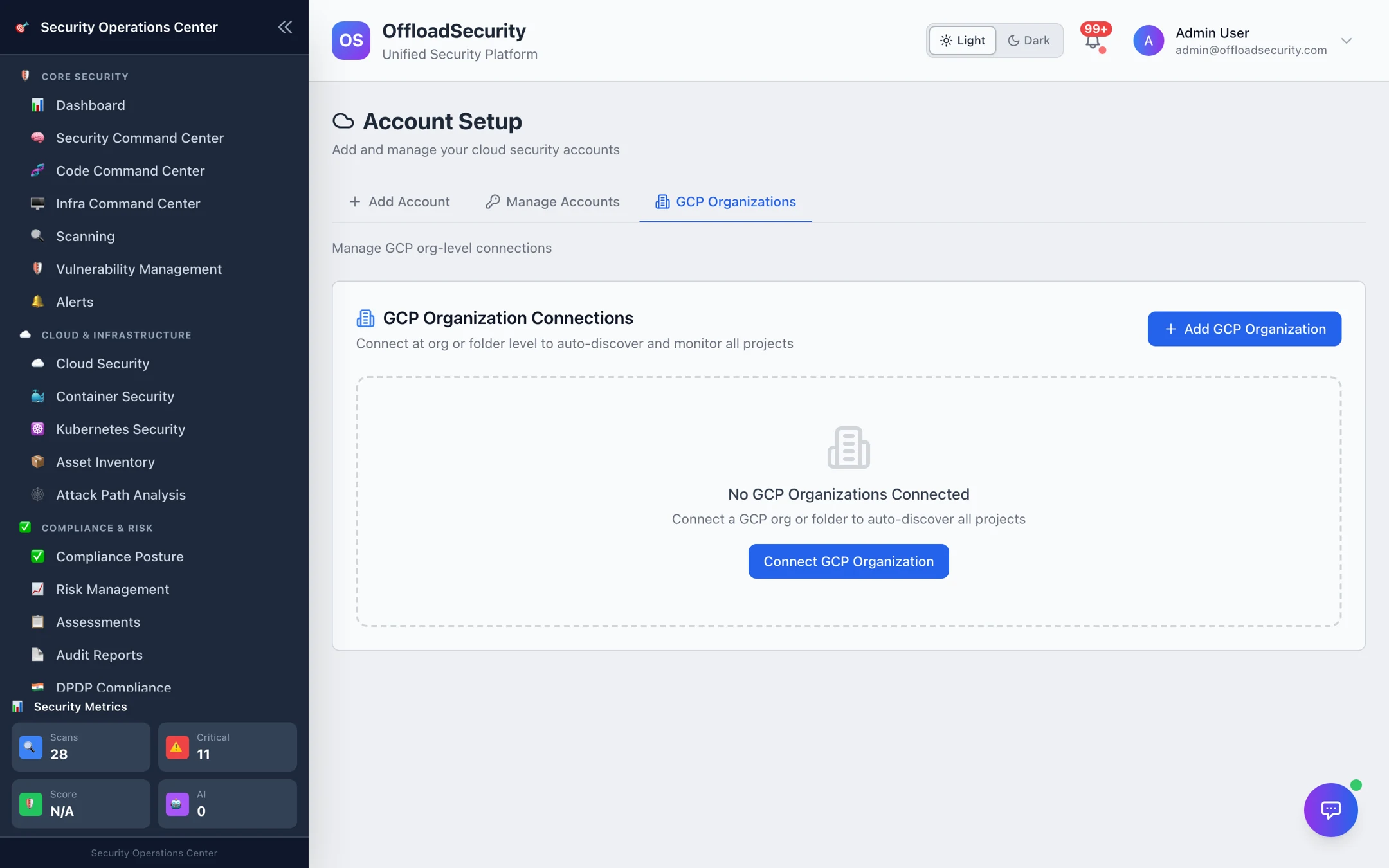
- Provide a service account with org-level read roles (
roles/resourcemanager.organizationViewer+folderViewerin addition to the project roles — see Required Permissions). - The platform runs a readiness check (enabled APIs, granted roles) and reports anything missing before you commit.
- It discovers every project under the org/folder — walking nested folders — and onboards them as individual accounts. Google's hidden
sys-*system projects are excluded automatically. - A re-discovery job runs on a schedule (default daily) to add new projects and retire ones that disappeared; every change is recorded under Discovery Events.
You can toggle individual projects in or out of scanning from the connection's hierarchy view.
Provider setup reference
The wizard tells you what to create; the snippets below let you create it with infrastructure-as-code. They match the roles the wizard's setup summary asks for.
AWS
Cross-account role (recommended). SecurityAudit + ReadOnlyAccess, plus a supplement for Security Hub, GuardDuty, Inspector, Access Analyzer, Config, CloudTrail and ECR.
variable "offload_principal_arn" { type = string }   # shown in the wizard
variable "external_id"           { type = string }   # shown in the wizard

resource "aws_iam_role" "offload_security_scanner" {
  name = "OffloadSecurityScanner"
  assume_role_policy = jsonencode({
    Version = "2012-10-17"
    Statement = [{
      Effect    = "Allow"
      Principal = { AWS = var.offload_principal_arn }
      Action    = "sts:AssumeRole"
      Condition = { StringEquals = { "sts:ExternalId" = var.external_id } }
    }]
  })
}

resource "aws_iam_role_policy_attachment" "security_audit" {
  role       = aws_iam_role.offload_security_scanner.name
  policy_arn = "arn:aws:iam::aws:policy/SecurityAudit"
}

resource "aws_iam_role_policy_attachment" "read_only" {
  role       = aws_iam_role.offload_security_scanner.name
  policy_arn = "arn:aws:iam::aws:policy/ReadOnlyAccess"
}

resource "aws_iam_role_policy" "offload_supplement" {
  name = "OffloadSecuritySupplement"
  role = aws_iam_role.offload_security_scanner.id
  policy = jsonencode({
    Version = "2012-10-17"
    Statement = [{
      Effect = "Allow"
      Action = [
        "securityhub:GetFindings", "guardduty:ListDetectors", "guardduty:ListFindings",
        "guardduty:GetFindings", "inspector2:List*", "inspector2:Get*",
        "access-analyzer:List*", "access-analyzer:Get*",
        "config:GetComplianceSummaryByConfigRule", "cloudtrail:LookupEvents",
        "tag:GetResources", "ecr:DescribeRepositories", "ecr:DescribeImages"
      ]
      Resource = "*"
    }]
  })
}

output "role_arn" { value = aws_iam_role.offload_security_scanner.arn }
Paste role_arn and the external ID into step 5. For Access Keys, attach the same policies to an IAM user and rotate the key regularly.
GCP
Service account with read-only roles (add artifactregistry.reader if you will scan Artifact Registry).
variable "project_id" { type = string }

resource "google_service_account" "offload_scanner" {
  account_id   = "offload-security-scanner"
  display_name = "Offload Security Scanner (read-only)"
  project      = var.project_id
}

resource "google_project_iam_member" "roles" {
  for_each = toset([
    "roles/viewer", "roles/cloudasset.viewer", "roles/iam.securityReviewer",
    "roles/securitycenter.findingsViewer", "roles/securitycenter.assetsViewer",
    "roles/artifactregistry.reader",
  ])
  project = var.project_id
  role    = each.value
  member  = "serviceAccount:${google_service_account.offload_scanner.email}"
}

resource "google_service_account_key" "offload_key" {
  service_account_id = google_service_account.offload_scanner.name
}
Upload the key JSON in step 5, then delete the local copy. Prefer Workload Identity where you can — the wizard accepts the pool, provider and service-account email and no key is ever created.
Azure
Service principal at subscription scope with Reader, Security Reader and Log Analytics Reader.
variable "subscription_id" { type = string }

data "azurerm_subscription" "current" { subscription_id = var.subscription_id }

resource "azuread_application"       "offload" { display_name = "Offload Security Scanner" }
resource "azuread_service_principal" "offload" { client_id = azuread_application.offload.client_id }
resource "azuread_application_password" "offload" {
  application_id = azuread_application.offload.id
  display_name   = "offload-scanner-secret"
}

resource "azurerm_role_assignment" "roles" {
  for_each             = toset(["Reader", "Security Reader", "Log Analytics Reader"])
  scope                = data.azurerm_subscription.current.id
  role_definition_name = each.value
  principal_id         = azuread_service_principal.offload.object_id
}

output "client_id"     { value = azuread_application.offload.client_id }
output "client_secret" { value = azuread_application_password.offload.value, sensitive = true }
output "tenant_id"     { value = data.azurerm_subscription.current.tenant_id }
Enter tenant ID, client ID, client secret and subscription ID in step 5. To scan ACR images add AcrPull.
Verify the connection
- On Account Setup → Manage Accounts, the new row shows status active. Use Test Connection at any time to re-run the provider check.
- On Cloud Security → Accounts, the card shows Scanning… until the first run completes, then a Last Scan timestamp.
- Within a few minutes, findings appear on the Scanning tab and resources in Asset Inventory.
If validation fails, the error names the cause — an unassumable role or mismatched external ID on AWS, a disabled API or missing role on GCP, an expired client secret on Azure. Fix it and retry from step 5; see Troubleshooting for the common cases.
Related
- Required Permissions — the exact roles per cloud and per capability.
- Managing Connected Accounts — revalidate, rotate credentials, scan in bulk, remove.
- Running Cloud Scans — what the first scan does and how to read its progress.