Reviewing & Triaging Findings
The Scanning tab is the working surface for cloud findings. Instead of a flat list of every failing resource, findings are grouped by check — one row for "S3 bucket has public access enabled" with its five affected buckets underneath — so you make one decision per problem, not per resource.
Where: Cloud Security → Scanning.
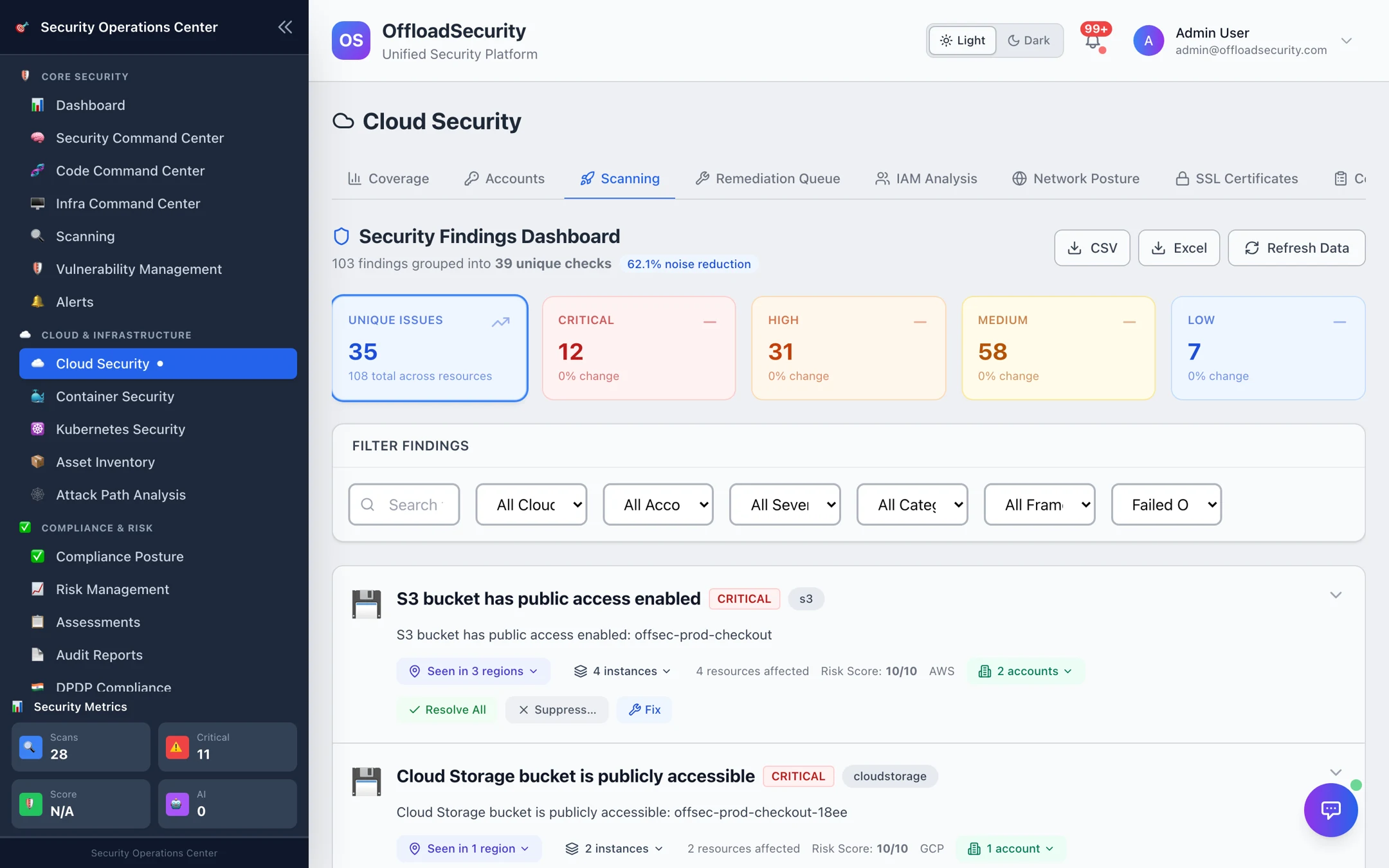
The dashboard at a glance
- Header line — how many raw findings collapsed into how many unique checks, and the resulting noise reduction.
- Tiles — unique issues, and counts of critical / high / medium / low findings with the change since the previous scan.
- Filters — search, cloud, account, severity, category, framework and status (below).
- Finding cards — one per check, sorted by severity, each with a Risk Score (0–10, derived from severity), the service, how many regions and resources are affected, and how many accounts.
- CSV / Excel — export exactly what the current filters show, for a ticket, a spreadsheet or an auditor.
Filtering
| Filter | Options |
|---|---|
| Cloud | AWS, GCP, Azure |
| Account | Any connected account |
| Severity | Critical, High, Medium, Low, Info |
| Category | IAM, Network, Storage, Compute, Logging, Encryption |
| Framework | CIS Benchmarks, PCI-DSS, SOC 2, NIST 800-53, HIPAA, GDPR — shows only checks mapped to that framework |
| Status | Failed only (default), Passed only, Resolved, Suppressed |
| Search | Matches the check title, description or resource names |
On a first pass, filter to Critical and a single production account. The critical list is short and every item is worth a decision today. Widen to High once the criticals are resolved or suppressed with a reason.
Reading a finding
Expand a card to see what failed, why it matters and how to fix it: the check description, the remediation text with a link to the provider's documentation, and the compliance controls the check maps to.
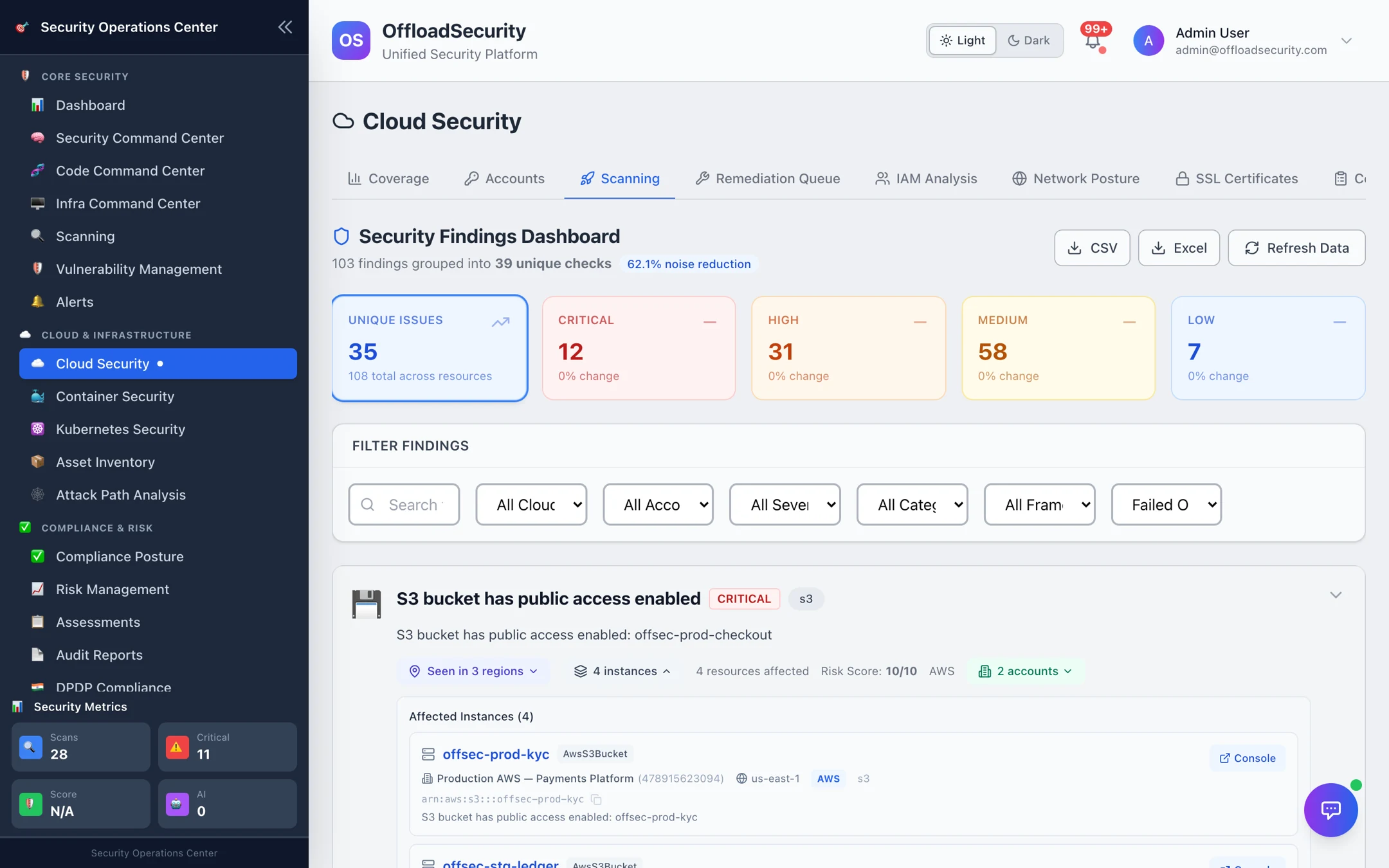
Select N instances (or Click to list affected resources) to open the affected resources — each with its resource name, account, region, the per-resource detail from the scanner, and a Console link that opens that exact resource in the AWS, GCP or Azure console.
Acting on a finding
Every card offers three actions. All of them apply to every instance of the check in every region for the selected scope, so you triage the problem once.
| Action | What it does | When to use it |
|---|---|---|
| Resolve All | Marks the finding resolved with a note. If a later scan still reports the failure, the finding reopens automatically — a resolve is a claim the next scan verifies. | You have fixed it (or are about to). |
| Suppress… | Hides the finding for a chosen window with a reason. When the window ends it returns to failing on the next scan, so accepted risks are re-examined rather than forgotten. | Accepted risk, false positive, compensating control. |
| Fix | Creates a remediation task with assignee, priority, due date and notes, and links it to the finding. The task appears in the Remediation Queue. | Someone else owns the fix and you want to track it. |
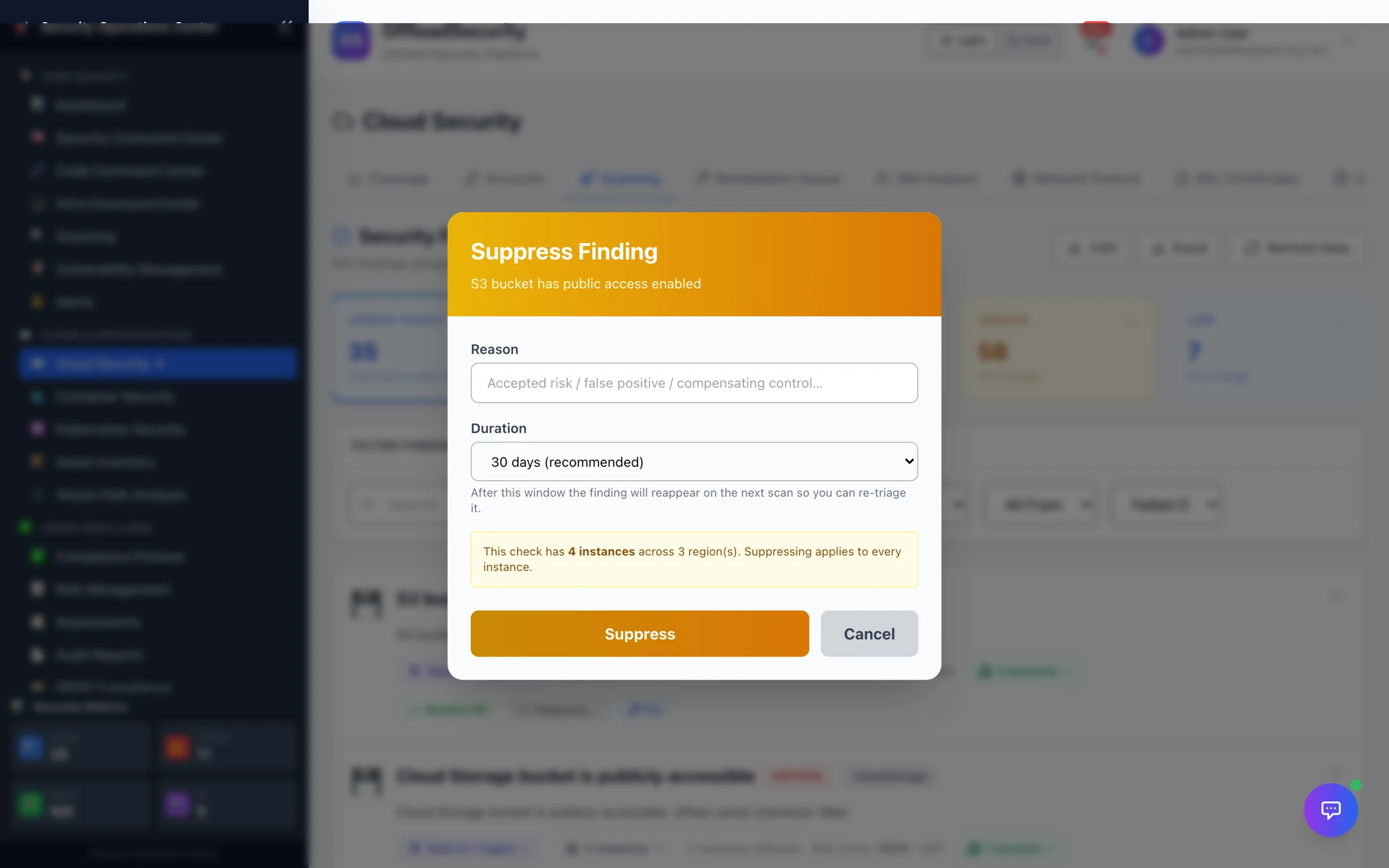
Suppression windows: 7, 14, 30 (recommended), 60, 90, 180 days, 1 year, or permanent. A suppressed finding shows under the Suppressed status filter with its reason and expiry; Unsuppress lifts it early.
Resolving does not change your cloud. If the misconfiguration is still there on the next scan, the finding comes back as open. To make a finding go away for good, fix the resource — or suppress it with a documented reason.
What happens between scans
- New failures open as findings with the time they were first detected.
- Failures no longer reported are auto-resolved and show under Resolved with the scan that closed them.
- Your decisions survive re-scans. Resolved and suppressed findings keep their status; a scan that returns no data at all is treated as unverified and changes nothing.
- Trend tiles compare the current counts with the previous run so a regression is visible at a glance.
Where else findings show up
- Compliance tab and Compliance Posture — pass/fail per framework are computed from these findings (Compliance & Benchmark Checks).
- Network Posture and IAM Analysis — network- and identity-category findings are re-cut by exposure and identity (Identity & Network Posture).
- Vulnerability Management and Risk Register — cloud findings feed the unified views used for SLAs, risk scoring and reporting (Vulnerability Management).
- Reports — executive and compliance reports draw from the same data (Reports & AI).
Related
- Running Cloud Scans — how findings are produced and refreshed.
- Remediation Queue — tracking the tasks created with Fix.
- Cloud Security API — the same list, filters and actions over the API.