Running Cloud Scans
A cloud scan inventories the resources in one account and evaluates its configuration against the platform's check set. Scans run in the background as many parallel jobs, results stream in as each job finishes, and every repeat scan is compared to the last one so findings open and close automatically.
Start a scan
| From | How |
|---|---|
| Cloud Security → Accounts | Quick or Full Scan on an account card. |
| Account Setup → Manage Accounts | Quick Scan / Full Scan per row, or select several rows and scan them in bulk. |
| Automatically | A first scan runs when an account is connected; a daily incremental and weekly full scan are scheduled for every account (see Scheduled scans). |
| API / CI | POST /api/cloud-scans/initiate — see the Cloud Security API. |
Only one scan can run per account at a time. Starting another while one is in progress returns the running scan's ID instead of queuing a duplicate.
Scans only ever read your environment with the credentials you provided at onboarding. Nothing is created, changed or deleted in your cloud.
Scan types and regions
All scan types run the complete check set. The type controls the region footprint the platform picks when you have not configured regions, how long the run is expected to take, and how the run is labelled in history and schedules.
| Type | Default region footprint (AWS) | Typical use |
|---|---|---|
| Quick | Your configured regions; if none are configured, us-east-1 only | A fast first look or a smoke test after a fix (5–10 min). |
| Full / Comprehensive | Your configured regions; if none, a curated set of 13 major commercial regions | The weekly baseline and the run to do before an audit (15–25 min on a large account). |
| Incremental | Same footprint as Full | The daily scheduled run. |
Region precedence is always: regions you pass explicitly → the account's configured regions (wizard or Regions editor) → the provider default. On GCP and Azure a scan always covers the whole project or subscription, regardless of type.
How scans partition work by provider
| Provider | Boundary | Parallelism | Why |
|---|---|---|---|
| AWS | Account | One discovery job and one compliance job per selected region, run concurrently | AWS resources and checks are genuinely region-scoped; splitting by region parallelises a large account. |
| GCP | Project | One discovery + one compliance job (global) | Cloud Asset Inventory and the checks read the whole project; per-region fan-out would repeat identical work. |
| Azure | Subscription | One discovery + one compliance job (global) | Resource Graph / ARM enumerate the whole subscription at once. |
Every scan additionally runs two account-wide jobs once: Kubernetes cluster discovery (EKS / GKE / AKS) and container registry discovery (ECR / Artifact Registry / ACR). Discovered clusters and registries appear in Kubernetes Security and Container Security.
For GCP and Azure, breadth comes from onboarding more projects or subscriptions — each scans in parallel with the others. Organization onboarding does that for you (Connecting Cloud Accounts).
What happens during a scan
- Queued. The platform checks that no other scan is running for the account, records the run and creates its jobs.
- Discovery jobs enumerate resources per region (or per project/subscription) through the provider's native APIs and write them to Asset Inventory.
- Compliance jobs evaluate configuration with the check engine (Prowler) for the same scope. They are lightly staggered so the run stays under your cloud provider's API rate limits.
- Results stream in per job. Findings appear on the Scanning tab and assets in the inventory before the whole run has finished.
- Delta ingestion. Every repeat scan is compared against the previous state for the same scope: new failures open as findings, failures that are no longer reported are auto-resolved, and findings you resolved or suppressed keep their status. A run that unexpectedly reports zero findings is treated as unverified and does not resolve anything — a broken credential can never make an account look clean.
- Final state once every job has finished (see the status table below).
Scan history
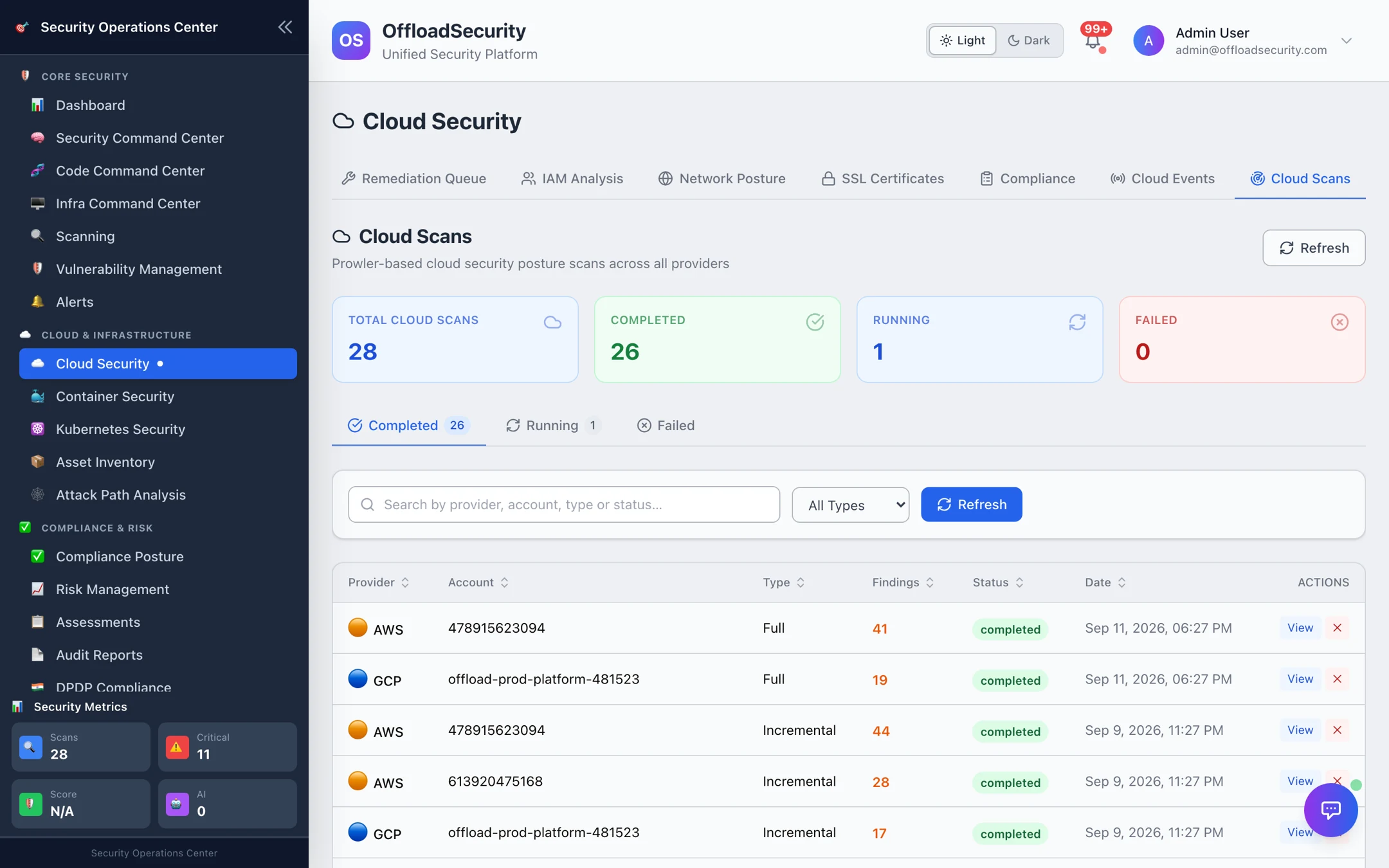
Cloud Security → Cloud Scans lists every run for the team with provider, account, type, findings count, status and date. Tiles at the top summarise total, completed, running and failed runs; filter by status, provider, account or type.
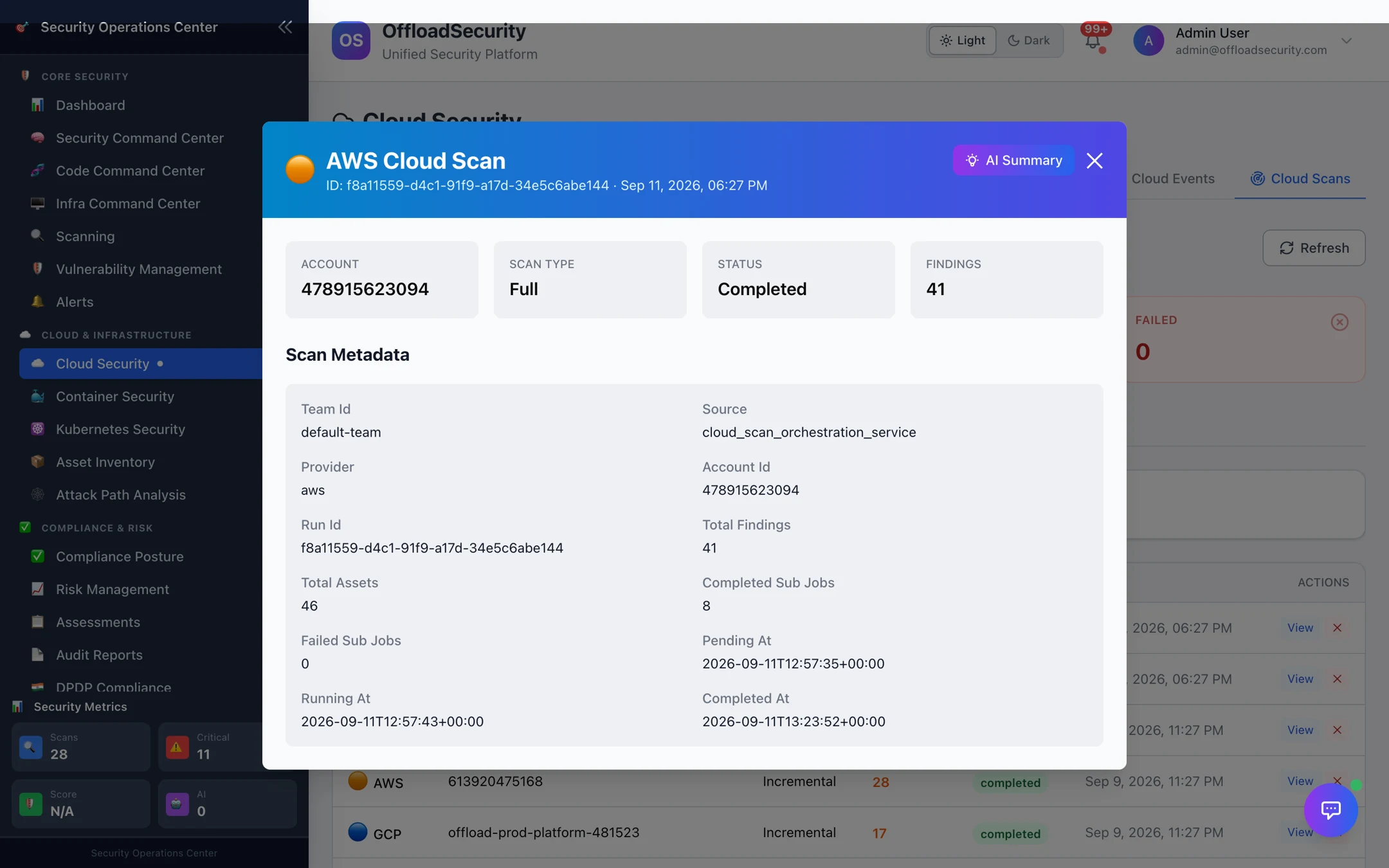
Select View on a row for the run's summary — account, type, status, finding count, and metadata such as run ID, total assets, completed and failed sub-jobs, and the queued / running / completed timestamps. AI Summary produces a plain-language recap of the run.
Reading status and progress
| Status | Meaning |
|---|---|
| Queued | Accepted and waiting for a worker. |
| Running | Jobs are discovering assets and running checks. The account card shows the overall percentage. |
| Completed | Every job finished successfully. |
| Partial | Some jobs succeeded and some failed — for example one region's checks. You have usable results but incomplete coverage, so it is deliberately not shown as a clean green run. Check the run's warnings. |
| Failed | Every job failed — almost always a credentials or permissions problem. |
| Cancelled | Stopped before finishing (via the API DELETE /api/cloud-scans/{run_id}). |
While a run is in progress you see an overall percentage plus separate discovery and compliance progress, and an estimated completion that scales with the number of regions (about 15 minutes per region for a full scan, 8 for other types). A finished run reports total assets, total findings and the breakdown by severity.
Missing read permission for a service or region, or API throttling in your account, are the usual causes. The run's warnings say which; fix the role or service account described in Required Permissions, then re-scan.
Scheduled scans
Every account gets two schedules the moment it connects:
| Schedule | Cadence | Purpose |
|---|---|---|
| Daily Cloud Incremental Scan | Every day 02:00 UTC | Keeps findings and inventory current. |
| Weekly Cloud Full Scan | Sunday 03:00 UTC | The baseline that catches drift and deletions. |
Manage them in Unified Scheduler — retime, pause or resume per account. Scheduled runs honour the one-scan-per-account rule and skip an account that was scanned very recently (within 22 hours for incremental, 6 days for full), so overlapping triggers never pile up. Large fleets are dispatched with a staggered start rather than all at once.
If an account's scheduled scans fail three times in a row, further scheduled runs are paused for that account until a scan succeeds or its credentials are updated — see Managing Connected Accounts.
Related
- Reviewing & Triaging Findings — what to do with the results.
- Compliance & Benchmark Checks — the checks behind the findings.
- Cloud Security API — start, poll and cancel scans programmatically.
- Troubleshooting — scans that will not start, stay queued, or come back partial.