Compliance & GRC
Compliance in Offload Security is not a spreadsheet you fill in before an audit. Every scanner in the platform, every assessment answer and every uploaded document lands on one control catalog — the Secure Controls Framework (SCF) — and each control is mapped to the requirements of 27 frameworks. Implement a control once and every framework that references it moves; let a control slip and you see the regression the same day.
Where: left navigation → Compliance Posture, Assessments, Audit Reports and DPDP Compliance (all under Compliance & Risk).
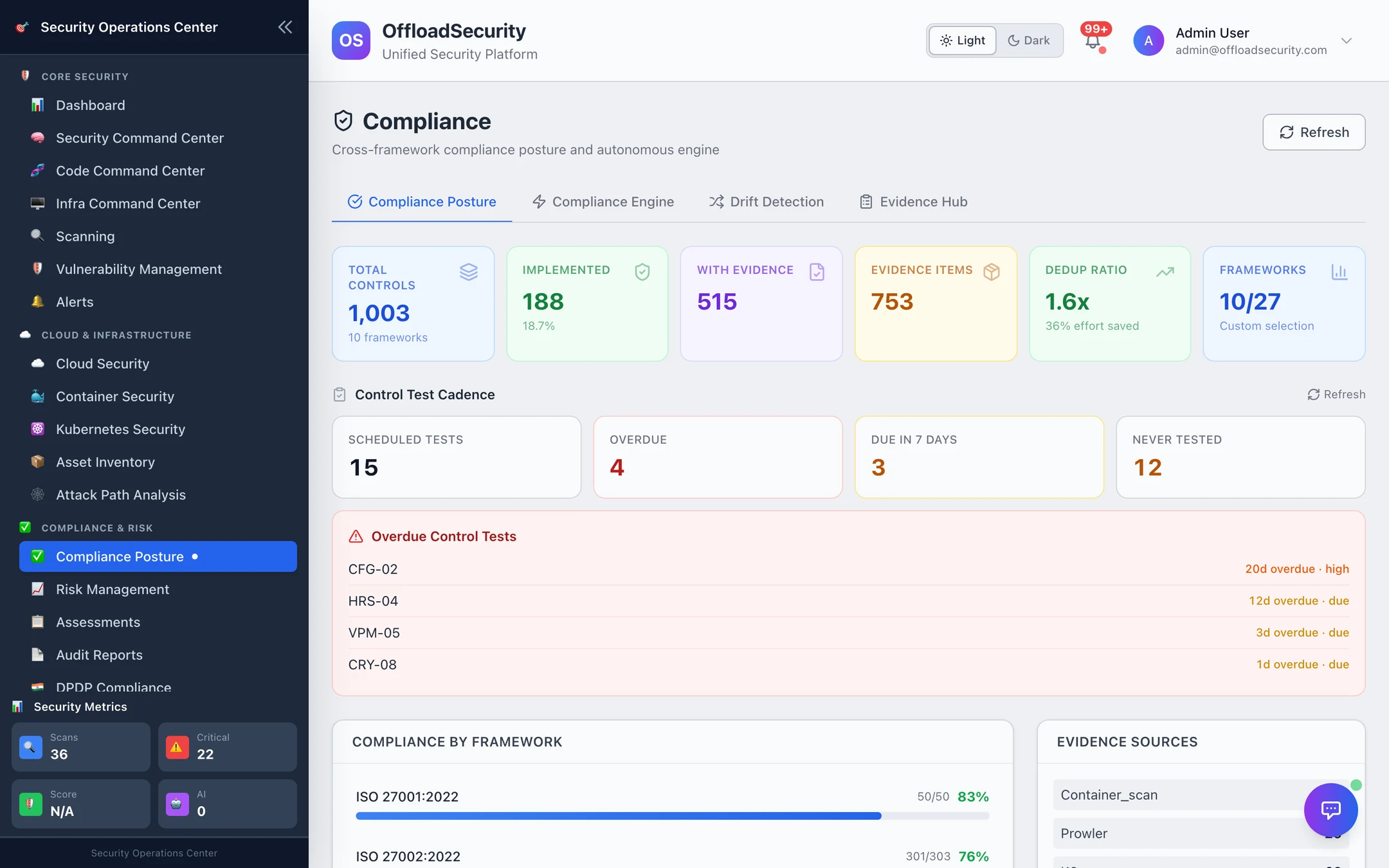
The four workspaces
| Workspace | What it is for | Pages |
|---|---|---|
| Compliance Posture | The live picture: score per framework, every control's status, gap analysis, manual overrides, control test cadence. Four tabs: Compliance Posture, Compliance Engine, Drift Detection, Evidence Hub. | Compliance Posture · Compliance Engine · Drift Detection · Evidence Hub |
| Assessments | Guided questionnaires for ISO 27001, SOC 2, OWASP ASVS 5.0, NIST CSF 2.0, SSDF, SAMM and more; answers feed control status. | Assessments |
| Audit Reports | Audit-ready CSV packs — controls, findings, drift, remediation, scores — generated on demand and kept as history. | Audit Reports |
| DPDP Compliance | India's Digital Personal Data Protection Act 2023 + Rules 2025 and CERT-In directions: readiness, DPIA, SDF classification, vendor due diligence, breach clocks, audit packs. | DPDP Act (India) |
How it fits together
- Scans and assessments write control status. The compliance engine re-syncs findings into controls every 4 hours (and on demand), checks thresholds and runs drift detection in the same pass; a completed assessment maps its answers immediately.
- Every control carries a status and evidence. Status is
implemented,partial,not_implemented,not_assessedornot_applicable; evidence is deduplicated so one artifact counts everywhere it applies. - Humans stay in control. A manual override pins a status with a justification and is never overwritten by automation; an exception records why a control cannot be met, with compensating controls and an expiry.
How a framework score is calculated
Each control in scope for a framework contributes to that framework's percentage:
| Control state | Counts as |
|---|---|
| Implemented | 1.0 |
| Partial | 0.5 |
| Not implemented or not assessed, but with linked evidence | 0.25 |
| Not implemented / not assessed, no evidence | 0 |
| Not applicable | Removed from the denominator |
The denominator is every in-scope control — not assessed controls do count against you, which is why a fresh installation reads low and climbs as scans, assessments and overrides land. A framework with no assessed controls at all is shown as Not Assessed rather than 0%.
Start here
- Pick your frameworks. Compliance Posture → Frameworks tile → activate the ones you report against (10 are active by default). Scores, evidence counts and thresholds are scoped to active frameworks.
- Let scans do the first pass. Cloud, Kubernetes and container scans already map to controls; Sync on the Compliance Engine tab runs the correlation now instead of waiting for the 4-hour cycle.
- Run one assessment end-to-end. ISO 27001 or SOC 2 from the Assessments hub — the answers land on SCF controls the moment you complete it. See Assessments.
- Override what automation cannot see. Policies, committees, training — set them from the gap analysis with a justification. See Compliance Posture.
- Set thresholds and watch drift. A threshold per framework (default 70%) turns slippage into a breach; the daily snapshot turns a downgraded control into a regression you can act on. See Compliance Engine and Drift Detection.
- Generate the audit pack. Audit Reports for the frameworks; the DPDP module for the tamper-evident DPDP pack.
Prerequisites
- View Assessments to read compliance data; Manage Assessments to sync, run assessments and submit exceptions; admin role (or an admin-scoped API key) to set manual overrides; platform administrators activate frameworks and import the SCF catalog.
- At least one connected scanner (Cloud Security, App & Infrastructure Scanning) — not required, but it is what makes the posture move on its own.
Related
- Supported Frameworks — the 27-framework catalog and how SCF mappings work.
- Risk Management — a control that stays not implemented or partial for more than 24 hours is minted as a system risk (hourly sweep, one risk per control).
- Reports & AI — executive and scheduled reporting.