Compliance Engine
The Compliance Engine tab is the operations view behind the posture: when the last sync ran and what it changed, which frameworks are below their threshold, how scores have trended, which controls are locked by a human, and what the engine is allowed to fix on its own.
Where: left navigation → Compliance Posture → Compliance Engine tab.
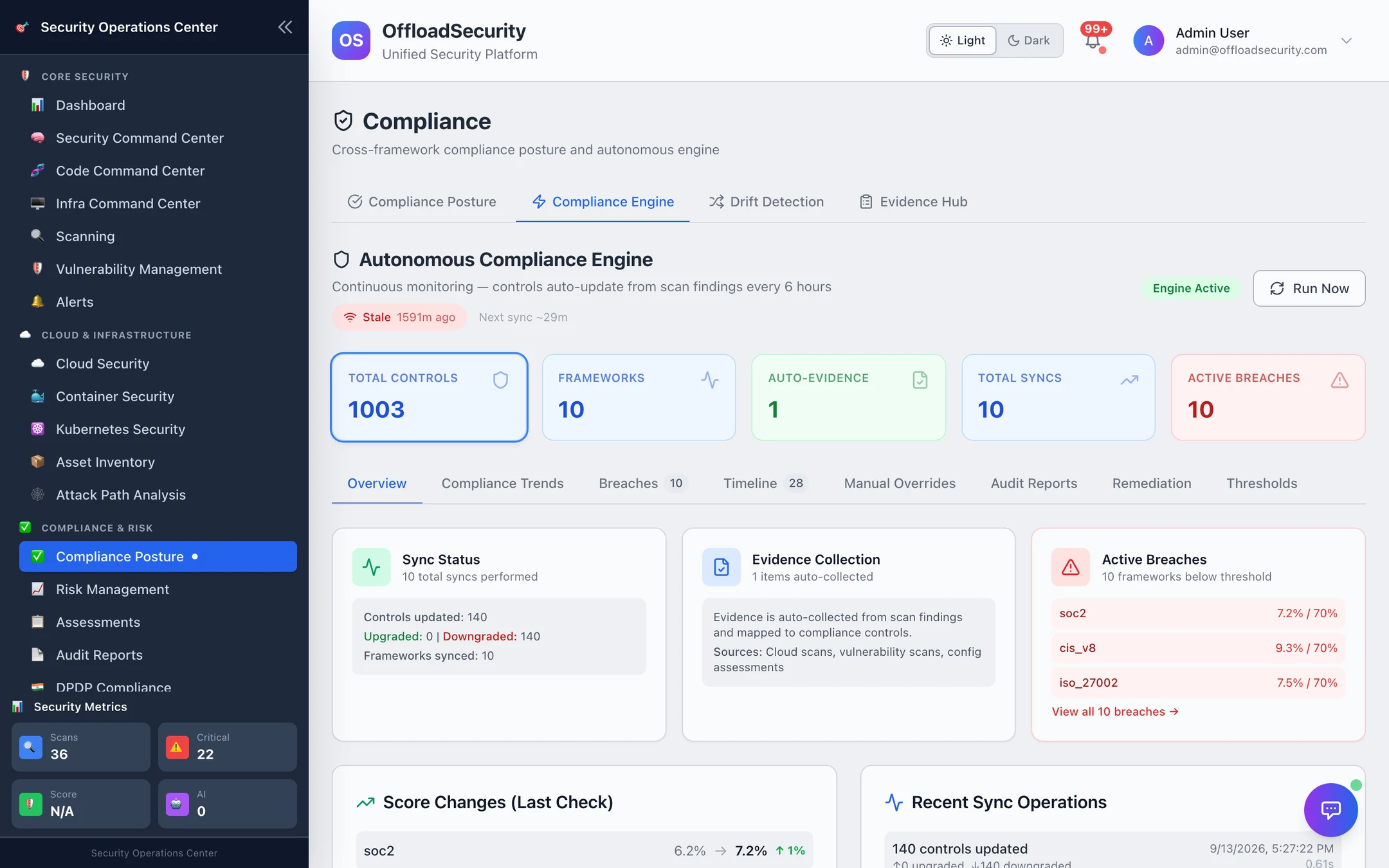
What runs on its own
| Job | Cadence | What it does |
|---|---|---|
| Compliance refresh | Every 4 hours | Correlates the team's latest cloud, Kubernetes and container findings and completed assessments into SCF control status; recalculates framework scores; checks thresholds; runs drift detection |
| Daily snapshot | 00:05 UTC | Freezes every control's status for the day — the baseline that Drift Detection compares against and the record that answers "what was your posture on 14 March?" |
| Exception expiry | Every 12 hours | Expires approved exceptions past their expires_at |
| Compliance → risk sweep | Hourly | A control that has been not implemented or partial for more than 24 hours is minted as a system risk in the Risk Register (one per control, deduplicated) |
Run Now on this tab triggers the refresh immediately (needs Manage Assessments); Sync on the API does the same. Syncs are recorded in the sync history (controls updated, upgraded, downgraded, frameworks checked).
- A manual override wins. Sync attaches new evidence to a locked control but never changes its status.
- A failed or empty scan never improves a score. A clean result promotes a control only when the scanner genuinely ran; a scan with tool failures, or a paused account, leaves status as it was.
Thresholds and breaches
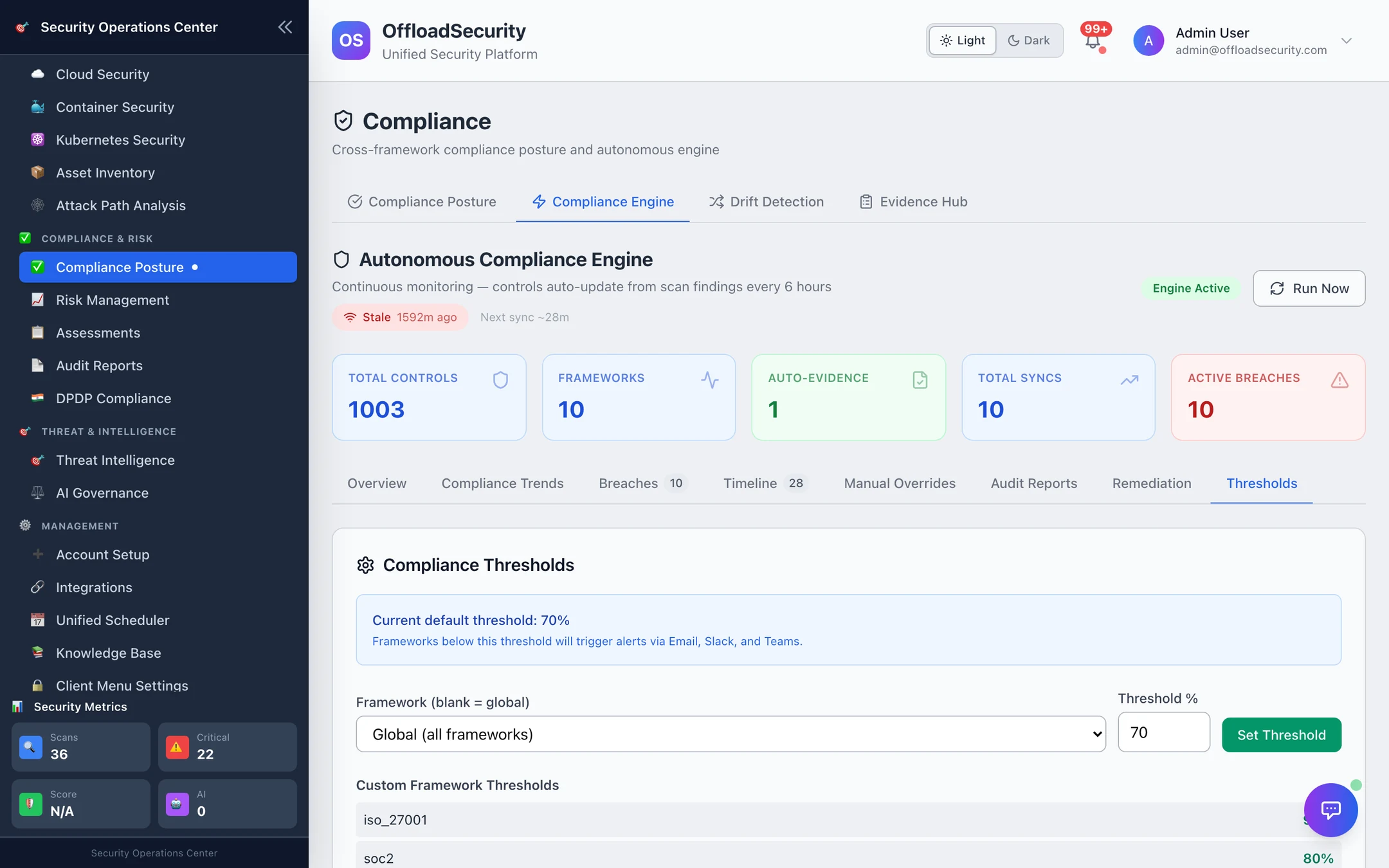
A threshold is the score a framework must hold. The default is 70% for every active framework; set a stricter one per framework (ISO 27001 at 90 before the certification audit, PCI DSS at 85). After every refresh the engine compares each active framework's score with its threshold and records a breach when it is below — with the gap in points and the number of controls needed to close it.
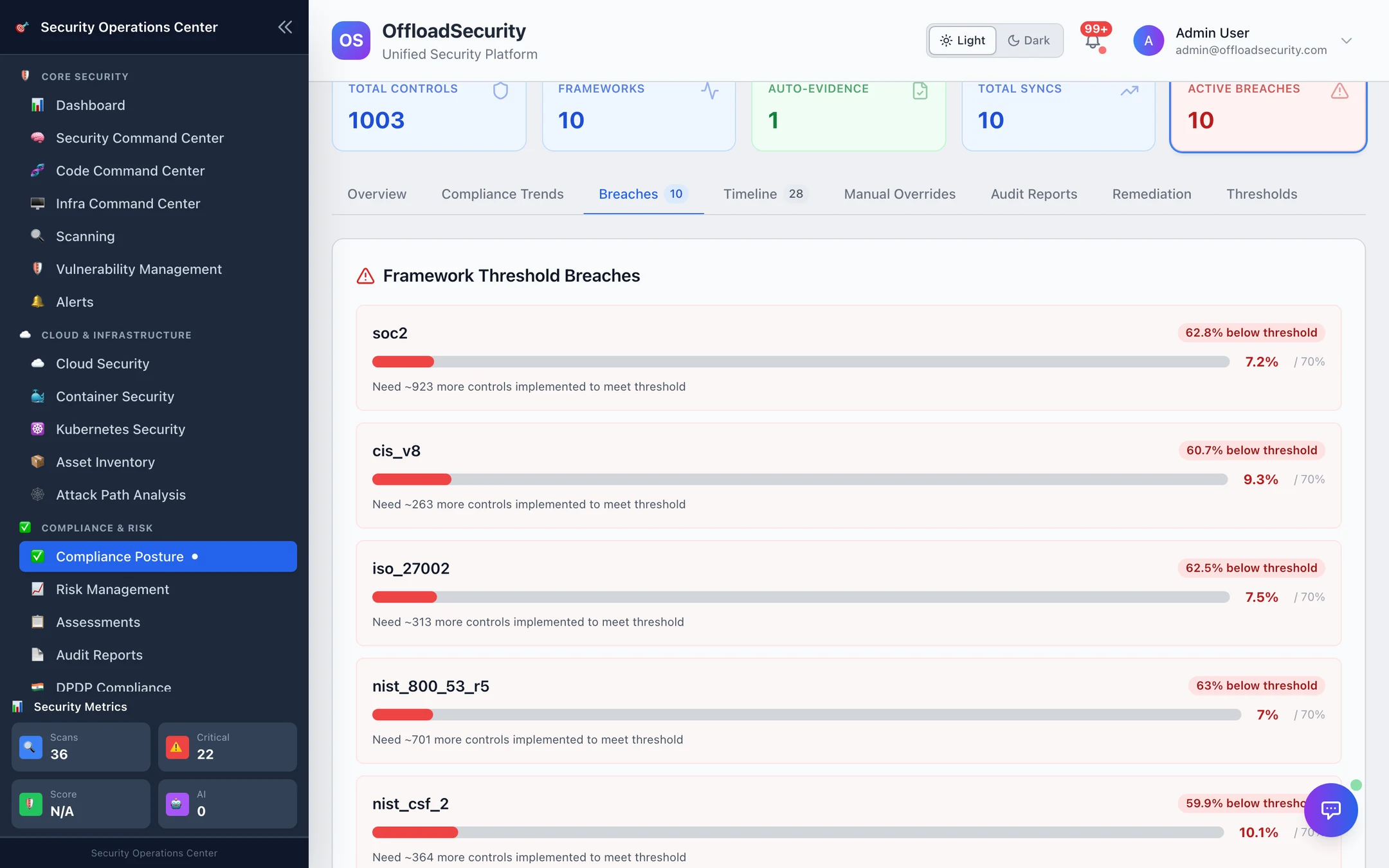
Breaches surface on the overview ("Active Breaches"), on the Breaches sub-tab, as a threshold_crossed drift type, and through alert policies to Slack / email.
Trends and timeline
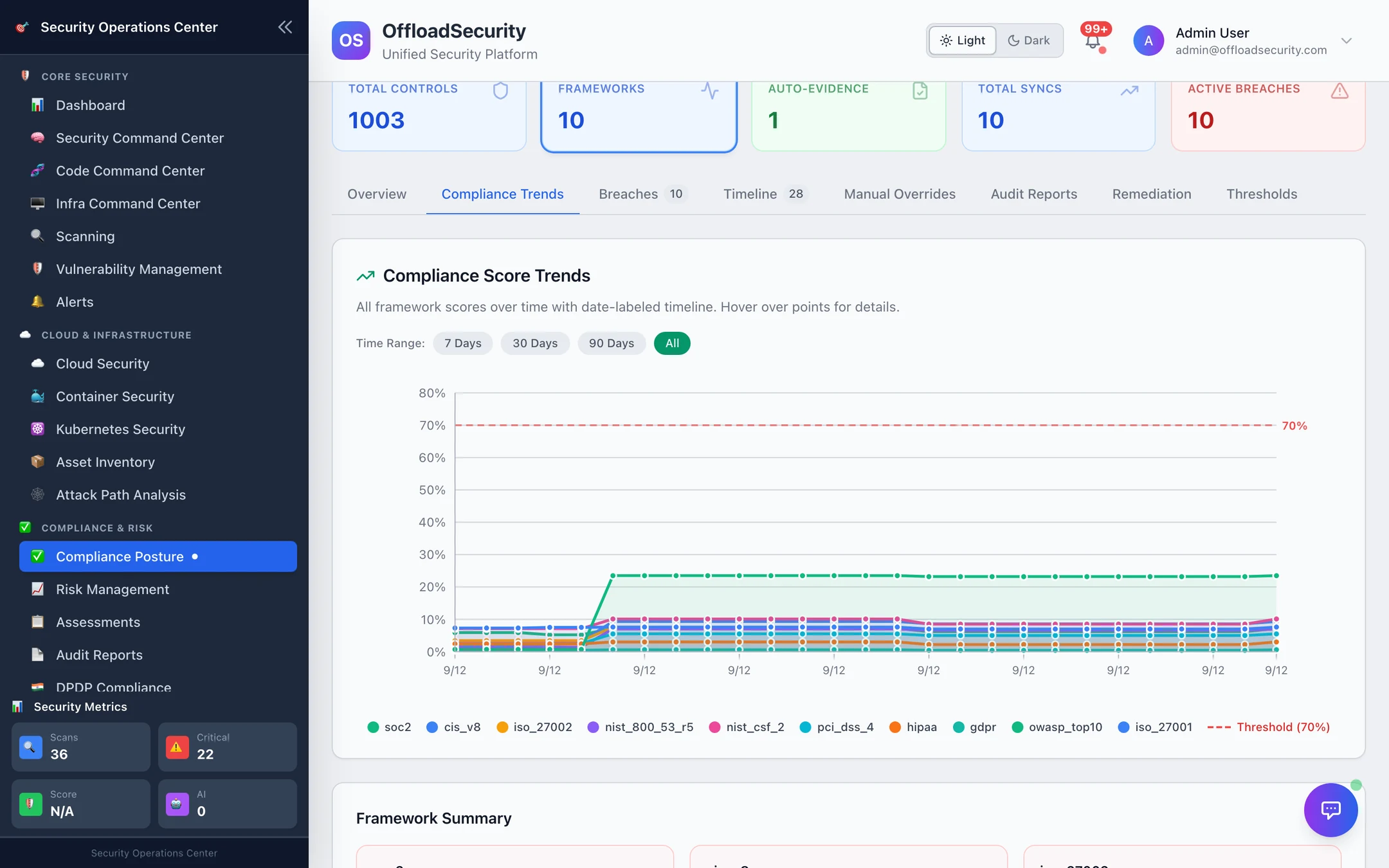
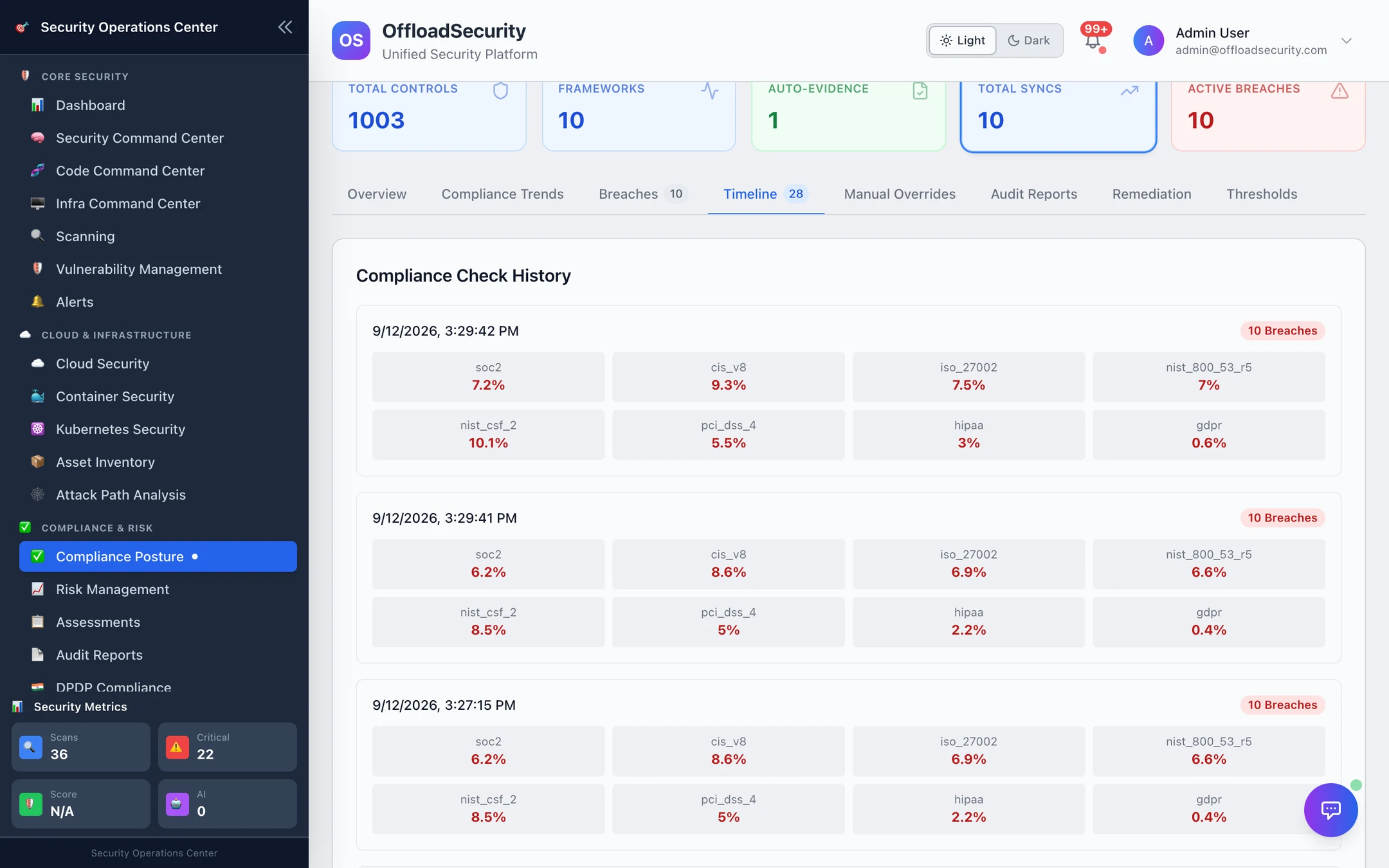
Compliance Trends plots each framework's score across threshold checks; Timeline lists every check with per-framework score, delta and direction — the audit trail for "when did SOC 2 drop below 60 and what brought it back".
Manual overrides
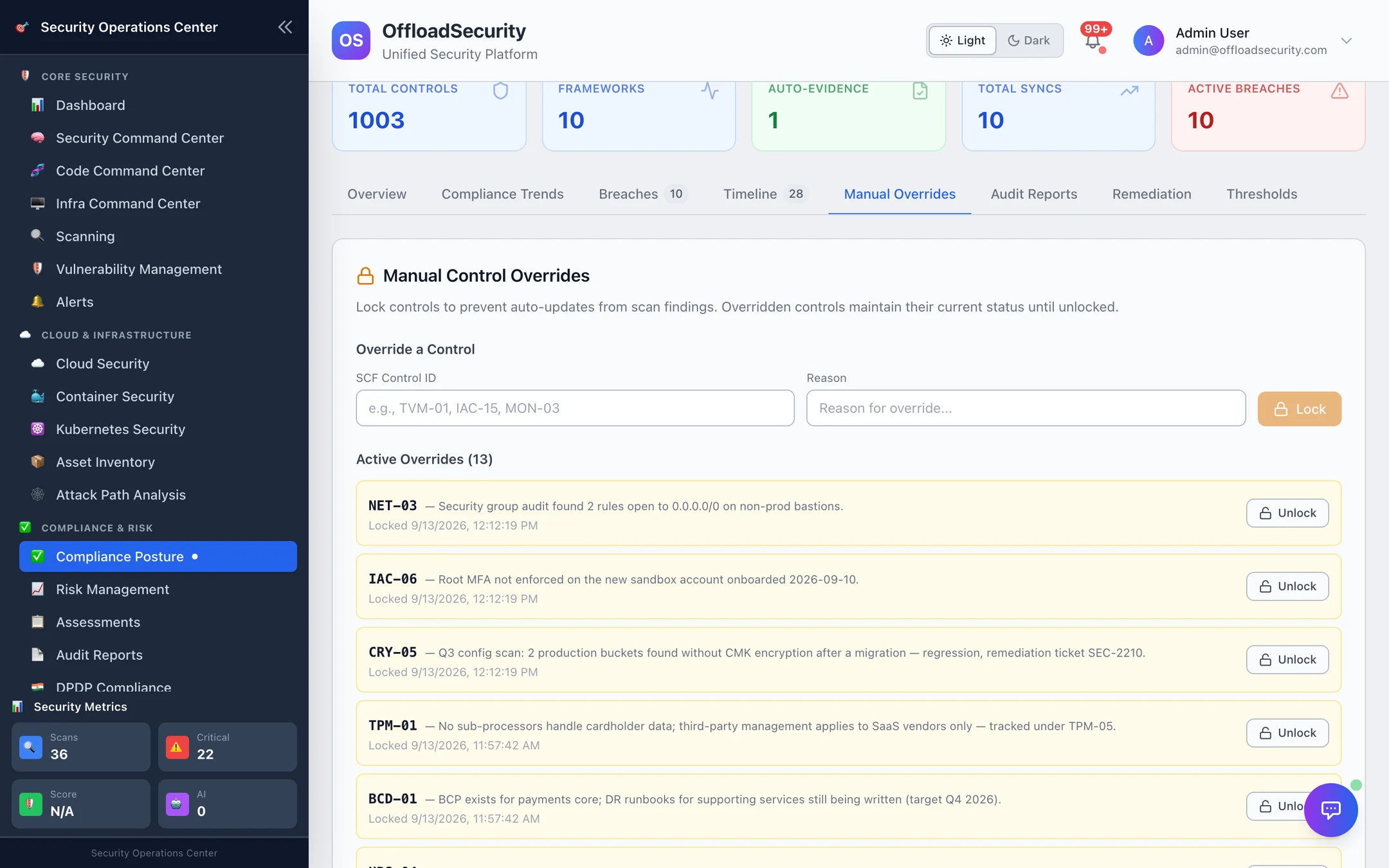
This sub-tab lists every control the team has locked — whether from the posture gap analysis or from the Override a Control form here — with the reason and when it was locked. Unlock returns the control to automatic updates on the next sync. Locking and unlocking require the admin role and are written to the compliance audit log.
Evidence expiry
The overview's evidence panel warns about evidence that is expiring soon (validity dates on manual evidence, validity windows on assessments) and lists open expiry alerts, which can be acknowledged. Expired evidence is dropped from the controls it supported and shows up as an evidence_expired drift. See Evidence Hub → Freshness.
Remediation playbooks
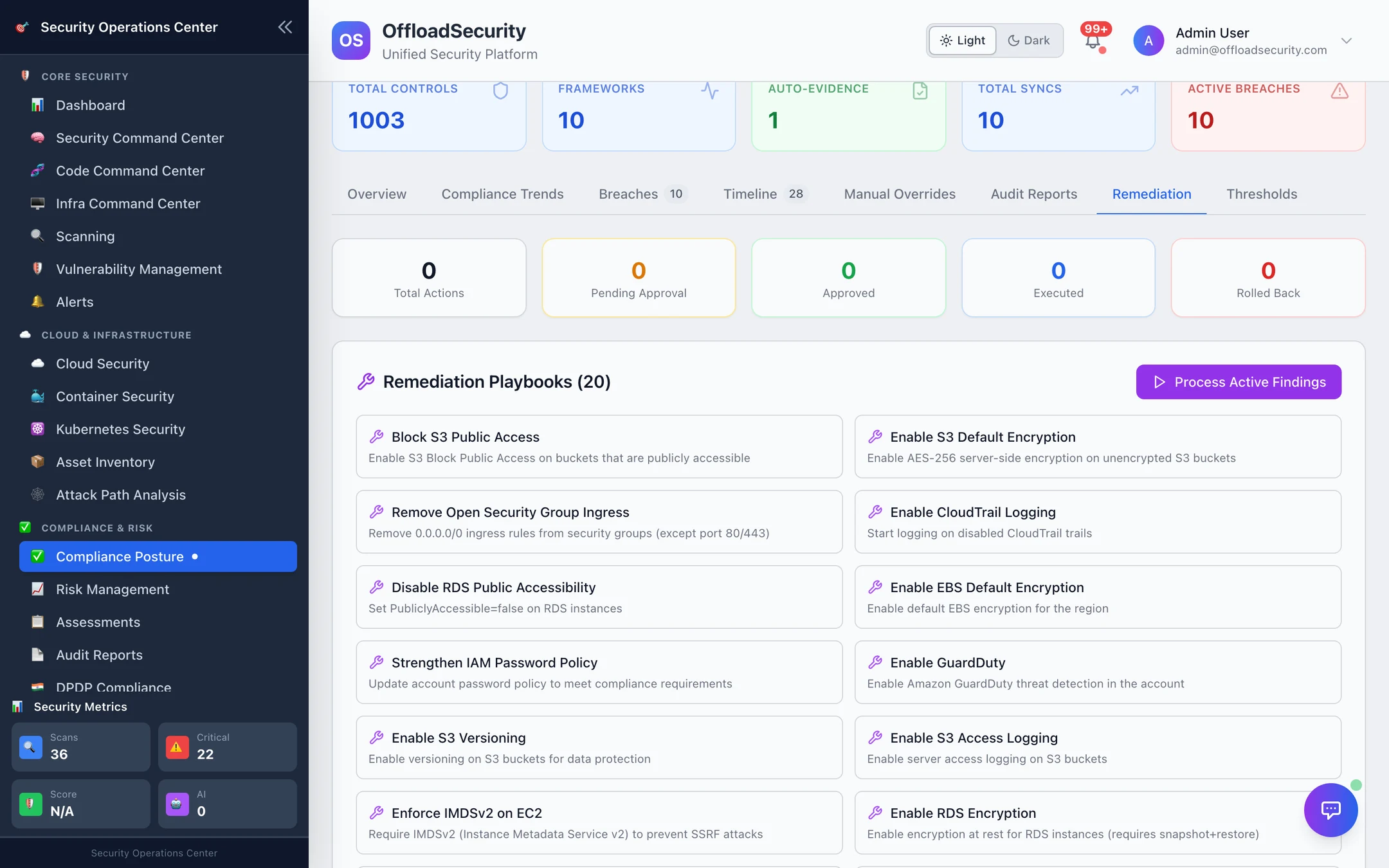
Twenty cloud-native fixes for the misconfigurations that most often drag a framework down — public S3, unencrypted storage, open security groups, missing CloudTrail / GuardDuty, public RDS, IMDSv1, unused access keys, and their GCP and Azure equivalents. Each playbook carries a risk level and rollback parameters.
- Process Active Findings matches the team's current CSPM findings against the playbooks and creates remediation actions.
- Actions from low-risk playbooks (10 of the 20) are auto-approved; the rest wait for Approve / Deny.
- Execute runs the fix; Rollback reverts it using the stored parameters. Every step is recorded and exported in the remediation audit report.
Execution is a dry run unless the platform is started with REMEDIATION_LIVE_EXECUTE=true. In dry-run mode actions are planned, approved and logged but no cloud API call is made — run one full cycle that way and read the audit trail before switching it on.
Control testing
Auditors distinguish automated monitoring from formal control tests — a documented test of design or of operating effectiveness, on a cadence, with a recorded result. The engine keeps that record:
- A test schedule per control:
test_type(design · operating_effectiveness · both),frequency_days(90 for quarterly), a written procedure, an owner. Seed defaults creates a 90-day schedule for every in-scope control; the Control test cadence panel then shows what is overdue, due in 7 days or never tested. - A test result per run:
pass·fail·exception·not_tested, with notes, linked evidence, exceptions noted and the management response; recording a result sets the next due date.
Schedules and results are managed over the API today — see API → Control testing.
Exceptions
When a control cannot be met — a legacy system, a vendor constraint, a cost decision — file an exception rather than leaving a red control unexplained:
| Field | Purpose |
|---|---|
| justification and risk_impact (low · medium · high · critical) | Why, and what it exposes |
| compensating_controls | What reduces the risk meanwhile |
| remediation_plan and remediation_target_date | How and when it will be closed |
| expires_at | Exceptions are time-boxed; expired ones are flagged every 12 hours |
An exception moves through pending_approval → approved / denied, then remediated or expired. The requester cannot approve their own exception. Exceptions are listed with a summary and exported with the audit reports. Managed over the API today — see API → Exceptions.
Audit reports
The Audit Reports sub-tab is the same generator as the Audit Reports page — full, controls-only, findings-only, drift-history or remediation-audit CSV packs.
Related
- Compliance Posture — the scores this engine maintains.
- Drift Detection — regressions, expired evidence and threshold crossings between snapshots.
- Compliance & GRC API — sync, thresholds, overrides, testing, exceptions and remediation over REST.