Compliance Posture
The Compliance Posture tab is the page you open when someone asks "where are we on SOC 2?". It shows every active framework's score, lets you drill from a framework to the exact controls holding it back, and lets you fix the picture where automation cannot see — with a justification that is kept for the auditor.
Where: left navigation → Compliance Posture → Compliance Posture tab.
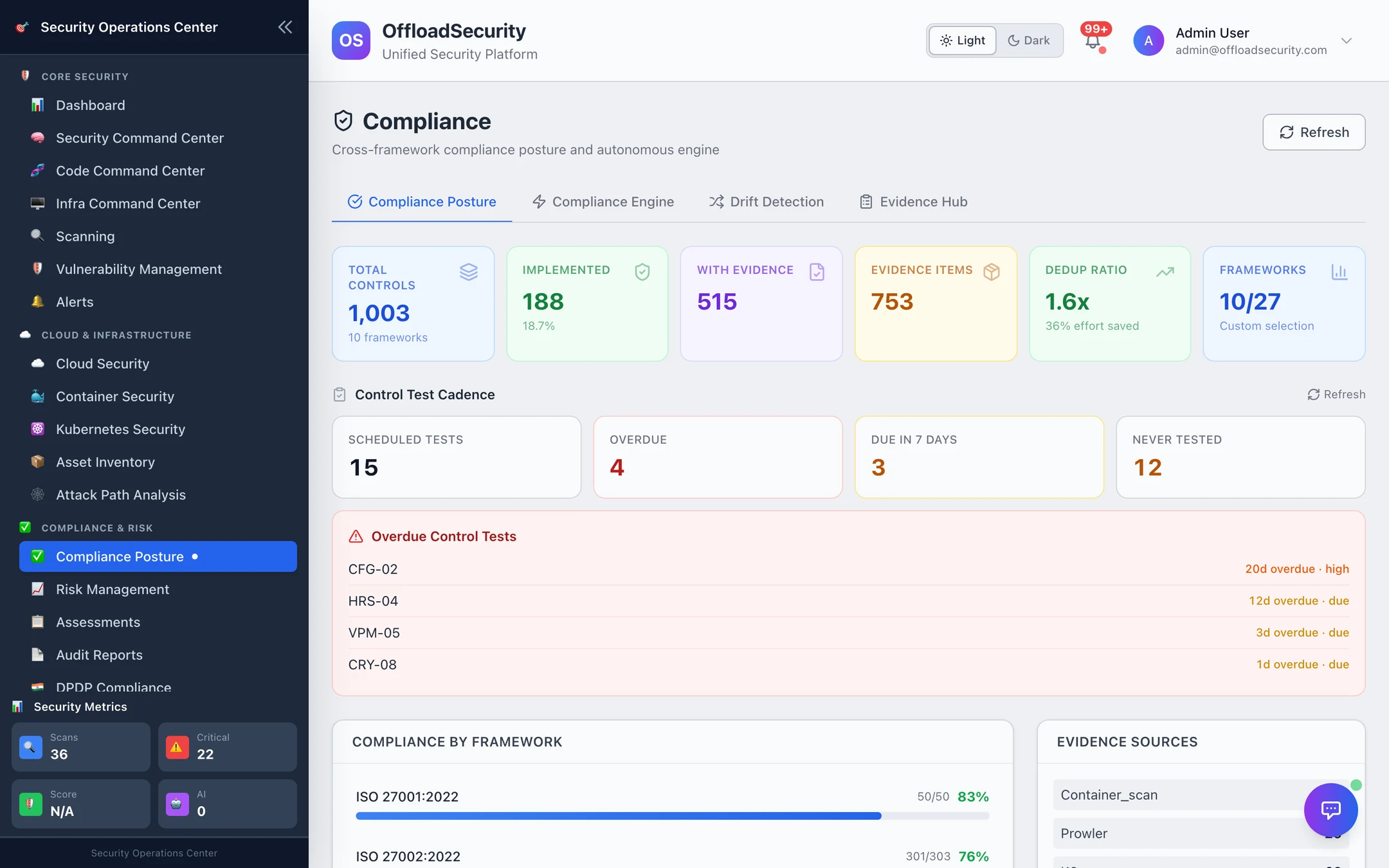
The tiles
| Tile | Meaning | Click |
|---|---|---|
| Total Controls | SCF controls in scope for your active frameworks (1,003 of the 1,534-control catalog with the default 10 frameworks) | — |
| Implemented | Controls at implemented and the share of the total | Drill-down list of implemented controls |
| With Evidence | Controls with at least one linked evidence item | Drill-down list |
| Evidence Items | Evidence rows in the store — scan evidence, documents, API captures | Drill-down list |
| Dedup Ratio | Control-evidence links ÷ evidence items — how many controls each artifact serves on average; effort saved = 1 − items ÷ links, the share of links you did not have to collect separately | — |
| Frameworks | Active / available (e.g. 10/27) | Opens the framework activation panel |
Compliance by framework
One bar per active framework: controls counted (e.g. 226/363 — in-scope controls after not applicable is removed) and the percentage. The percentage is the weighted formula in the overview: implemented 1.0, partial 0.5, evidence-only 0.25, over every in-scope control. A framework nobody has assessed yet reads Not Assessed instead of 0%.
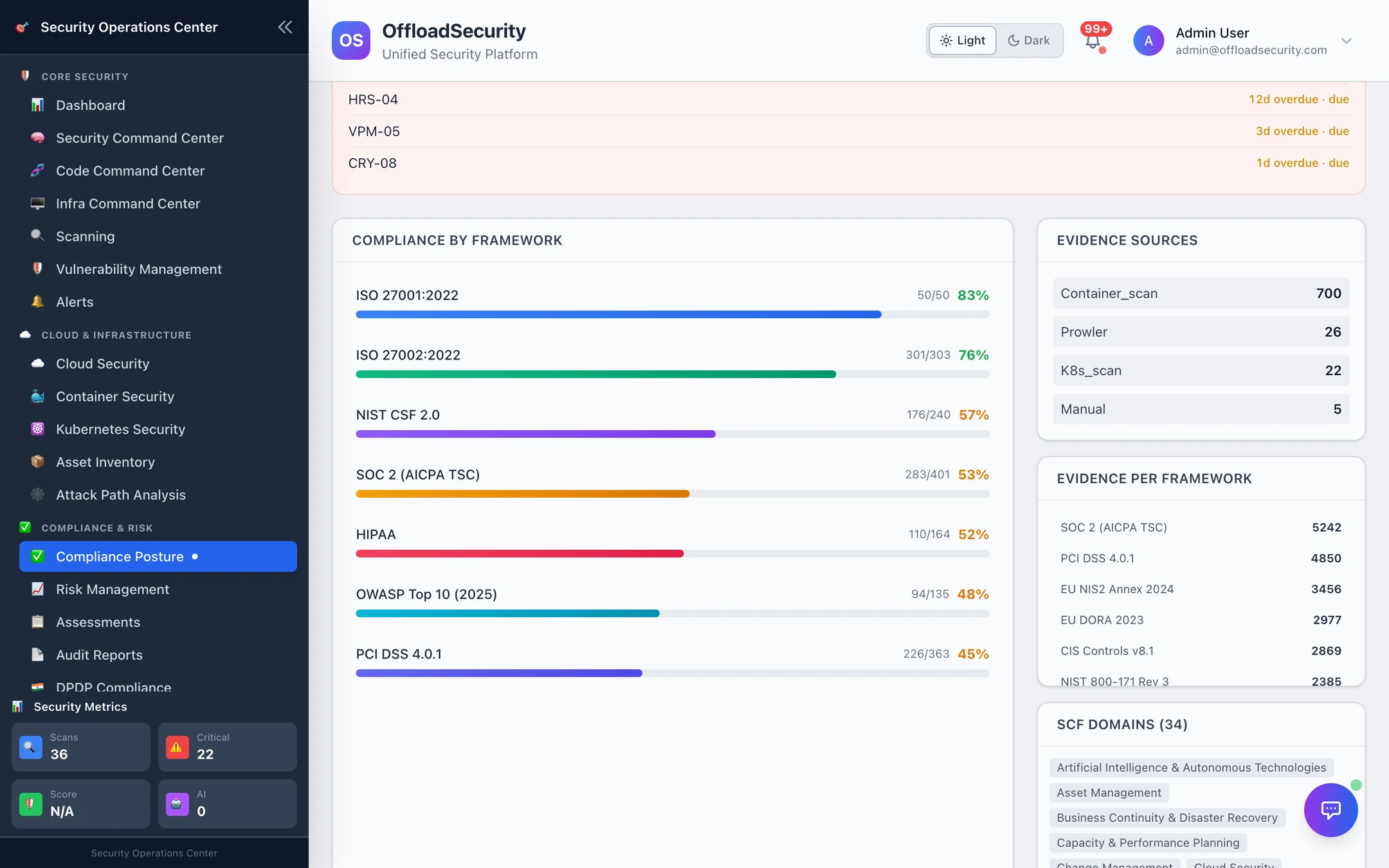
Click a framework to open its gap analysis.
Gap analysis
Every in-scope control that is not implemented, with:
- SCF ID and control name, its domain (Asset Management, Continuous Monitoring, Cryptographic Protections, …),
- Priority — the SCF weighting (1–10) of the control; sort by it to work on what moves the score most,
- Status —
partial,not_implemented,not_assessed, - search by control name or SCF ID, filters by domain and status, 20 / 50 / 100 per page.
The Override action on each row opens the manual override dialog.
Manual overrides
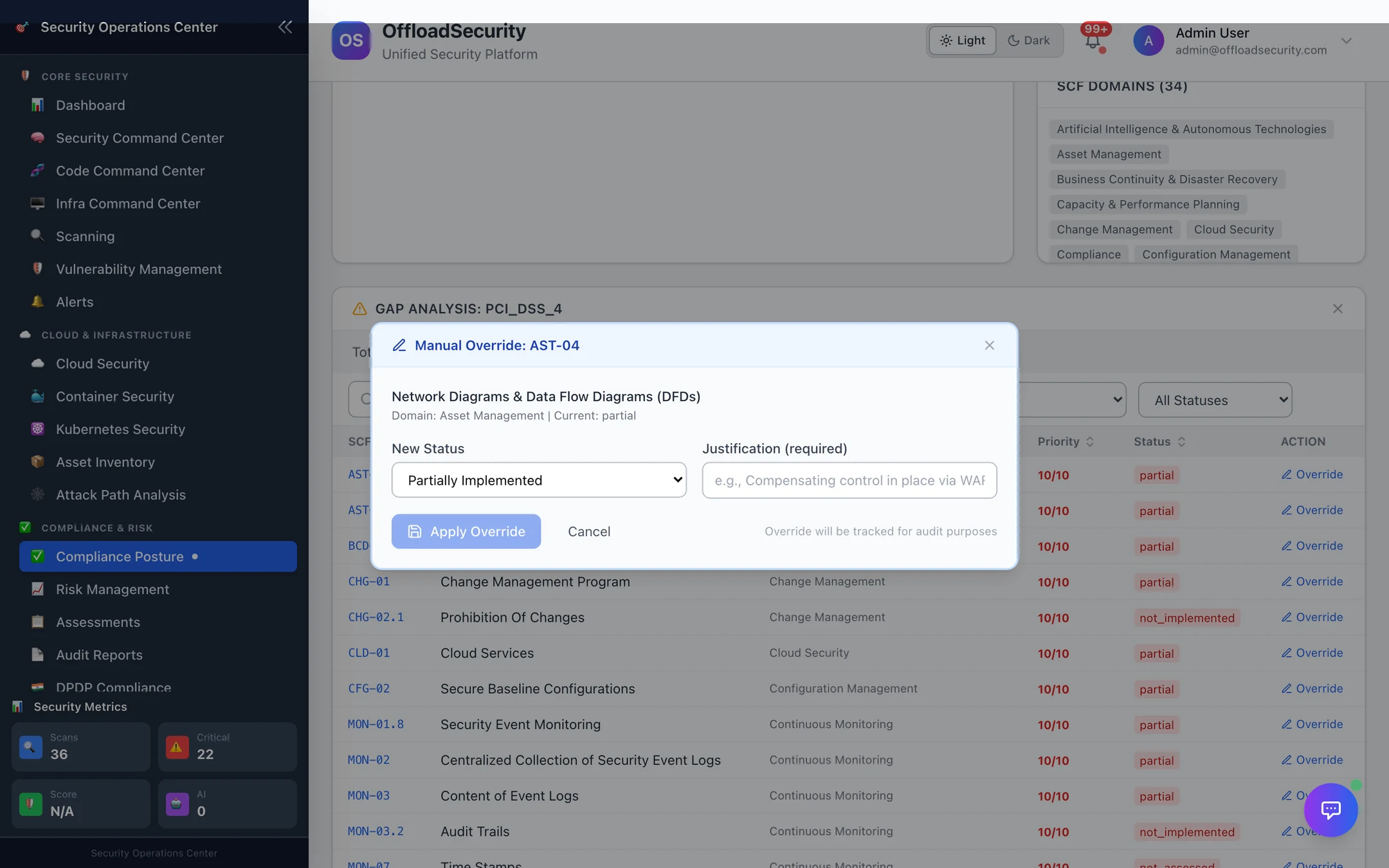
Scans can prove that a bucket is encrypted; they cannot prove that the board approved the security policy. For controls satisfied by a document, a committee or a process, set the status yourself:
- Choose the new status — implemented, partially implemented, not implemented or not applicable.
- Write the justification (required) — where the evidence lives, who approved it, when it is reviewed.
- Apply Override.
An overridden control is locked: the 4-hourly sync, assessment mapping and scan correlation still attach evidence to it but never change its status. The override, the justification and who set it are written to the compliance audit log, and the control appears under Compliance Engine → Manual Overrides, where it can be unlocked. Overrides require the admin role.
Setting GOV-01 Information security programme to implemented is not a shortcut to a green ISO 27001 — but the handful of governance, HR and business-continuity controls that no scanner can observe typically account for 10–15 points of a framework score. Do them once, with justifications an auditor can follow, and keep the rest automated.
Framework activation
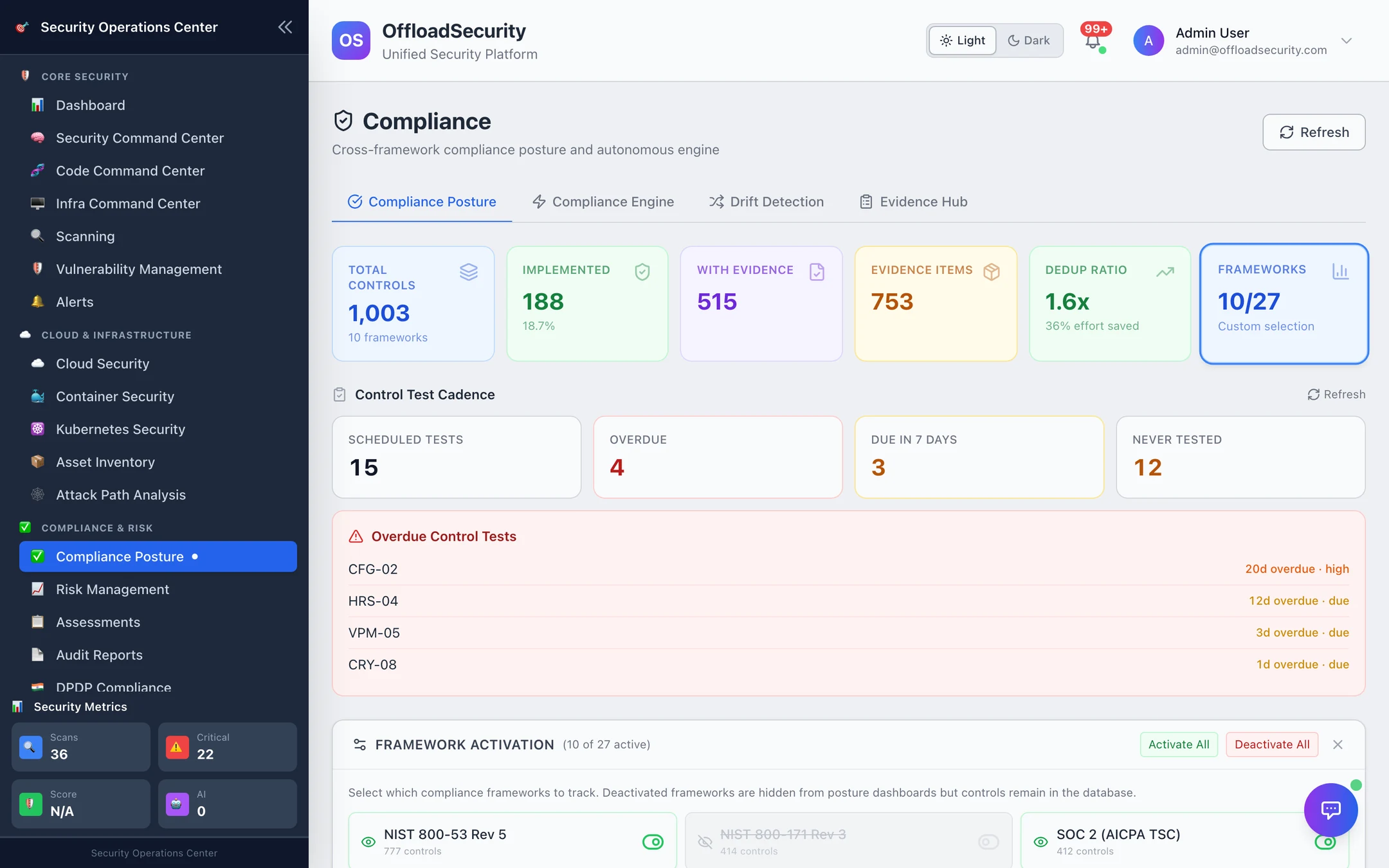
The Frameworks tile opens the activation panel. Active frameworks determine what is counted everywhere — tiles, scores, thresholds, evidence per framework, audit reports. Ten are active by default (ISO 27001, ISO 27002, SOC 2, PCI DSS 4.0.1, NIST CSF 2.0, NIST 800-53 r5, CIS v8.1, HIPAA, GDPR, OWASP Top 10); activate the rest from the 27-framework catalog as you need them. Changing activation requires a platform administrator.
Control test cadence
Formal control testing — test of design, test of operating effectiveness or both — on a schedule, separate from automated scans. The panel shows scheduled tests, overdue, due in 7 days and never tested, with the overdue list; it stays quiet until the team has schedules. Schedules and test results are created over the API today (seed defaults, set a cadence per control, record pass / fail / exception) — see Control testing.
Evidence sources, evidence per framework, SCF domains
- Evidence sources — where the evidence store's rows came from:
container_scan,prowler(cloud),k8s_scan,manual, assessment answers. - Evidence per framework — the count of control-evidence links each framework can claim; this is the dedup ratio at work.
- SCF domains (34) — the catalog's domains; the Evidence Hub breaks coverage down by these.
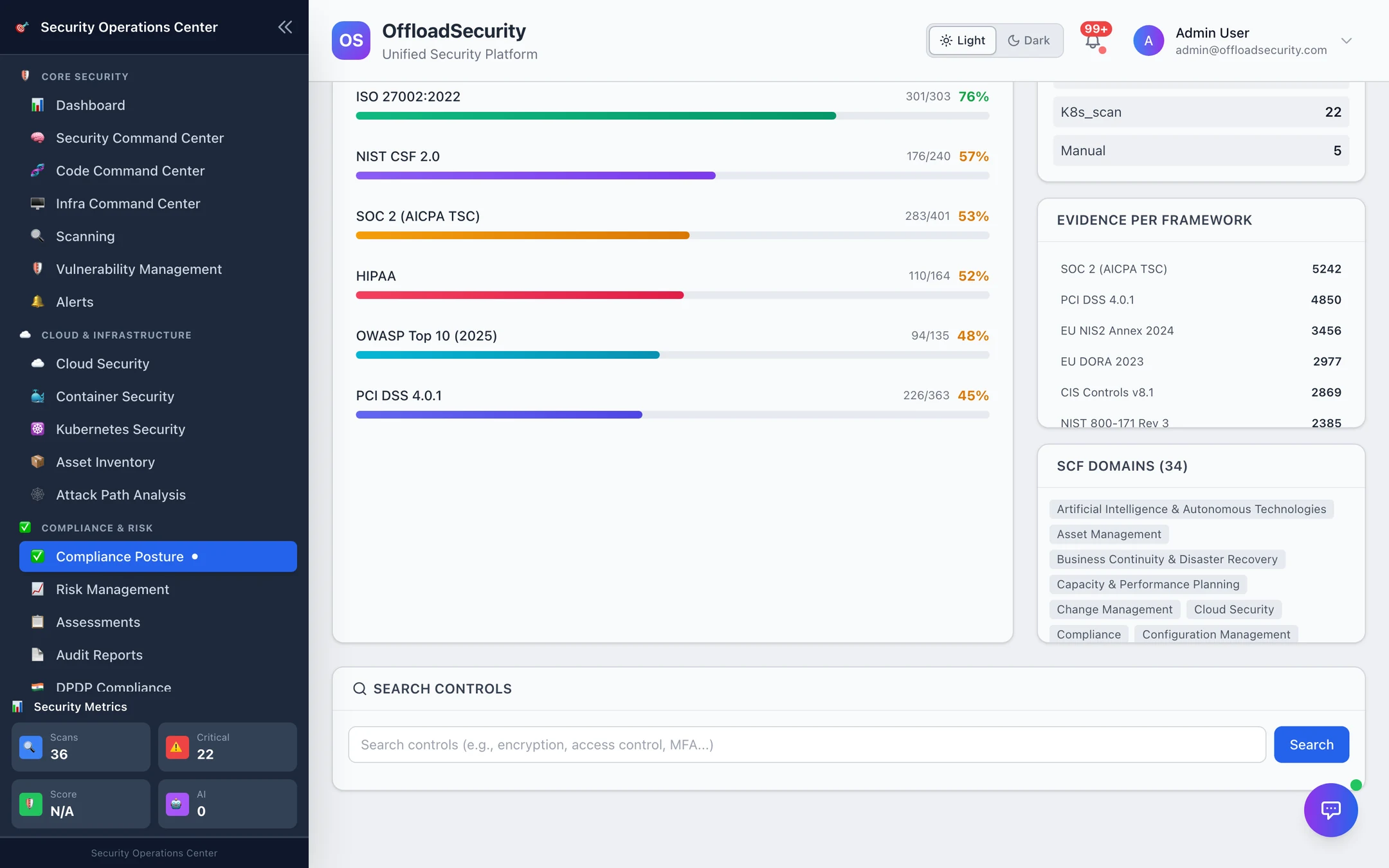
- Search controls — text search across the SCF catalog (control name, SCF ID, description), filterable by framework and domain; each result shows its status for your team and the frameworks it maps to.
Related
- Compliance Engine — sync, thresholds, breaches, overrides list, control testing, exceptions.
- Drift Detection — what regressed since yesterday's snapshot.
- Compliance & GRC API — posture, gap analysis and overrides over REST.