Assessments
Scanners cover the technical half of a framework. Assessments cover the rest — the policies, processes and practices a human has to attest to — and they do it as structured questionnaires whose answers become control status and evidence, not a PDF nobody reads again.
Where: left navigation → Assessments.
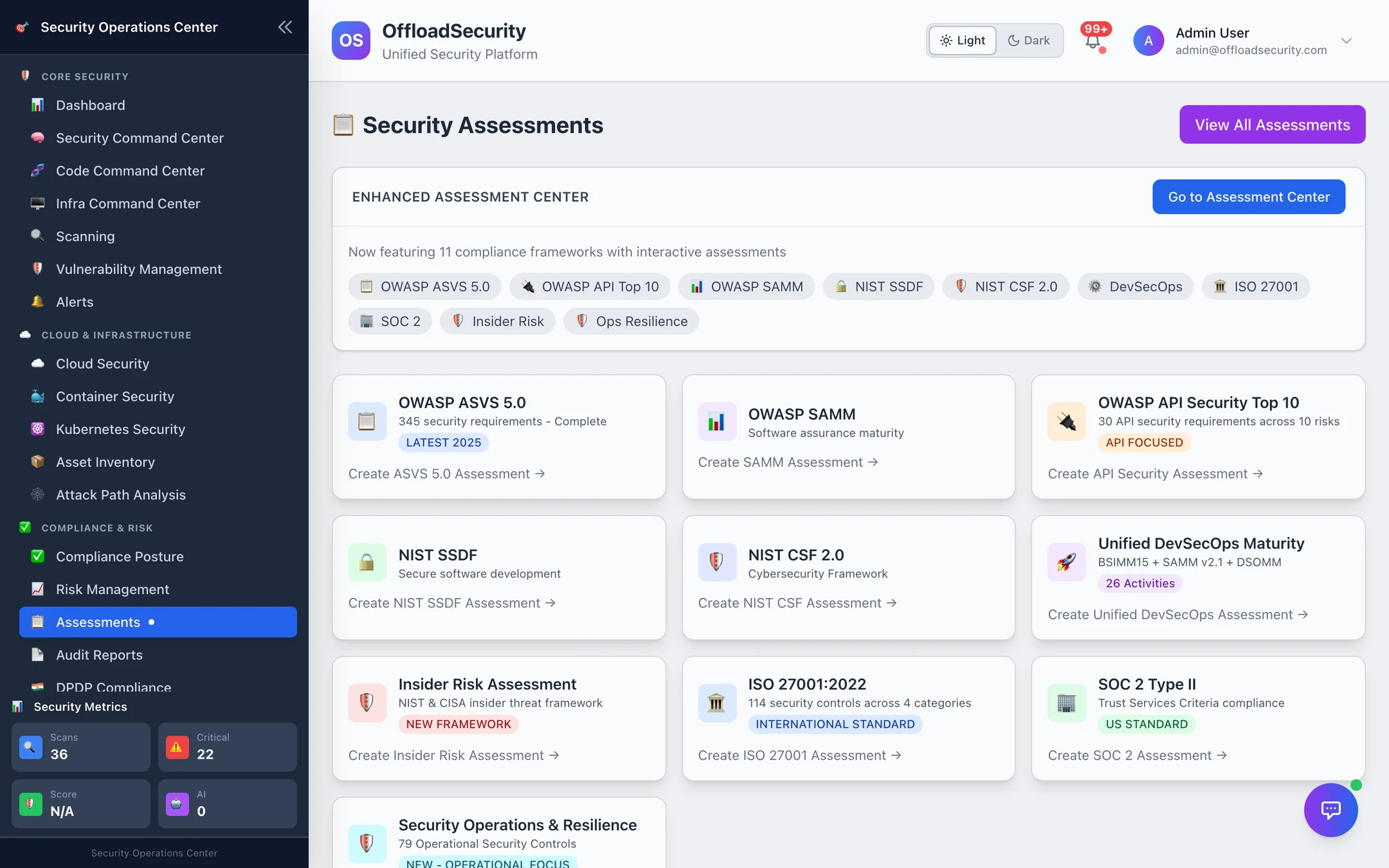
Frameworks
| Assessment | Questions | Feeds SCF controls for |
|---|---|---|
| ISO 27001:2022 | 248 — clauses 4–10 and Annex A themes (organisational, people, physical, technology) | ISO 27001 (clauses) and ISO 27002 (Annex A) |
| SOC 2 Type II | 79 — Trust Services Criteria | SOC 2 |
| OWASP ASVS 5.0 | 345 across verification levels 1–3 — choose Level 1, 2, 3 (cumulative) or the complete set | OWASP Top 10 |
| NIST CSF 2.0 | Govern, Identify, Protect, Detect, Respond, Recover | NIST CSF 2.0 |
| NIST SSDF (SP 800-218) | Secure software development practices | NIST SSDF |
| OWASP API Security Top 10 | 30 requirements across the 10 API risks | — (application posture) |
| OWASP SAMM 2.0 · Unified DevSecOps Maturity (BSIMM15 + SAMM v2.1 + DSOMM, 26 activities) | Software-assurance maturity | — (maturity scoring) |
| Insider Risk (NIST / CISA) · Security Operations & Resilience (79 controls) | Programme maturity | — |
Create an assessment
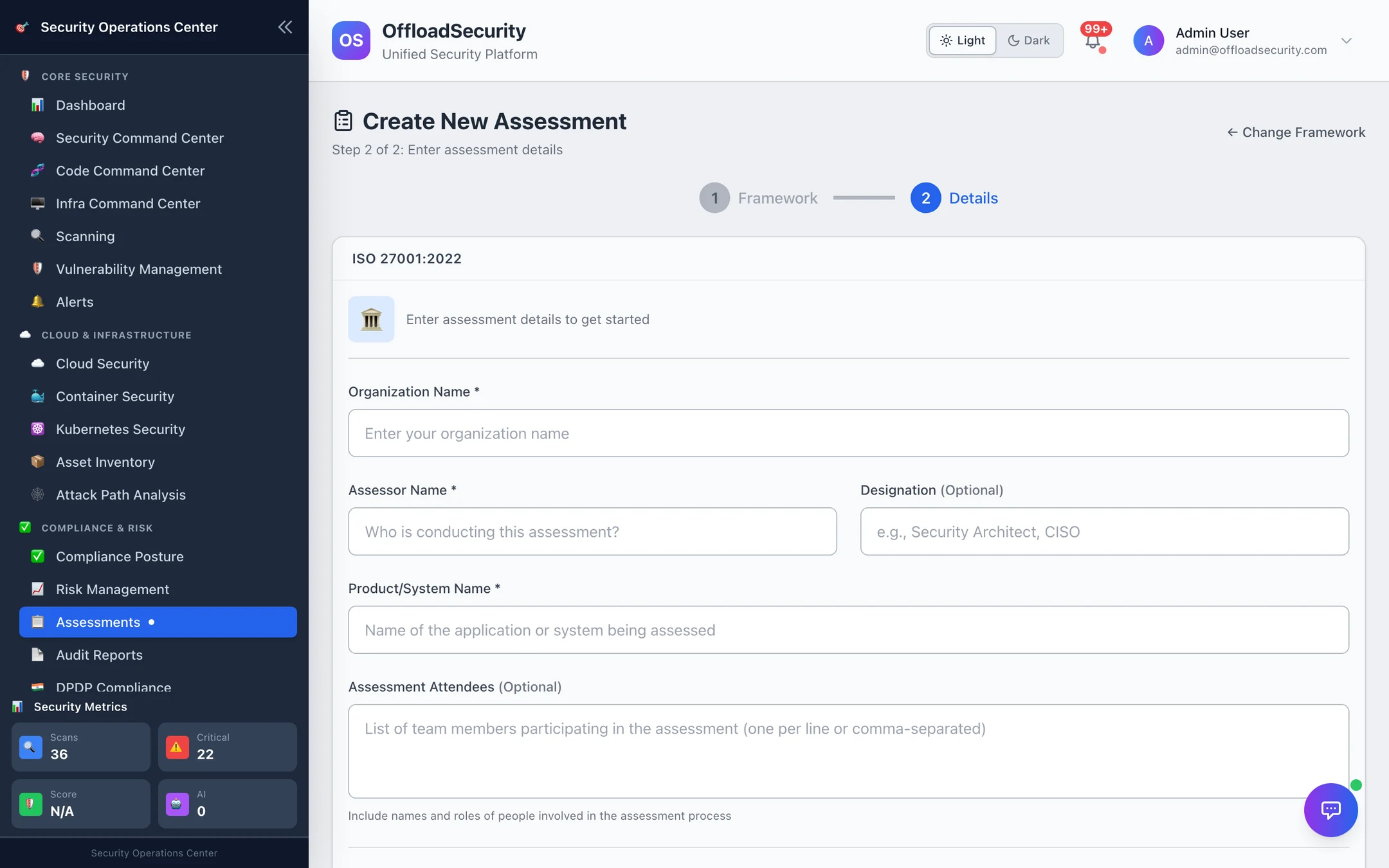
- Click a framework card (or Create Assessment → pick the framework). ASVS asks for the verification level.
- Enter the organisation, assessor and designation, the product / system in scope and the attendees — these appear on the results and in the audit trail.
- Create Assessment opens the checklist.
Answer the checklist
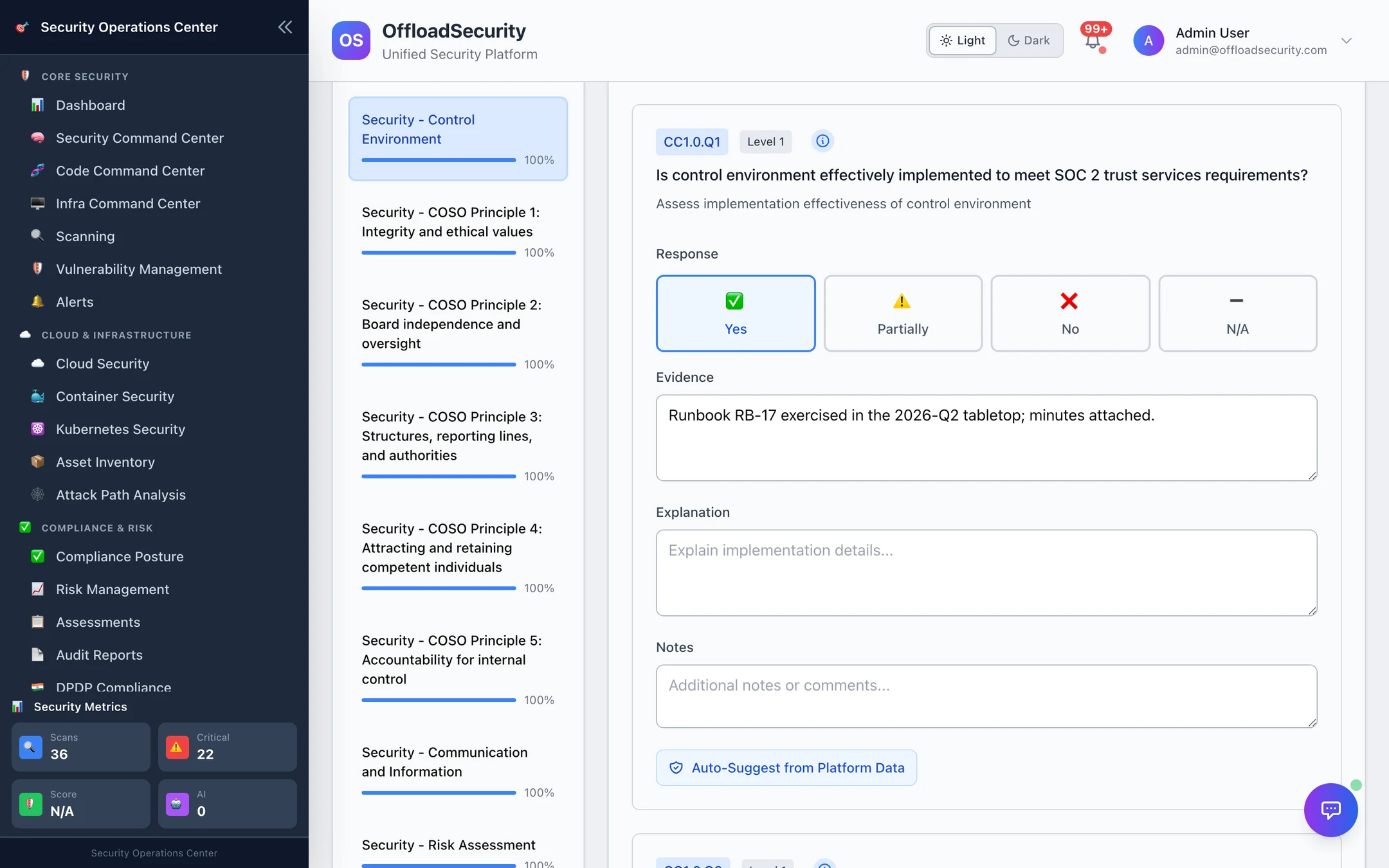
Each question takes a response — Yes, Partially, No or N/A — plus free-text evidence (where the proof lives), an explanation and notes. Answers save individually, so an assessment can be worked over weeks by several people; progress is tracked per category.
Two helpers use what the platform already knows:
- Auto-Suggest from Platform Data (per question) and Auto-Fill All Questions (whole assessment) map each question to its SCF controls and propose an answer with a confidence and the reasoning: all mapped controls implemented with evidence → Yes (high); implemented without evidence → Yes (medium, verify); some implemented or partial → Partially; otherwise the cloud-scan pass rate for the related controls (≥ 80% → Yes, ≥ 50% → Partially, else No). The header shows the SCF coverage — how many of the assessment's questions have a mapped control at all — before you start.
- AI Assessment Helper drafts evidence text and explanations for a question when an LLM provider is configured under Integrations; without one the SCF-based suggestions above still work.
Suggestions are proposals: Auto-Fill All lists them with confidence and reasoning and lets you untick any before applying; nothing is written until you apply. Put the source of an inferred answer in its explanation if your auditor distinguishes attested from derived answers — the platform does not mark it for you.
Scoring and completion
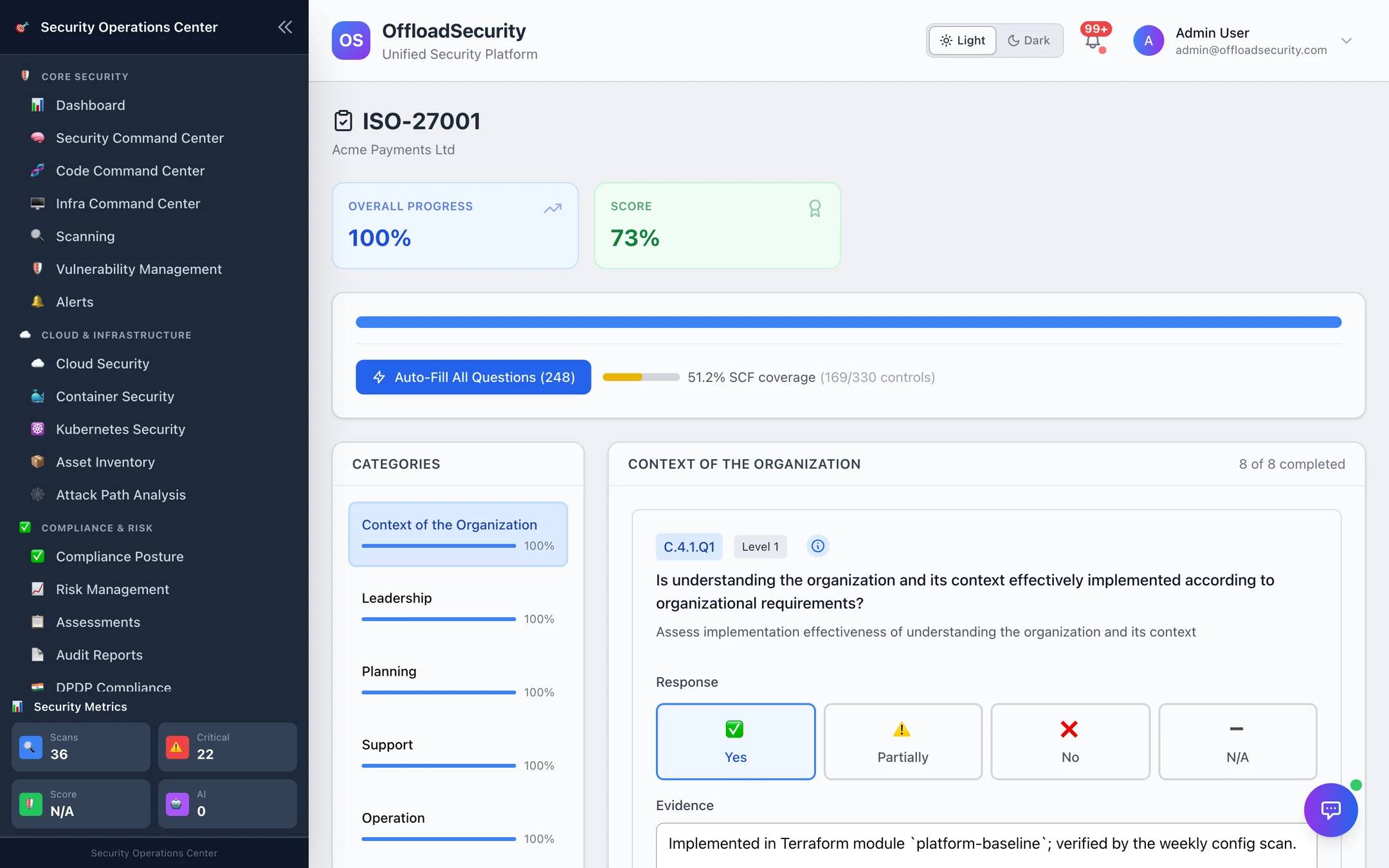
- Score = (yes × 1 + partially × 0.5) ÷ scored questions, as a percentage; N/A counts towards progress but is excluded from the score; per-category scores are shown alongside.
- Maturity level from the score: Initial (< 50), Developing (50–74), Structured (75–89), Advanced (≥ 90).
- Complete Assessment freezes the answers, records the final score and maps every answer to SCF controls: the question's requirement reference (ISO clause
4.1, Annex A5.1, TSCCC6.1, CSFPR.AA-01) is matched to the controls that carry that framework requirement; Yes sets them implemented, Partially partial, No not implemented, N/A not applicable — never overriding a manually locked control. The posture page reflects it immediately, and every answer becomes an evidence item on its controls.
Completed assessments are re-mapped by the 4-hourly compliance refresh, so a later change to the SCF catalog is picked up without redoing the questionnaire.
Find your assessments
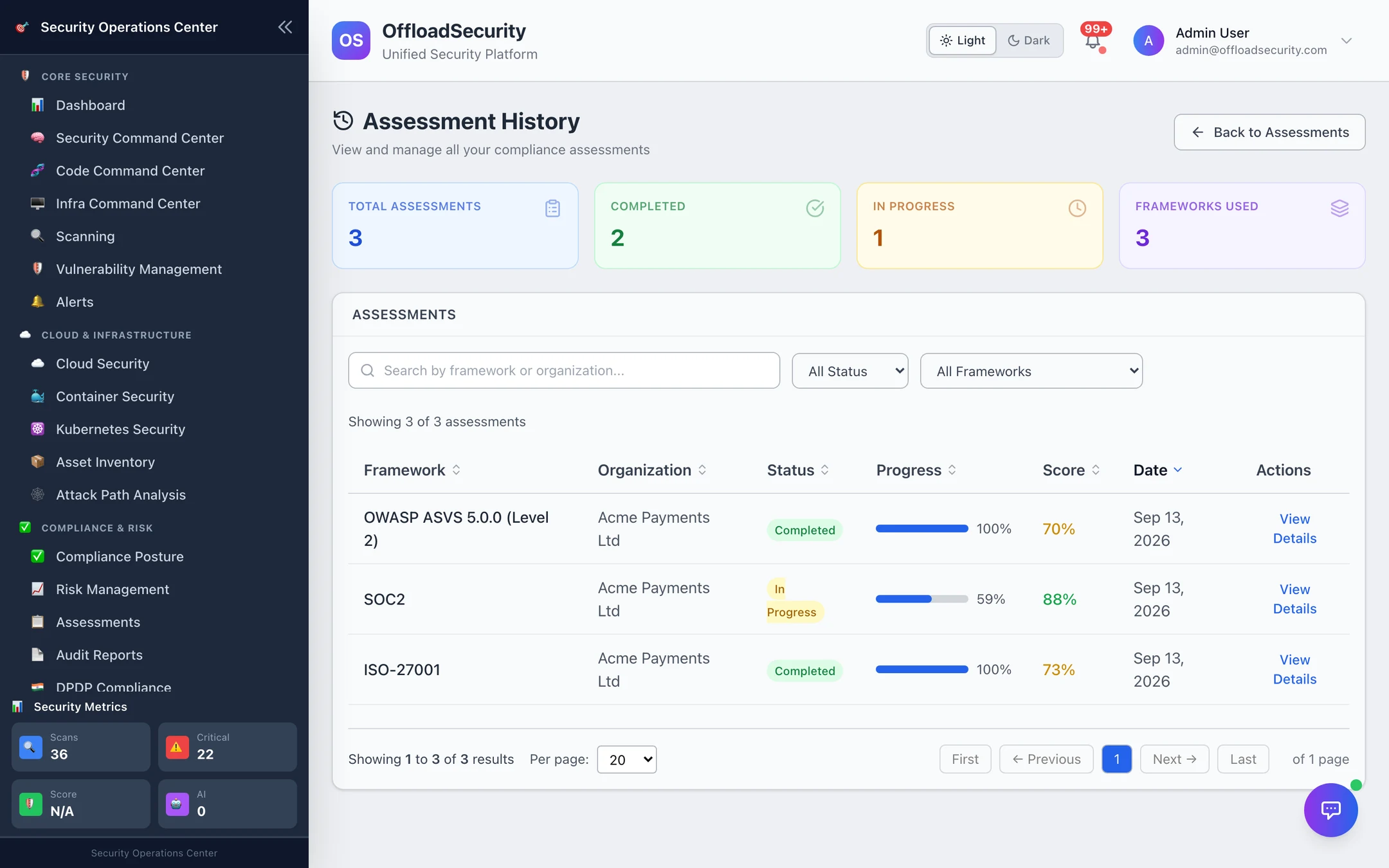
View All Assessments on the hub opens Assessment History — every assessment with status, progress, score and date, filterable by status and framework. View Details reopens the checklist (to continue) or the completed record.
Scope the ISO 27001 or SOC 2 assessment to the system your customers actually buy (the product / system name field). A focused assessment is finished in days and its answers map cleanly; an enterprise-wide one stalls at 40% and maps to nothing.
Assessment Center (enhanced assessments)
Go to Assessment Center opens a second kind of assessment — enhanced assessments with an owner, business criticality, an expiry (365 days by default) and automated evidence collection from scans, cloud configuration, risk data and the knowledge base, plus renewal notifications when they lapse. Use them to track recurring attestations (an annual vendor questionnaire, a quarterly access review) rather than framework questionnaires.
Related
- Compliance Posture — where the answers land.
- Evidence Hub — the evidence each answer creates.
- Compliance & GRC API — create, answer, complete and auto-fill over REST.