Integrations & Notifications
Offload Security is the system of record for posture, findings, risk and compliance; integrations are how that record reaches the tools your team already lives in — and how a few outside tools feed data back in. Every connection is made from one place, follows the same five-step wizard, and is labelled with what actually happens after it turns green.
Where: left navigation → Management → Integrations.
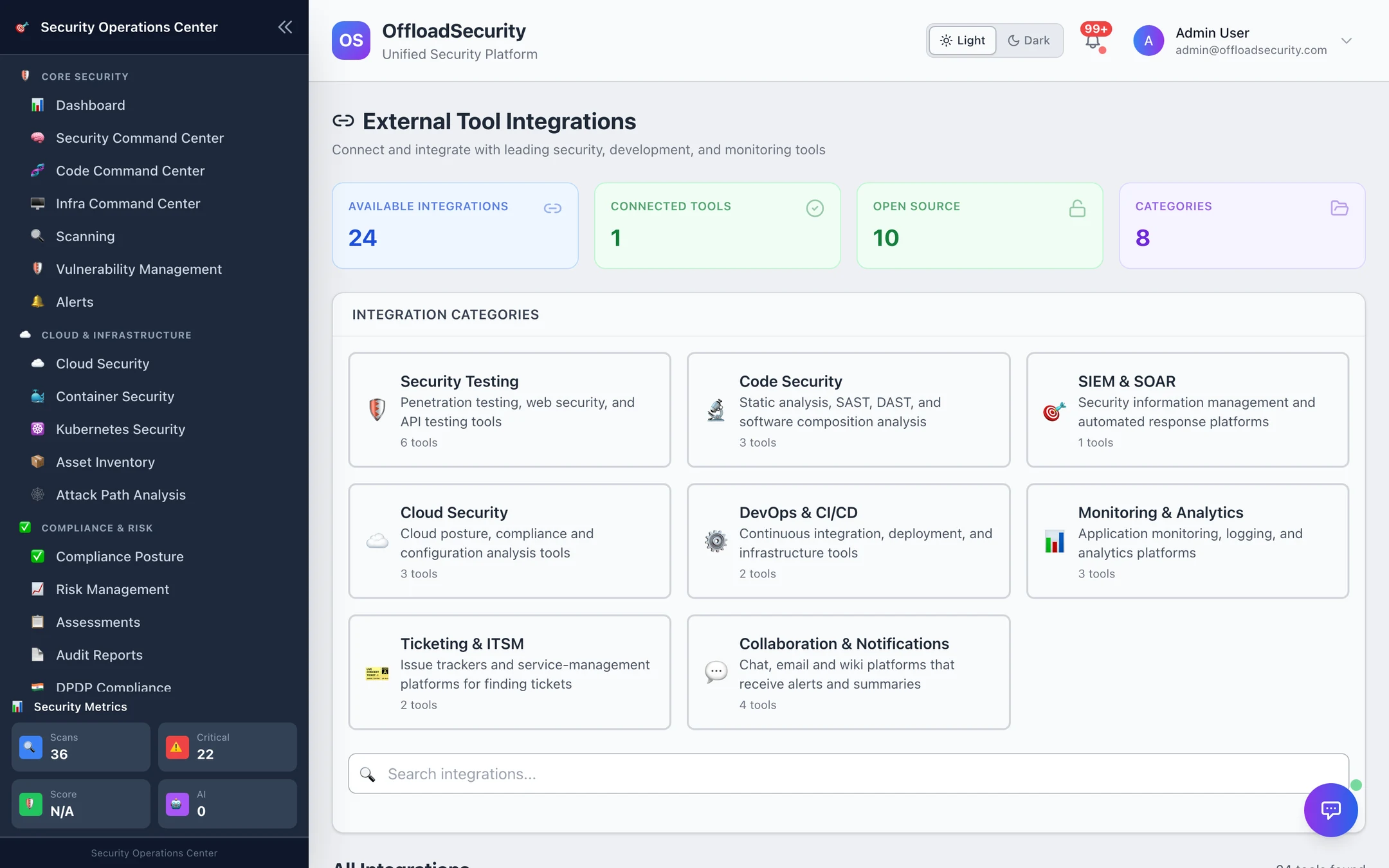
What an integration does
Not every connection means the same thing. Each card in the catalog carries a capability badge, and it is worth reading before you connect:
| Badge | Meaning | Tools |
|---|---|---|
| pulls data in | The platform syncs data from the tool into its own views | Wazuh (agents → assets, host CVEs → vulnerability occurrences, alerts → Alerts), SonarQube (project and open-issue snapshot), Jenkins (job summary) |
| two-way | Data flows both directions | Jira — tickets are created from findings, and ticket status closes or reopens the finding |
| sends out | The platform pushes alerts, emails or documents to the tool | Slack, Microsoft Teams, Email (SMTP), PagerDuty, Confluence, GitHub Actions (pipeline configuration) |
| connection test only | The connection is verified and recorded; no data flows yet | OWASP ZAP, Burp Suite, Nuclei, Snyk, CloudMapper, Greenbone / OpenVAS, AWS Security Hub, Prowler |
| catalog only (shown as Planned) | Listed for roadmap visibility; no Connect | PentestGPT, CodeQL, Datadog, Grafana, ServiceNow, Splunk |
Scanners in the connection test only group are the ones the platform already runs natively — ZAP, Nuclei and Prowler are built-in scan engines; the catalog entry only verifies a remote instance you may run elsewhere. Snyk, Security Hub and OpenVAS are verified but their findings are not imported.
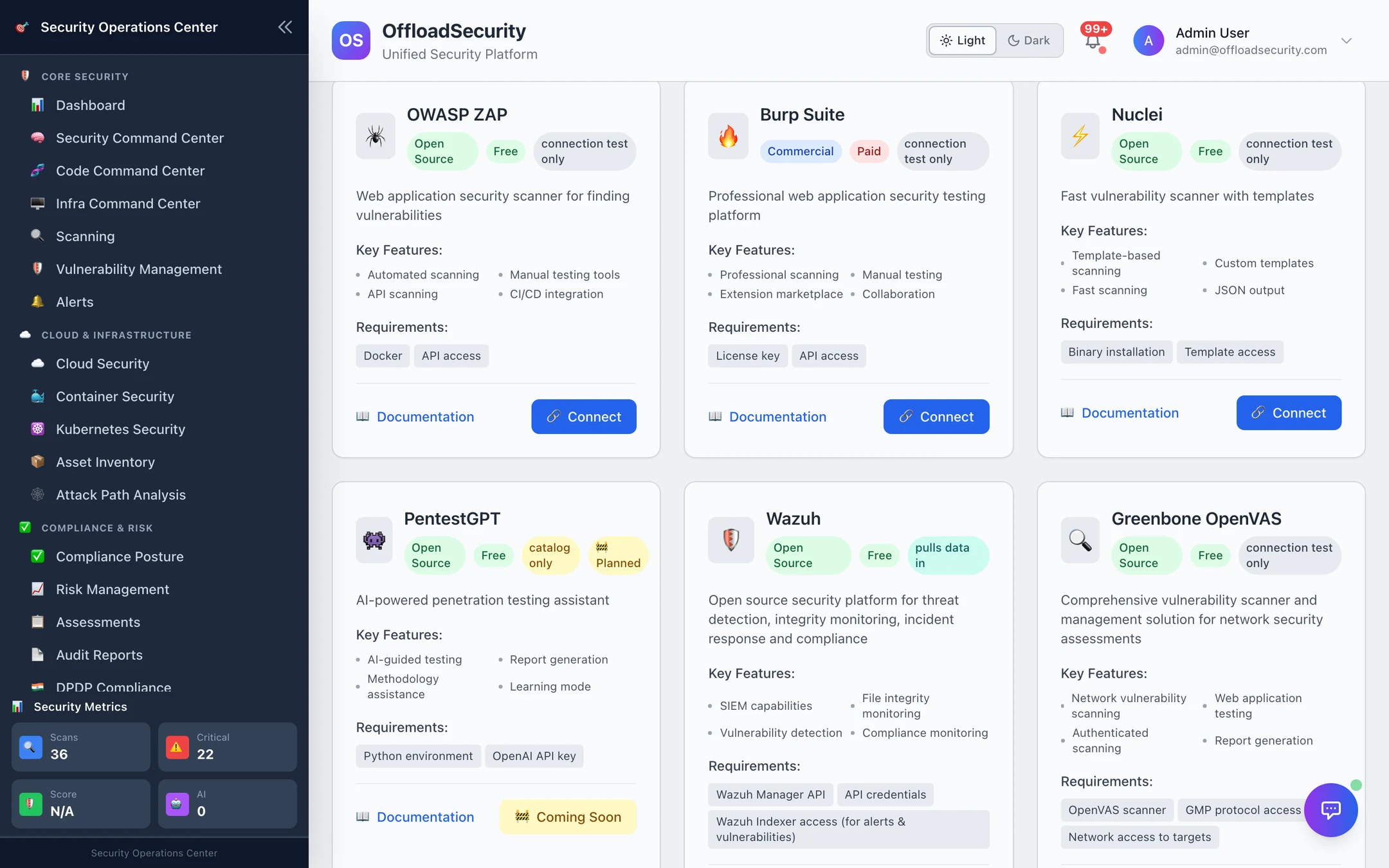
Categories
The category cards filter the catalog; the count on each is the number of tools it holds.
| Category | Tools |
|---|---|
| Security Testing | OWASP ZAP, Burp Suite, Nuclei, PentestGPT, Wazuh, Greenbone OpenVAS |
| Code Security | SonarQube, Snyk, CodeQL |
| Cloud Security | AWS Security Hub, Prowler, CloudMapper |
| DevOps & CI/CD | Jenkins, GitHub Actions |
| Monitoring & Analytics | Datadog, Grafana, PagerDuty |
| Ticketing & ITSM | Jira, ServiceNow |
| Collaboration & Notifications | Slack, Microsoft Teams, Email (SMTP), Confluence |
| SIEM & SOAR | Splunk |
Connect, then verify
- Connect on a card opens the five-step wizard — overview, credentials, a real connection test, health-check frequency, review. The test contacts the tool: a Slack webhook receives a test message, a Jira token is checked against
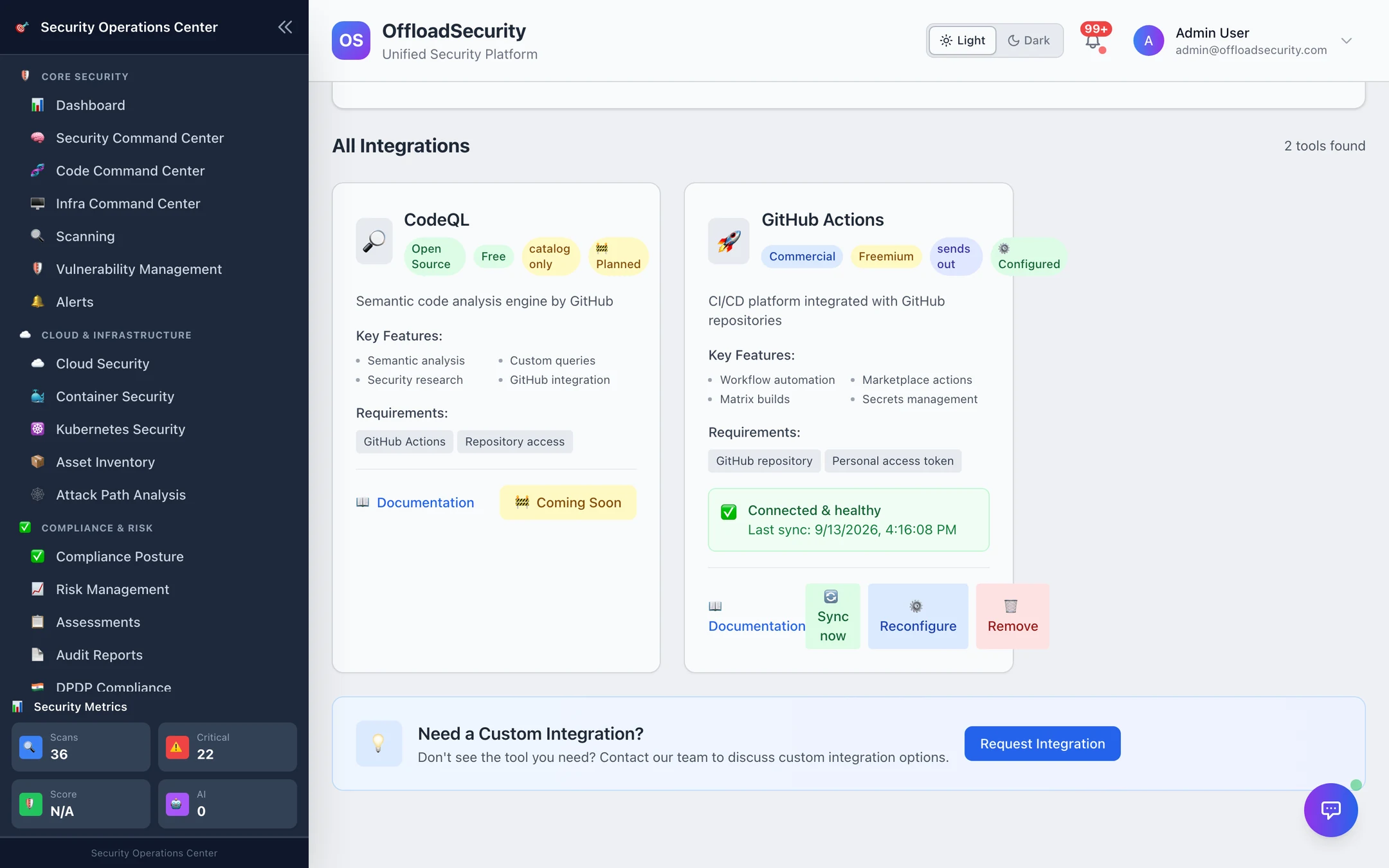
/myself, an SMTP server is authenticated to. See Connecting Tools. - A connected card shows Configured, its sync status and last sync, and three actions: Sync now, Reconfigure, Remove.
- Health checks re-run the connection test on the cadence you chose in the wizard (hourly by default); a rotated token turns the card from Connected & healthy to disconnected with the error, and raises an in-app notification.
- For pulls data in tools a global sync runs every 30 minutes; Sync now starts one immediately as a background job.
A connection belongs to the active team; another team never sees it and must connect its own. Credentials are encrypted at rest with a key that never leaves the backend, and are not shown back after setup. Connecting, testing, reconfiguring and removing need the Manage Integrations permission (Admin and Security Manager by default); any team member can see the catalog and the connected state. See Roles, Teams & API Keys.
Where notifications come from
Alerts do not need a connected tool to exist — they land in the in-app notification center (the bell) for every team member. Connecting Slack, Teams, Email or PagerDuty adds a delivery channel; per-team preferences decide which channels are on, which categories are muted and the minimum alert severity that leaves the platform (high, by default). Slack additionally supports routing rules — critical security alerts to one channel, operational errors to another. All of this is on Notifications; outbound webhook subscriptions for your SIEM or automation are on Webhooks.
In this section
| Page | Read it for |
|---|---|
| Connecting Tools | The wizard step by step, what each step verifies, managing a connected tool |
| Notifications | Slack, Teams, Email, PagerDuty, the in-app center, routing rules and preferences |
| Webhooks | Event subscriptions, signature verification, delivery log |
| Jira | Tickets from findings, two-way status sync, the Jira tab |
| Wazuh · SonarQube · OpenVAS · Wazuh + OpenVAS | The data integrations and what each one brings in |
| Integration Catalog | Every tool, its capability, and the credentials it asks for |
| API · Troubleshooting & FAQ | Endpoints and permissions; common problems |
CI/CD is not an integration card: pipeline gates use the CLI and the GitHub Action — see CLI & CI/CD. Cloud accounts and Kubernetes clusters are connected in their own modules — Connecting Cloud Accounts, Kubernetes onboarding.