Connecting Tools
Every tool in the catalog is connected the same way, so once you have connected one you know how to connect all of them. The wizard is deliberately strict about one thing: a connection test never passes without contacting the tool. Nothing is marked Connected on the strength of a saved form.
Where: Integrations → find the card (search or a category) → Connect.
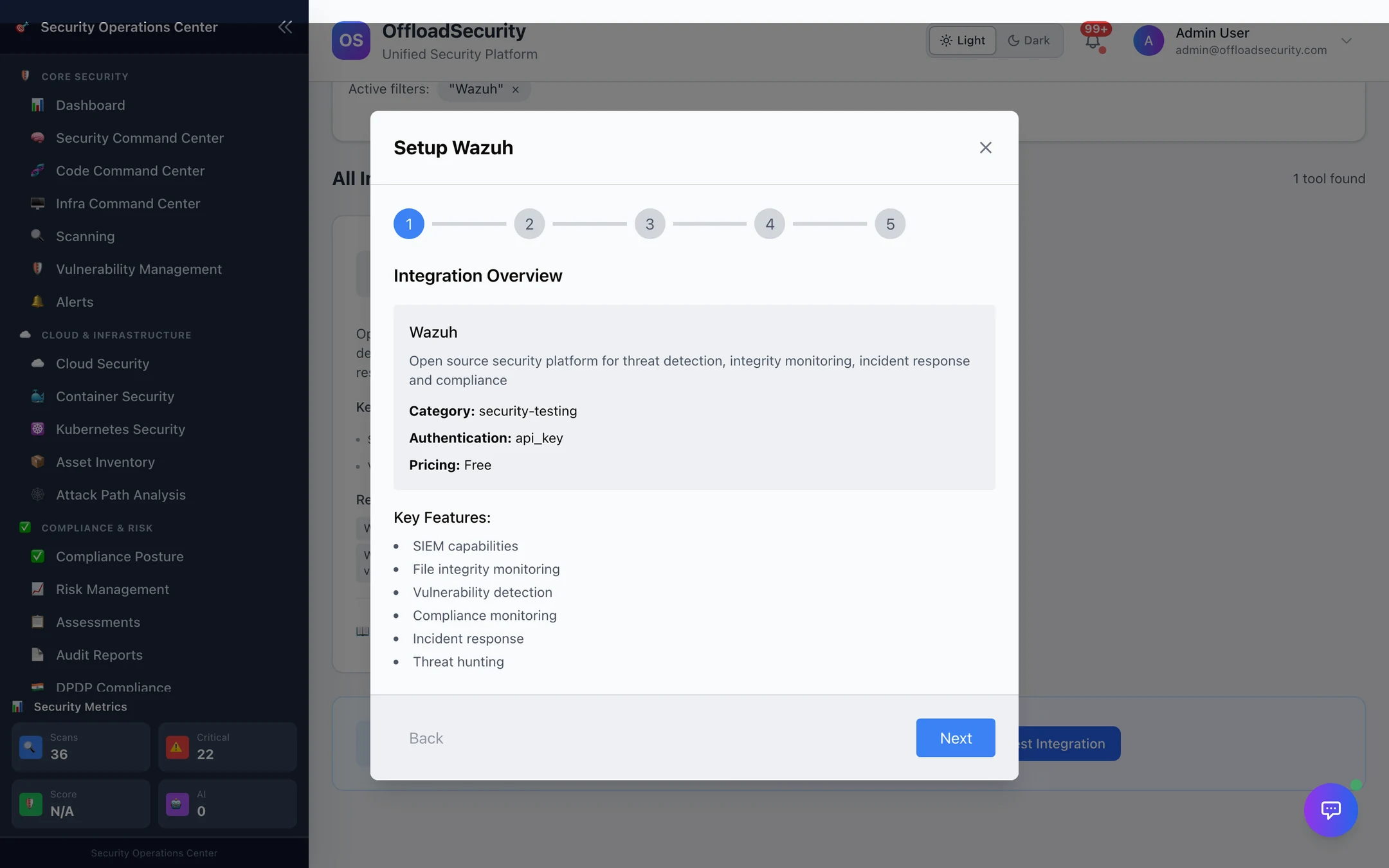
Step 1 — Integration overview
What the tool is, its category, the authentication type it uses and its pricing model, so the person connecting it knows what they are about to hand over.
Step 2 — Authentication configuration
Only the fields that tool needs, required ones marked *. Defaults are pre-filled where there is a sensible one (Wazuh port 55000, verify_ssl true). Fields named for the tool's own vocabulary — wazuh_host, gmp_host, jenkins_url — are what the docs of that tool call them.
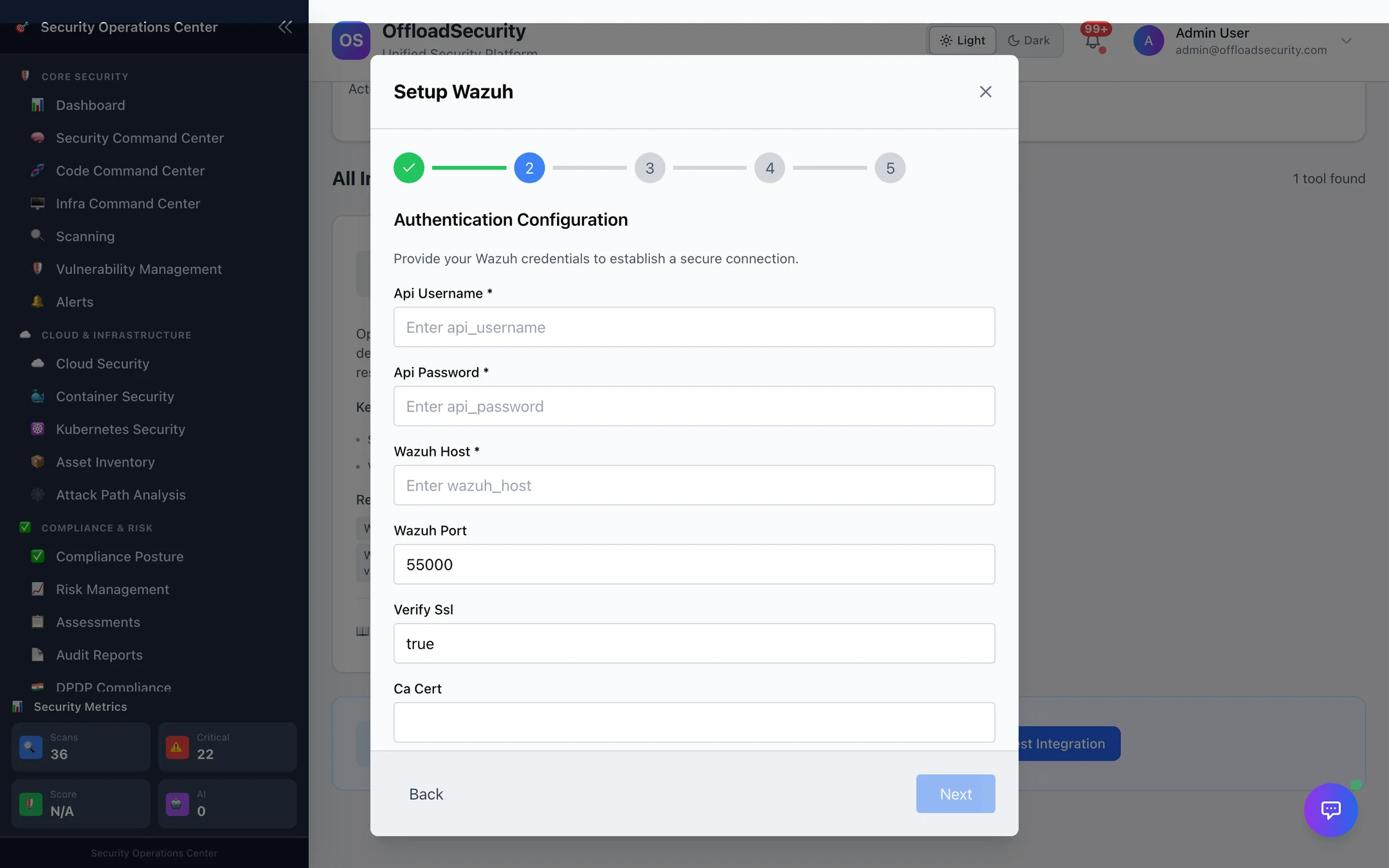
Every tool's fields are listed in the Integration Catalog. Two that need a word:
verify_ssl/ca_cert— on-premises tools with a private CA: leave verification on and paste the CA certificate (PEM) intoca_cert; turn verification off only for a self-signed lab instance. The same setting is used for the connection test and for every later sync.- Private addresses. The platform will not connect to loopback, link-local or cloud-metadata addresses at all, and to private LAN ranges (
10/8,172.16/12,192.168/16) only when the deployment setsALLOW_PRIVATE_SCAN_TARGETS=true— the normal case for an on-premises install pointing at an internal Wazuh or Jenkins. A blocked address fails the test with an explicit SSRF protection message rather than a timeout.
Step 3 — Connection test
The platform contacts the tool with the credentials from step 2 and shows the result. The test is specific to the tool:
| Tool | What the test does |
|---|---|
| Wazuh | Authenticates to the Manager API; also checks the Indexer (alerts and vulnerabilities). Manager-only success is reported as a warning you must accept, not a green tick |
| SonarQube · Jenkins · Jira · Confluence · OWASP ZAP · Burp Suite · Nuclei · Snyk · CloudMapper · Greenbone / OpenVAS · AWS Security Hub | Authenticated API call to the tool (/api/json for Jenkins, /rest/api/3/myself for Jira, …) |
| Slack · Microsoft Teams | A test message is posted to the incoming webhook — check the channel |
| Email (SMTP) | Connects, negotiates STARTTLS when enabled, authenticates. No mail is sent |
| GitHub Actions | No remote call: the integration generates pipeline configuration, so the step reports that and passes |
| PagerDuty | Saved without a probe (validating an Events API key means triggering an incident); verified on the first alert |
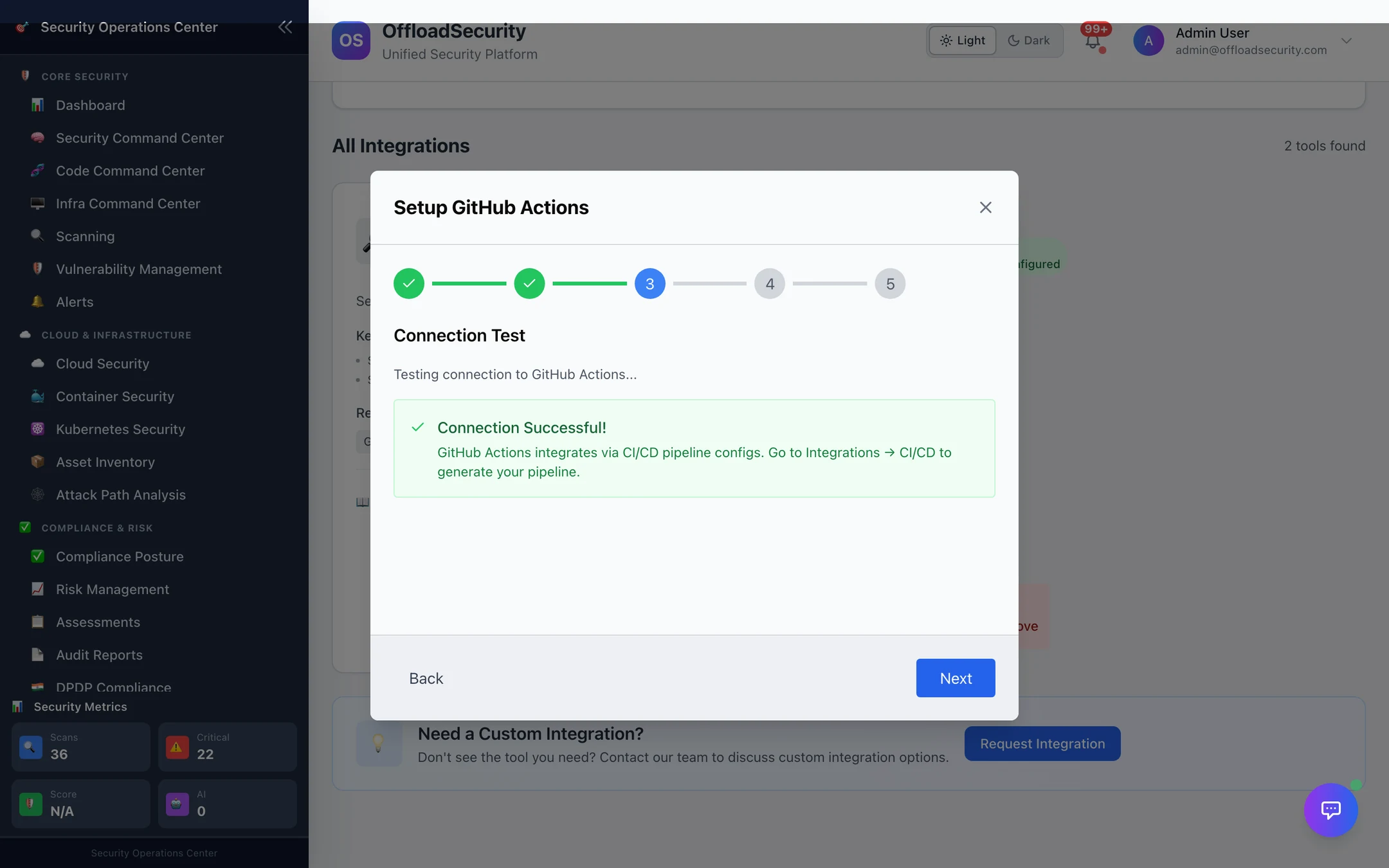
A failed test shows the tool's own error (Authentication failed — check username and API token, Webhook returned HTTP 404: no_service, 535 authentication failed), and Next stays disabled until a test passes. A passing test moves on automatically after a moment.
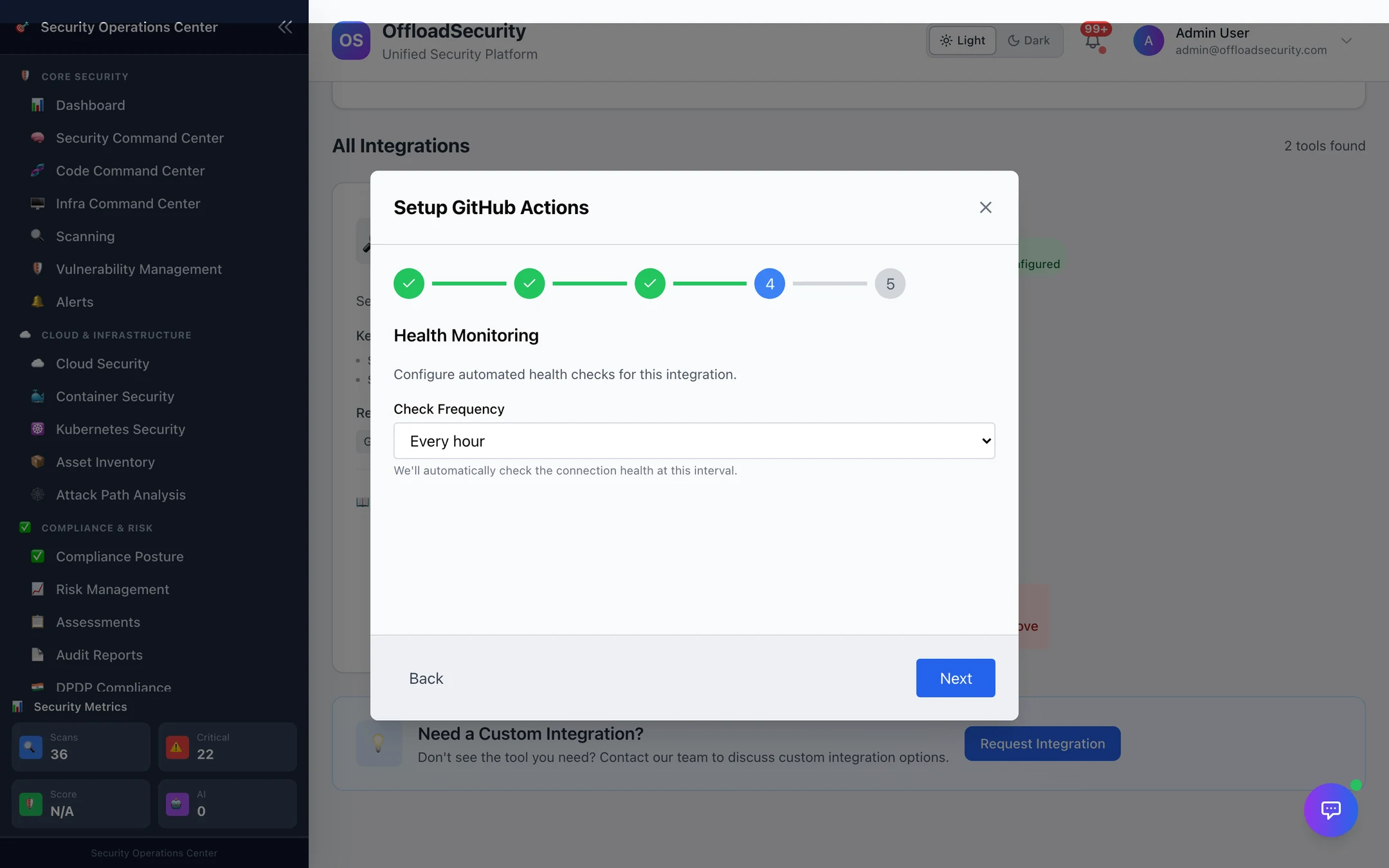
Step 4 — Health monitoring
Check Frequency (hourly by default, up to daily) is how often the platform re-runs this connection test in the background after setup. Each check is recorded; a failure flips the card to disconnected with the error and raises an in-app notification, so a rotated token is noticed before the next sync silently returns nothing.
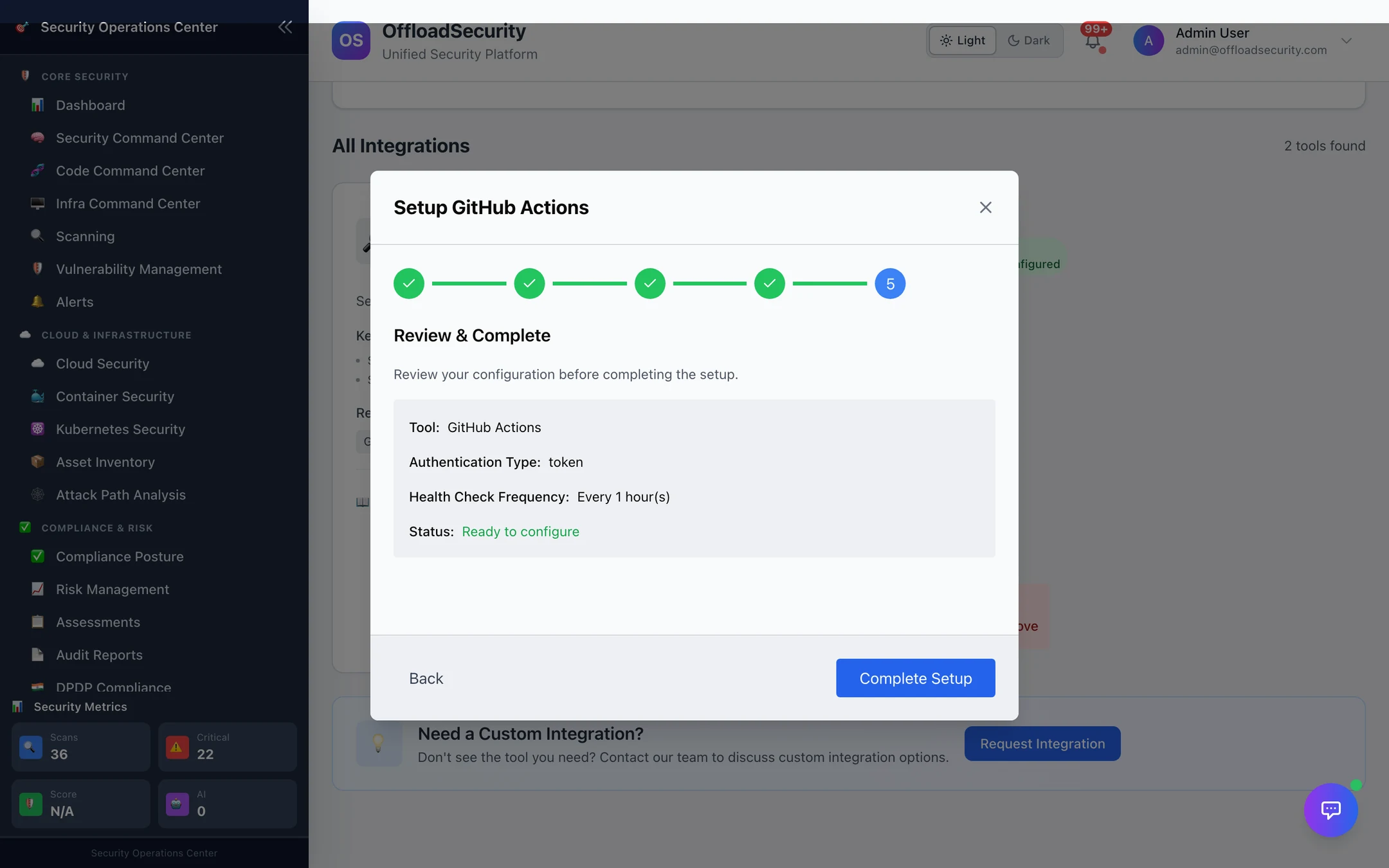
Step 5 — Review & complete
Tool, authentication type, health-check frequency, and Complete Setup. Completion re-runs the connection test server-side before saving — the wizard's own test only gates the button, and fields could have changed since — and stores the credentials encrypted, scoped to the active team.
After connecting
The card gains a Configured badge and a status line — Connected & healthy with the last sync time, or Sync status: disconnected with the reason — and three actions:
| Action | What it does |
|---|---|
| Sync now | Starts a sync as a background job and re-tests the connection. For pulls data in tools it fetches the tool's data (Wazuh agents, alerts and CVEs; the SonarQube and Jenkins snapshots); for the others it is a connection re-test. Disabled while a sync is running. |
| Reconfigure | Re-opens the wizard for that tool; completing it replaces the stored credentials and re-tests. |
| Remove | Deletes the connection and its credentials for this team after confirmation. Data already synced (assets, occurrences, alerts) stays. |
Two schedules run without you:
- Global sync — every 30 minutes, every pulls data in connection of every team is synced with its stored credentials. Slack and Teams are deliberately not re-tested by this schedule (a re-test would post to the channel twice an hour); they keep the status of their last real test.
- Health checks — on the frequency chosen in step 4, the connection test is re-run and recorded.
GET /api/integrations/health-statuslists the latest result per connection.
Create a dedicated user or token for the platform in each tool with only what it needs — read-only Wazuh API user, a Jira account that can create issues in the target project, a SonarQube user token rather than an admin's. Rotating that token later means Reconfigure, nothing else.
Related
- Integration Catalog — every tool with its capability and fields.
- Notifications — what a connected Slack, Teams, Email or PagerDuty receives.
- Troubleshooting & FAQ — failed tests, private addresses, "connected but nothing arrives".