AI Assistant
AI in Offload Security has one job: help a human read, explain and act on security data faster. It sits on the same normalised data the dashboards use — findings, controls, risks, evidence — and it drafts; a person decides. Nothing in this section closes a finding, accepts a risk, changes a control or touches your cloud on its own.
The security assistant
Where: the AI Security Assistant button at the bottom-right of every page.
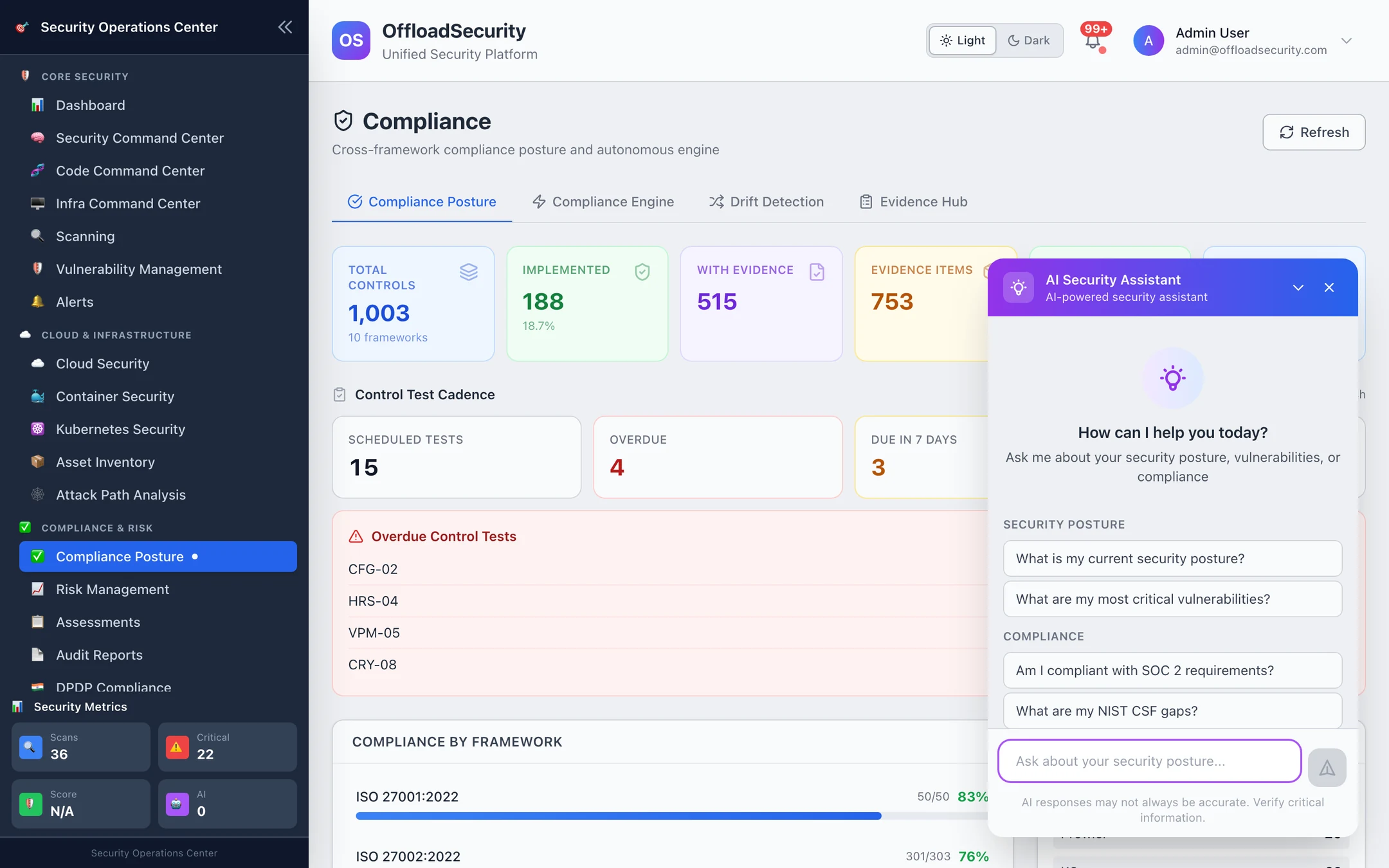
Open it and ask in plain language — what are my most critical vulnerabilities, am I compliant with SOC 2 requirements, what are my NIST CSF gaps. The panel offers suggested questions for the page you are on, keeps a conversation so follow-ups work ("and which of those are internet-exposed?"), and shows which provider and model answered. Conversations are per user and can be cleared.
The assistant answers from two places, checked in order:
- Platform knowledge, without a model call. Questions about the product itself — what a module does, how to connect an account, where a setting lives, common troubleshooting — are served from a curated knowledge base that is refreshed from this documentation site, and from answers the model previously gave to generic questions (kept behind a normalised-question hash with a semantic fallback, and expired so they cannot drift). Zero tokens, consistent answers, fast.
- The configured LLM, for anything about your data: it receives the security context of the current page (scan results, vulnerabilities, compliance status) together with the question, under a system prompt that keeps it to security posture, risk and remediation guidance.
Only questions with no tenant context are ever cached; an answer built from your findings is never stored where another team could receive it.
AI across the modules
The same provider powers small, specific helpers where a human would otherwise have to read a lot:
| Where | Button | What it does |
|---|---|---|
| Scan results, cloud scan results, container scans, attack paths, cloud events | AI Summary | An executive summary of that report — what changed, what matters, where to start — from the counts and top findings |
| Finding detail (code, cloud, container) | Explain / Suggest fix | Plain-language explanation of the vulnerability in context and a suggested fix approach; for code findings, the starting point for a fix pull request |
| Triage work item | Explain | Why the engine scored it the way it did, in prose, with the evidence it used — see Triage |
| Risk Management | AI Summary, auto-fill on New Risk, AI Recommend KRIs, AI Generate Scenarios | Narrates the register; drafts description, category, likelihood and impact from a title; proposes indicators and what-if scenarios — see Risk Management |
| Assessments | AI Assessment Helper | Drafts evidence text and explanations for a question (the SCF-based Auto-Fill works without a provider) — see Assessments |
| Evidence Hub | AI document mapping | Maps paragraphs of an uploaded policy to the SCF controls they satisfy, for you to confirm — see Evidence Hub |
| Knowledge Base | AI Assistant (document Q&A), Questionnaire Auto-Fill | Answers from your uploaded policies with citations; fills security questionnaires from them — see Knowledge Base |
| Security Command Center | AI SOC agents | Alert triage and investigation with an auditable decision trail — see Security Command Center |
With no provider configured, the assistant and the helpers explain that AI is unavailable and point to AI Configuration; the non-AI paths (SCF-based assessment auto-fill, DPIA autofill suggestions, triage scoring) keep working.
Configure a provider
Where: left navigation → Knowledge Base → AI Assistant tab → AI Configuration.
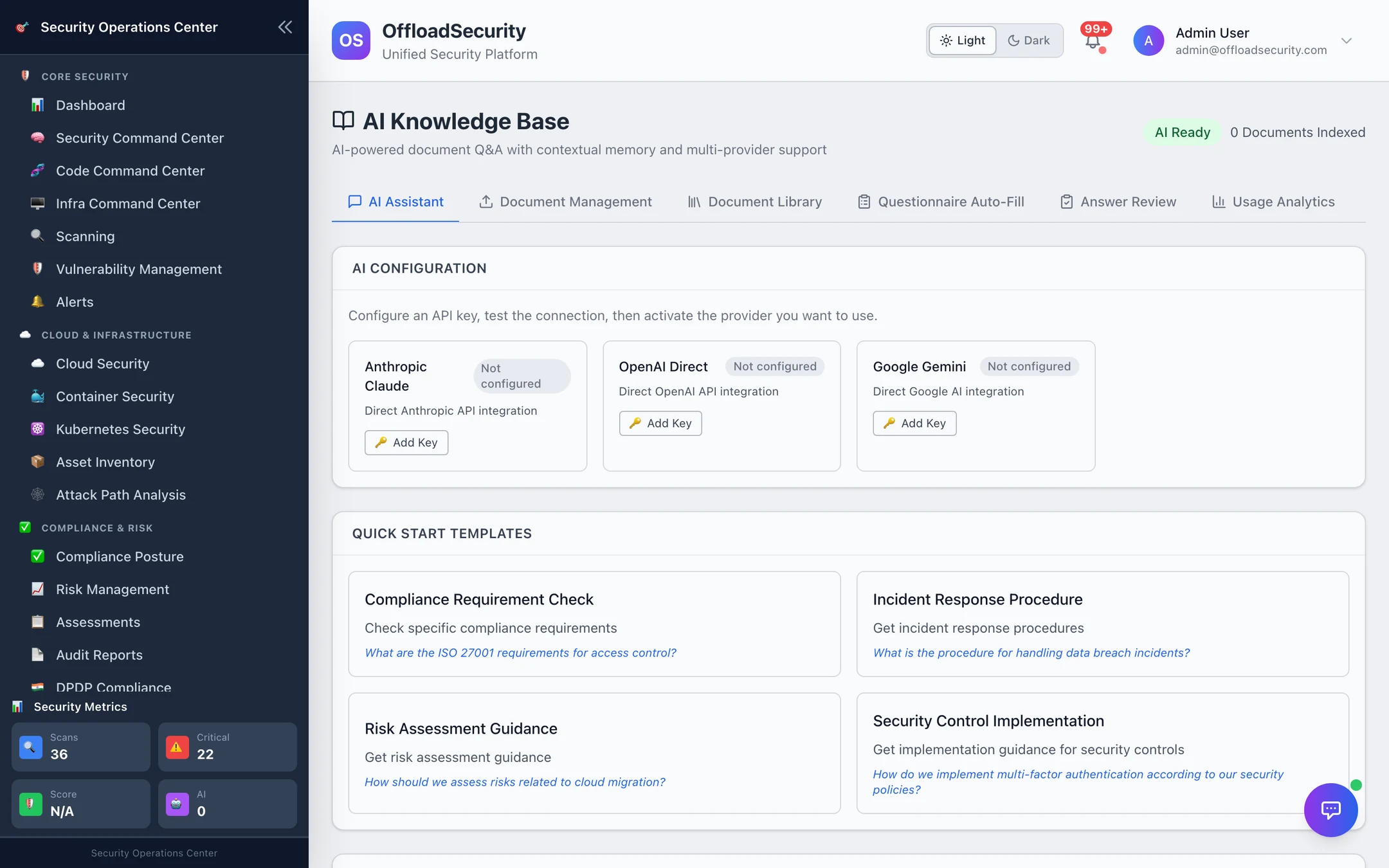
| Provider | Default model | Fast model |
|---|---|---|
| Anthropic Claude | claude-sonnet-5 | claude-haiku-4-5 |
| OpenAI | gpt-4o | gpt-4o-mini |
| Google Gemini | gemini-2.0-flash | gemini-2.0-flash |
- Add Key on a provider card and paste the API key. It is encrypted before storage and scoped to your team.
- Test — the platform makes one minimal call and reports success or the provider's error.
- Activate — the first configured provider becomes active automatically; with several configured, choose which one answers.
Environment variables work too for single-tenant installs: ANTHROPIC_API_KEY, OPENAI_API_KEY or GOOGLE_AI_API_KEY on the backend; a team key set in the UI takes precedence. The active provider and model are shown in the assistant's header and in GET /api/llm/providers.
Sending a message to the assistant, Explain, Suggest fix, AI Summary and prioritise findings require the Manage Integrations team permission (the same one that configures providers); the scan-analysis endpoints (/api/ai/analysis/*) require Manage Scans. Reading suggestions, status and the provider list needs only a login. If analysts should use the assistant, give their role that permission — see Roles, Teams & API Keys.
How your data is handled
- Scope. A request carries only data the asking user's team can already see; the model never has a broader view than the person.
- Cache. Only tenant-agnostic questions are cached or served from cache. Anything derived from your findings, controls or risks is answered live and not stored in the shared response cache.
- Provider. Requests go directly from the platform to the provider you configured with your key; there is no intermediary. Provider data-use terms are yours to choose by choosing the provider.
- Advisory only. AI output is a draft or an explanation. State changes — closing a finding, accepting a risk, overriding a control, opening a fix PR, executing a playbook — are explicit human actions with their own audit trail.
The full commitments are in Trust & Security → How AI features handle your data.
Related
- Knowledge Base & AI Assistant — document library, Q&A with citations, questionnaire auto-fill, usage analytics.
- Reports & AI API — chat, quick insights, analysis and provider endpoints.