Registries
A registry connection is how the platform learns which images you actually ship. Once connected, the registry is synced (repositories, tags, digests, push dates), its images can be browsed and scanned in place, new pushes can be auto-scanned, and each sync produces a drift report of what appeared, disappeared or changed.
Where: Container Security → Cloud Registries.
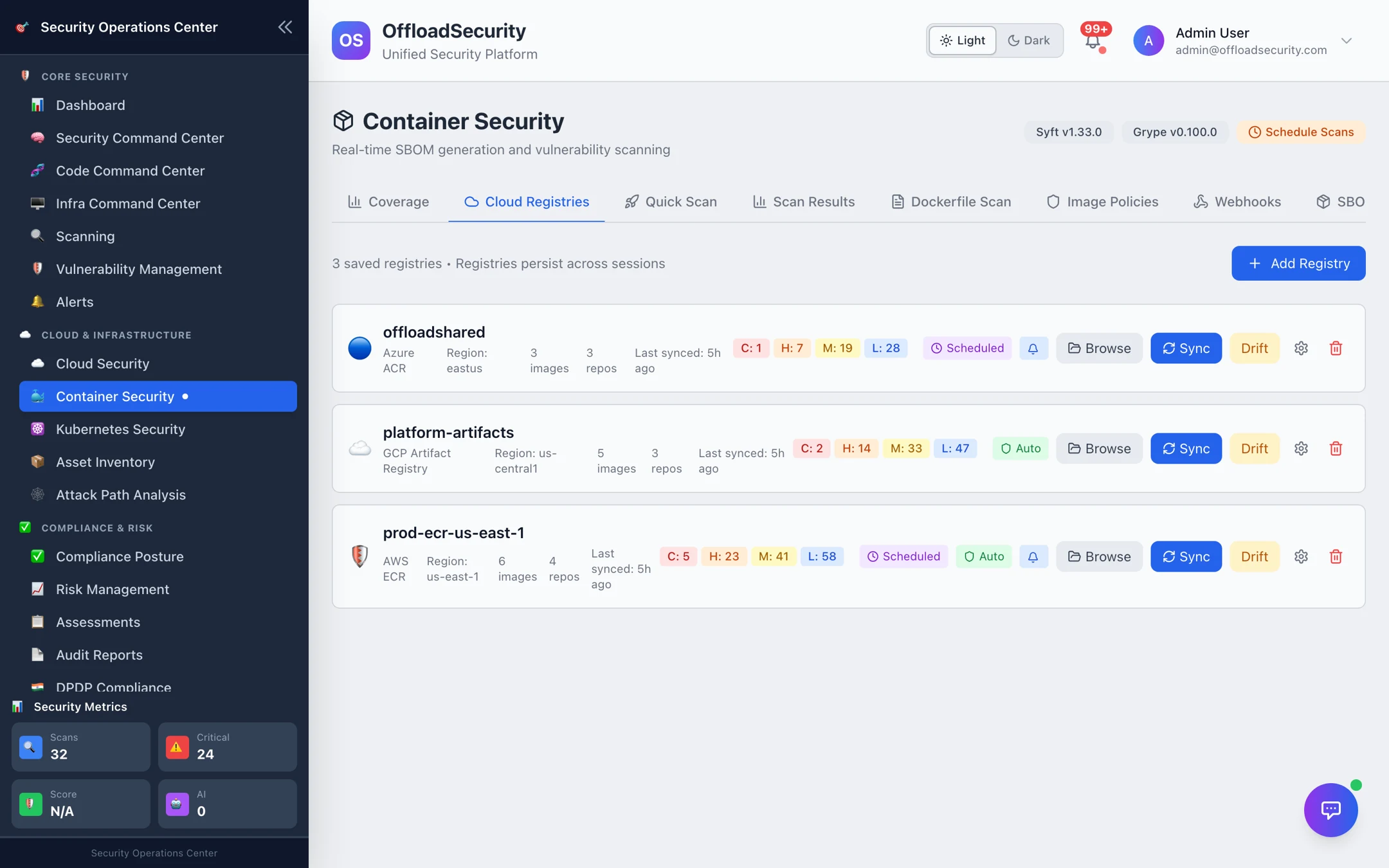
Supported registries
| Registry | Connect with |
|---|---|
| AWS ECR | A connected AWS account (recommended — reuses its role) or an access key ID + secret. |
| Google Artifact Registry (and legacy GCR) | A connected GCP account or a project ID + service-account JSON. |
| Azure Container Registry | A connected Azure account or tenant ID + client ID + client secret + registry name. |
| Docker Hub | Public images anonymously; private repositories with a username + access token. |
Pull permission is required to scan: ecr:GetAuthorizationToken + read (inside ReadOnlyAccess), roles/artifactregistry.reader, or AcrPull — see Required Permissions. Registries in connected cloud accounts are also discovered automatically by every cloud scan and offered for one-click connection.
Add a registry
- Add Registry → choose the provider.
- Give it a name (for example Production ECR) and a region where the provider needs one.
- Use Existing Cloud Account to authenticate with an account you already connected, or Enter Credentials for the provider's fields above. Credentials are encrypted at rest.
- Automation settings (optional, editable later):
- Scan schedule — a cron expression, e.g.
0 2 * * *for a nightly scan; leave empty for manual only. - Auto-scan new images — scan every image detected by a push webhook or by polling.
- Notify when new images are detected.
- Repository / tag filters — regular expressions such as
apps/.*orlatest|v1.*to scope what is synced and scanned.
- Scan schedule — a cron expression, e.g.
- Test Connection, then save. The first sync starts immediately.
Saved registries persist across sessions and appear on the Coverage tab.
Working with a registry
| Action | What it does |
|---|---|
| Sync | Re-reads repositories, tags and digests from the registry. Sync discovers — it does not scan — so a large registry syncs in seconds. |
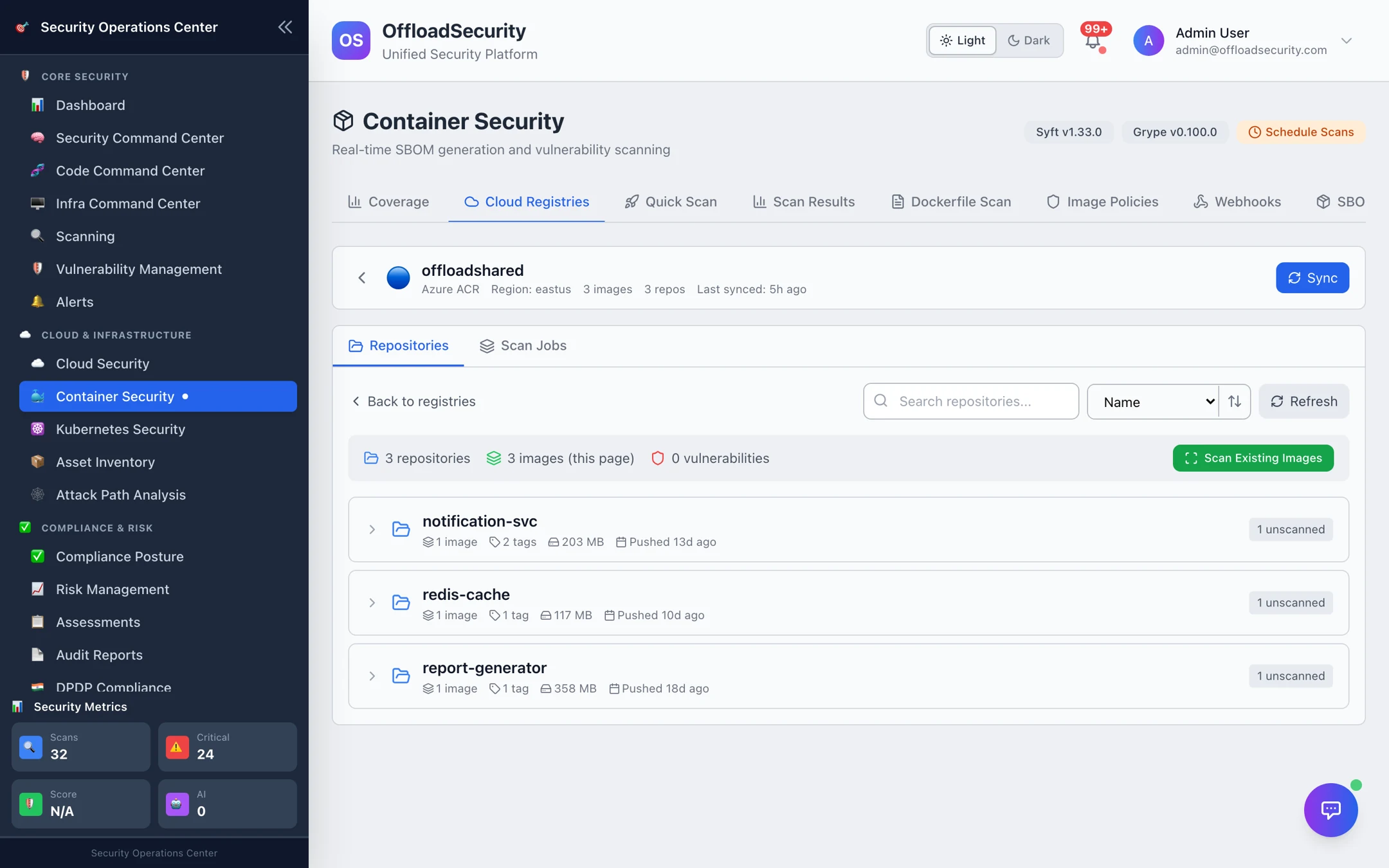
| Browse | Opens the repository list: image and tag counts, last push, scan status per image, per-image severity badges, and search / sort by name, push date, size or vulnerabilities. Select an image to scan it or open its latest result. |
| Scan Existing Images | Queues scans for the registry's images — optionally one repository, up to a chosen batch size (default 50, max 500 per batch). A scan estimate shows how many images and roughly how long before you commit; jobs can be paused, resumed or cancelled. |
| Drift | The drift report since the previous sync: new images, removed images, and vulnerability changes on images that were re-scanned. |
| Edit schedule | Change the cron, auto-scan and notification settings, or the polling interval (5 minutes – 24 hours) for registries without webhooks. |
| Remove | Deletes the registry connection and its saved image list (scan results are kept). |
Keeping registries current
- Webhooks give you scans within seconds of a push — set them up under Registry webhooks.
- Polling covers registries where you cannot add a webhook: the platform checks for new tags at the interval you set and scans them if auto-scan is on.
- Scheduled scans re-scan what you already have so newly published CVEs show up on old images. The daily re-validation also refreshes registry credentials and metadata.
A production registry can hold thousands of tags. Use repository and tag filters (e.g. only v* tags of apps/*) and let the schedule handle the rest — scanning every historical tag adds noise, not safety.
Related
- Image Scanning — what a scan produces and how to read it.
- Policies, Webhooks, SBOM & Compliance — auto-scan on push and gate what deploys.
- Connecting Cloud Accounts — the accounts registries can authenticate through.