Onboarding Clusters
A cluster is onboarded once, read-only, and can then be scanned on demand or on a schedule. There are two ways in: add a cluster with its credentials, or import one the platform already discovered from a connected cloud account.
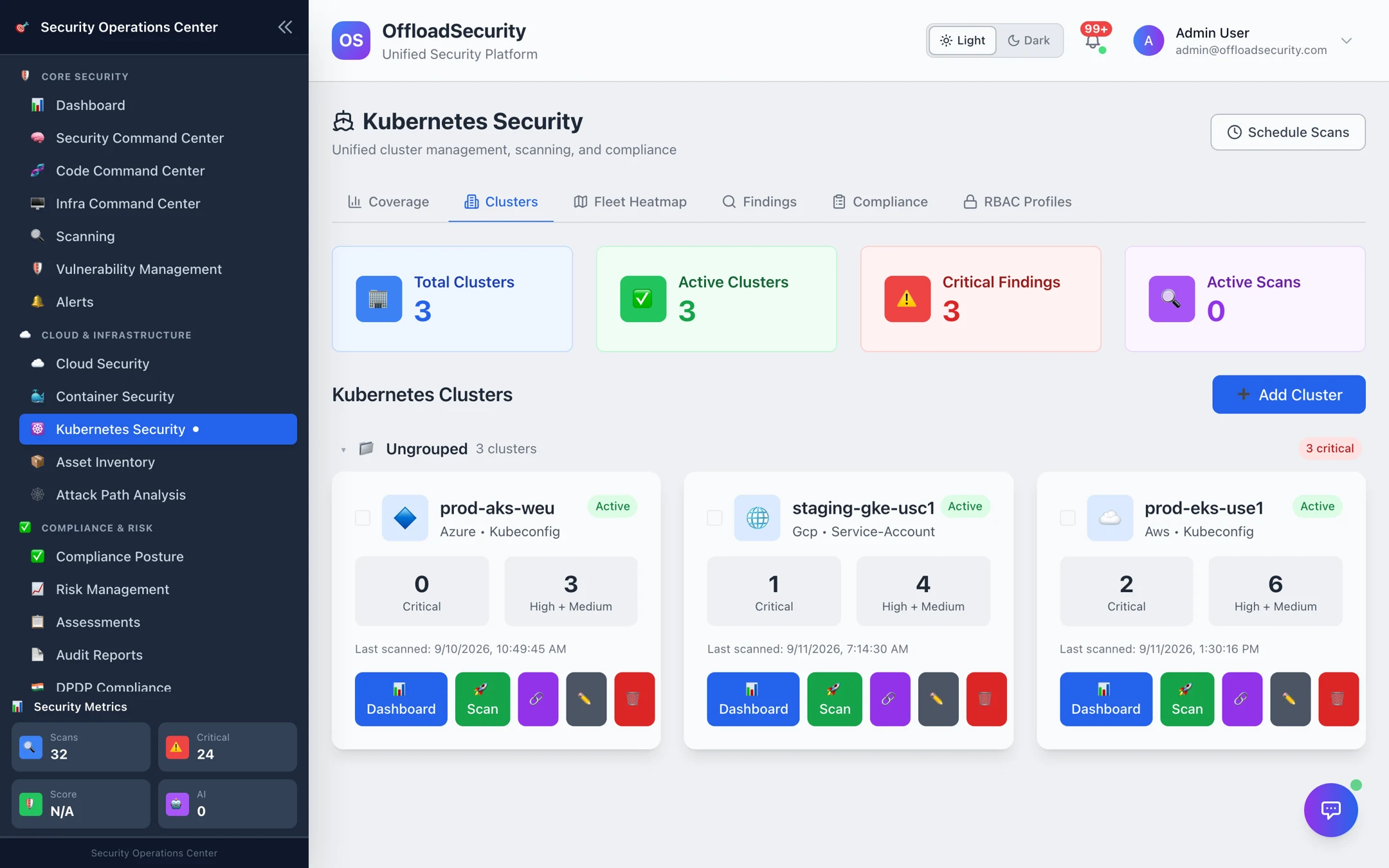
Where: Kubernetes Security → Clusters.
Before you start — RBAC profiles
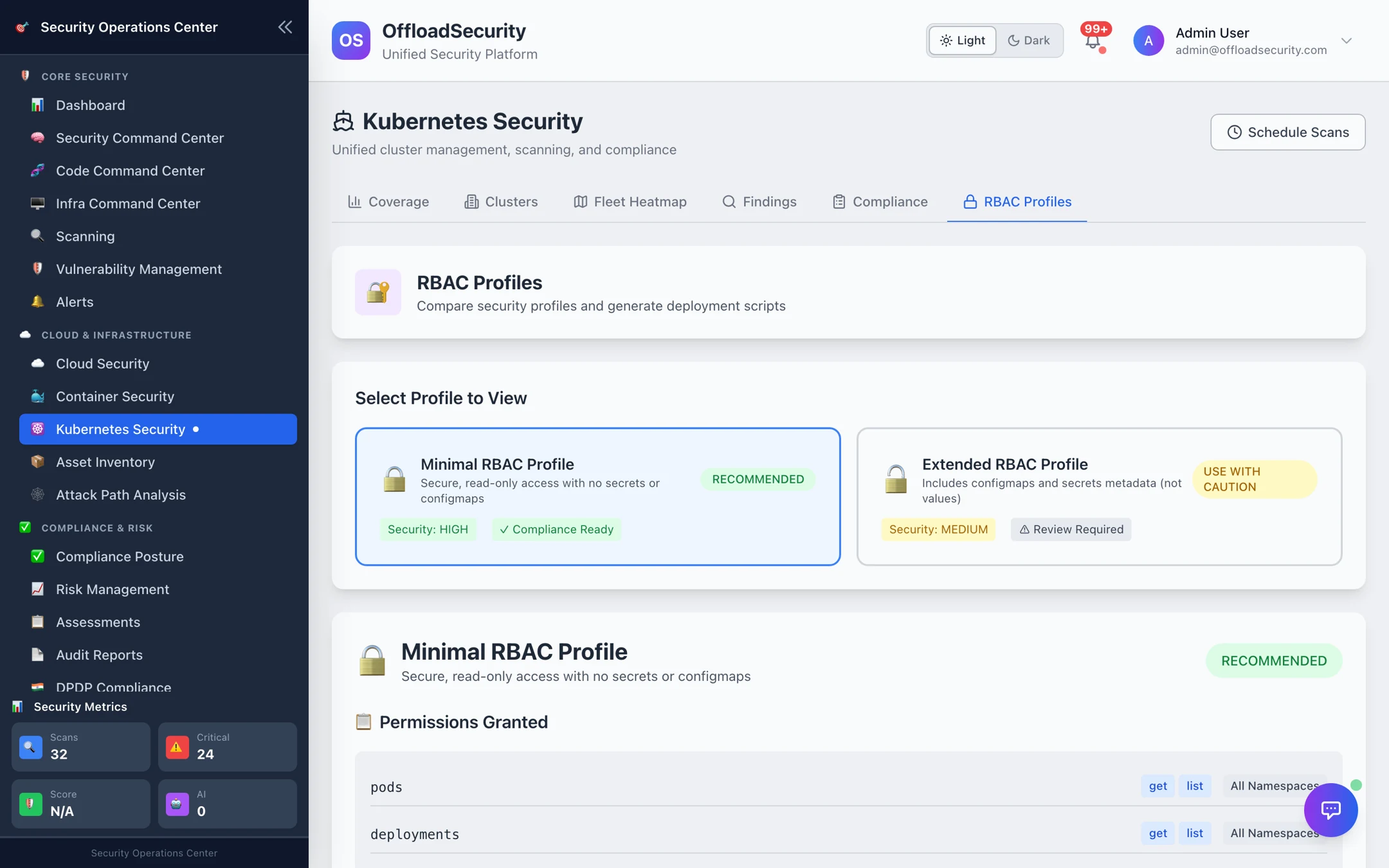
The platform needs a Kubernetes identity that can read the resources it assesses. Rather than hand-writing a ClusterRole, pick a profile on the RBAC Profiles tab and generate the deployment script.
| Profile | Reads | Secrets / ConfigMaps | Use when |
|---|---|---|---|
| Minimal (recommended) | Pods, nodes, namespaces, services, endpoints, deployments, daemonsets, statefulsets, jobs, RBAC objects, network policies, ingresses | No access | Almost always. Production-ready, compliance-ready. |
| Extended | Everything in Minimal | Metadata only (names, namespaces, labels — never values) | You need checks that look at Secret/ConfigMap usage; review with your security team first. |
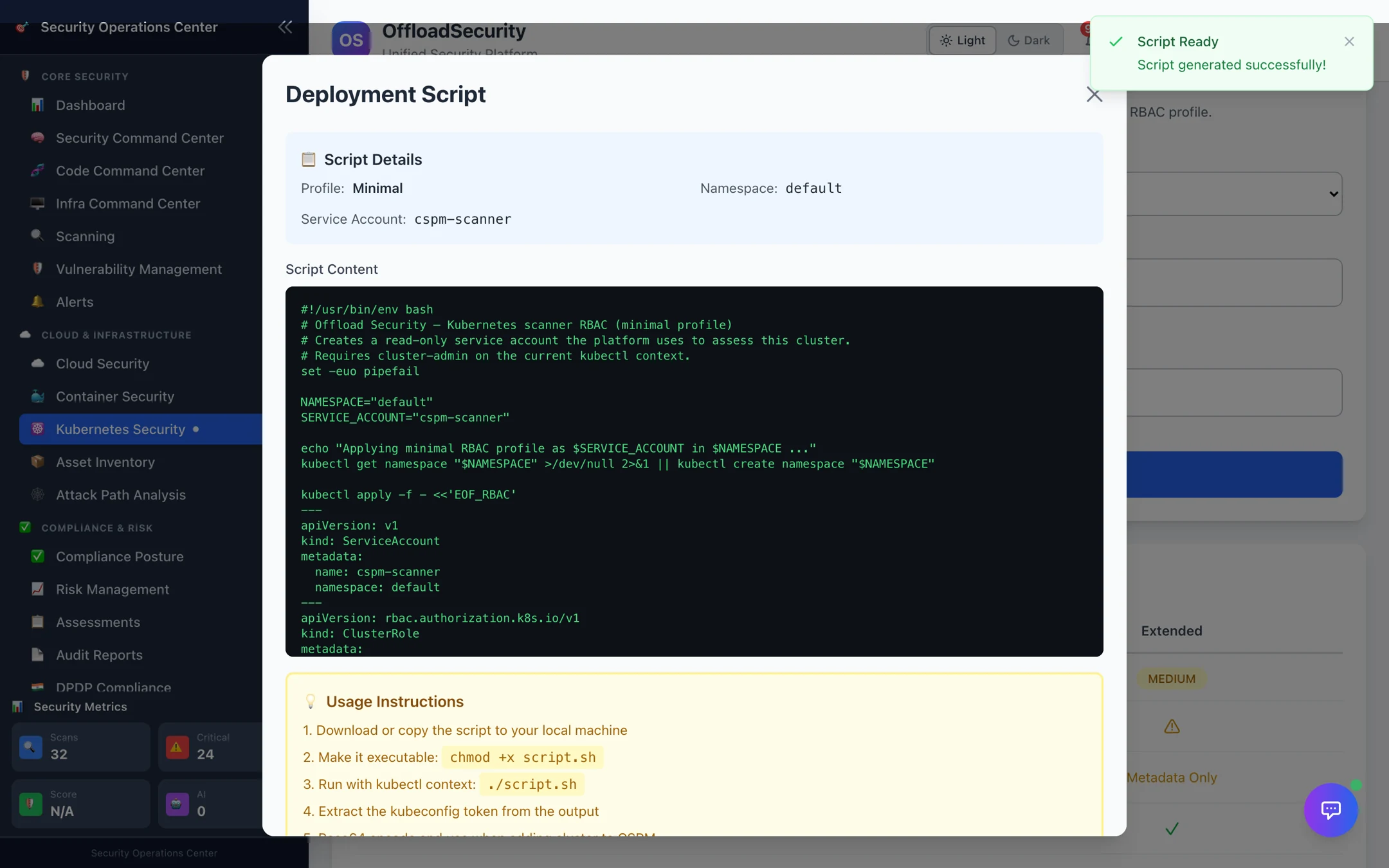
Select Generate Deployment Script, choose the profile, the namespace and the service account name, and copy or download the script. Run it with a kubectl context that has cluster-admin: it creates the namespace if needed, applies the service account, ClusterRole and binding, creates a long-lived service-account token Secret (falling back to a bound token only if the token controller is disabled) and prints the API server URL and token to paste into Add Cluster → Service Account Token. The same ClusterRole is listed in Required Permissions — Bucket B.
An AWS/GCP/Azure role lets the platform discover EKS/GKE/AKS clusters, but reading workloads inside a cluster always needs Kubernetes RBAC. Apply the profile before you onboard.
Add a cluster
Select Add Cluster and fill in:
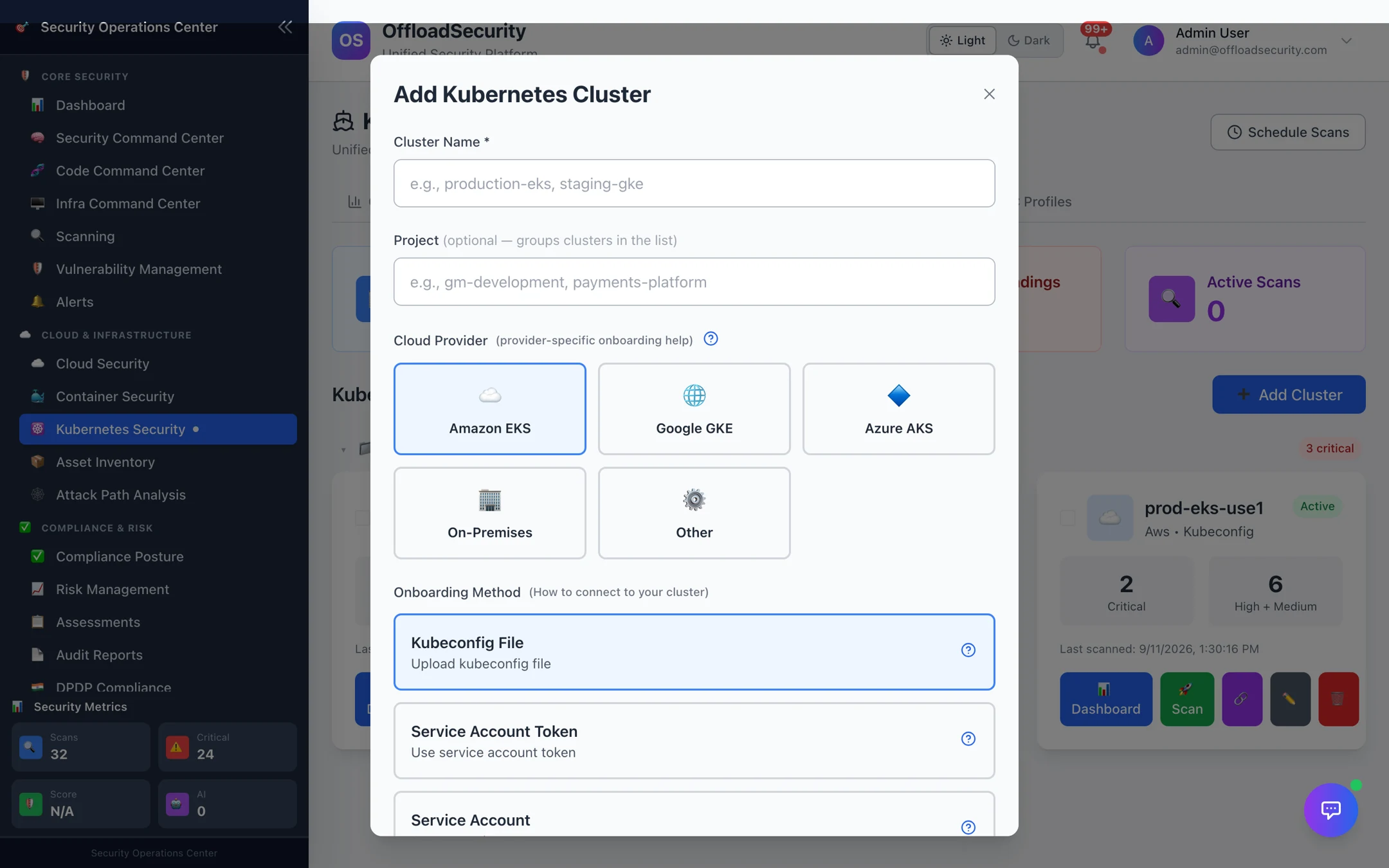
| Field | Notes |
|---|---|
| Cluster name | How it appears in dashboards, e.g. production-eks. |
| Project (optional) | Groups clusters in the fleet view, e.g. payments-platform. |
| Cloud provider | Amazon EKS, Google GKE, Azure AKS, On-Premises or Other. Drives provider-specific checks and the console links. |
| Onboarding method | Kubeconfig File — upload or paste a base64-encoded kubeconfig (base64 -w 0 kubeconfig.yaml). Service Account Token — the API server URL plus the token from the RBAC script. Service Account — let the platform create the service account for you where it has admin credentials. |
| RBAC profile | Minimal or Extended, matching what you applied. |
On save the platform runs a connectivity test: it reaches the API server, records the Kubernetes version, and counts nodes and namespaces. Success sets the cluster Active; a failure shows the reason (unreachable endpoint, expired token, missing RBAC) and nothing is scanned until it passes. Re-run the test at any time from the cluster card.
Uploaded kubeconfigs are validated before use — a kubeconfig whose server points at a private or metadata address, or that embeds exec credential plugins, is rejected. Credentials are encrypted at rest.
Import discovered clusters
Every cloud scan discovers the EKS, GKE and AKS clusters in the account (how cloud scans run). On the Clusters tab, discovered-but-not-onboarded clusters are listed for Import from Cloud: pick the ones you want, and the platform creates the cluster records using the cloud credentials for the API endpoint. You still apply an RBAC profile inside each cluster for workload reads.
Managing clusters
Each cluster card shows provider, onboarding method, status (Active, Pending, Scanning, Degraded, Error), findings by severity and the last scan time, with actions:
| Action | What it does |
|---|---|
| Dashboard | Opens the cluster's own view — security score, findings by category and scanner, and quick links. See Scanning & Findings. |
| Scan | Starts a scan now (all scanners by default). |
| Test | Re-runs the connectivity test. |
| Edit | Change name, project, provider or credentials. |
| Delete | Removes the cluster and cascades its findings, scans and schedules. Select several cards to delete or scan in bulk. |
Ungrouped collects clusters without a project; set a project to group them.
Related
- Scanning & Findings — run scans and work the results.
- Connecting Cloud Accounts — where discovered clusters come from.
- Troubleshooting — connection tests that fail, scans that stay pending.