Running Web, API & Host Scans
The Scanning workspace is where you actively test a target you can reach over the network: a web application, an API, a host, a TLS endpoint or a whole domain. You pick an assessment type, give it a target, optionally authenticate, and the platform runs the right engine in the background and files the results in the Scan Results hub.
Where: left navigation → Scanning → New Scan.
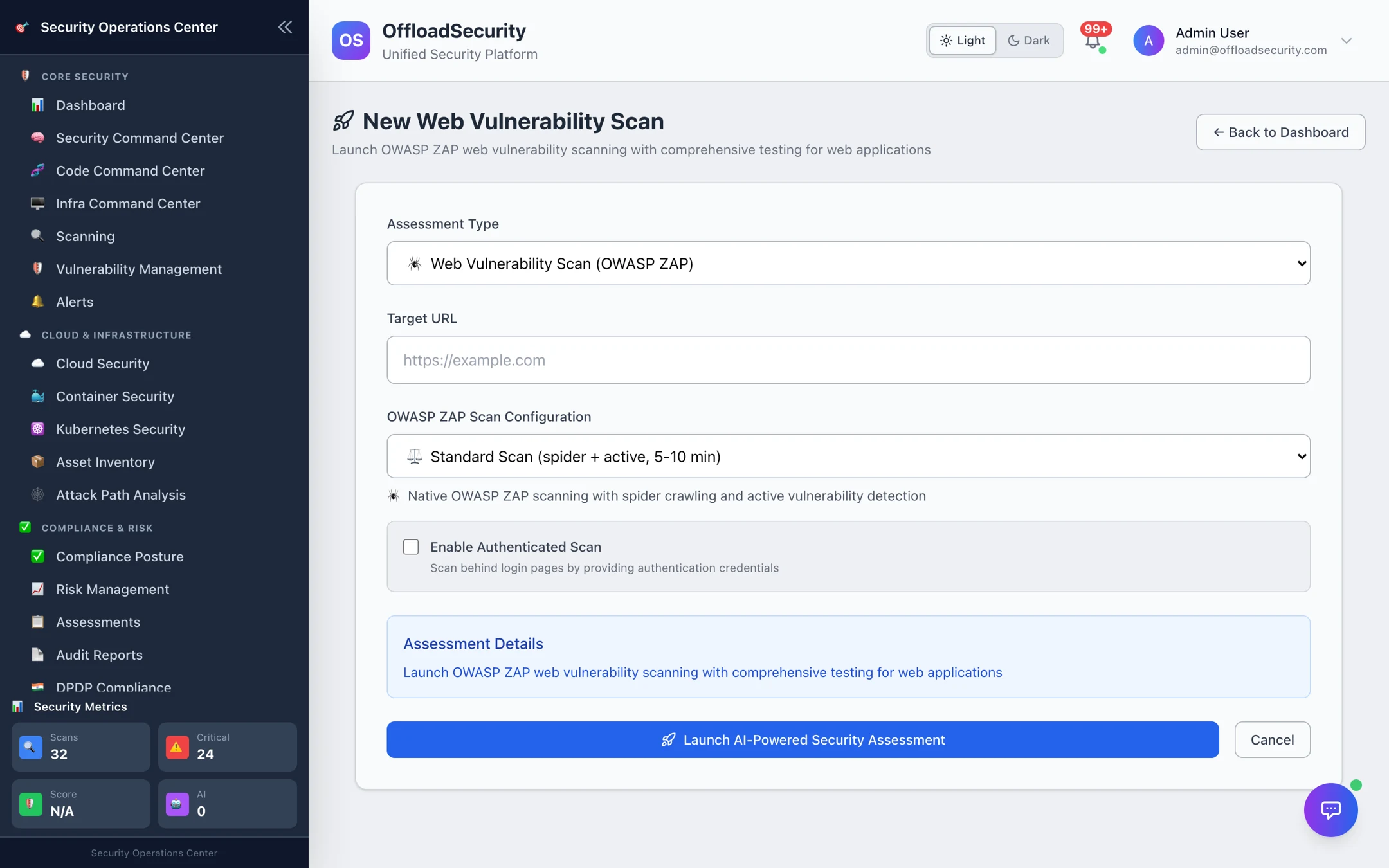
What you can run
| Assessment | What it tests | Engine | Typical time |
|---|---|---|---|
| Web Vulnerability Scan | Injection (XSS, SQLi, CSRF), insecure configuration, crawl of SPA routes | OWASP ZAP | Quick 1–2 min (passive) · Standard 5–10 min (spider + active) · Comprehensive 15–20 min (AJAX spider + active) |
| Nuclei Vulnerability Scan | Known CVEs, exposures and misconfigurations from a template library | Nuclei | Quick 1–2 min (critical/high templates) · Standard 3–5 min (all severities, 6000+ templates) · Comprehensive 5–10 min |
| Security Headers Check | HSTS, CSP, X-Frame-Options and the rest, with a 0–100 score and grade | native analyzer | seconds |
| SSL/TLS Security Test | Protocol versions, cipher strength, certificate chain, known TLS weaknesses | testssl.sh | 1–3 min |
| Network Discovery | Ping sweep, top-1000 port scan, service and version detection, OS detection (comprehensive) | Nmap | 1–10 min |
| API Security Testing | OWASP API Top 10 (2023) — BOLA, broken auth, SSRF, misconfiguration — across REST, GraphQL and SOAP | native API scanner | 3–15 min |
| API Discovery / Deep Scan | Find every endpoint (JS crawl, OpenAPI, GraphQL introspection), then test them; upload a spec for deeper coverage | native API scanner | varies |
| Domain Scan | Full reconnaissance and OSINT for a domain — DNS, subdomains, email security, exposed services | native recon | 2–10 min |
| Lightweight scans | Technology fingerprint, WAF detection, subdomain enumeration, known CVEs in the detected stack (NVD + CISA KEV + EPSS) | native analyzers | seconds–minutes |
| App Scan | Everything relevant for one application in a single run with standards mapping and a consolidated report | all of the above | 15–30 min |
Run a scan
- Choose the assessment type.
- Enter the target — a full URL (
https://app.example.com) for web and API scans, a hostname or IP for network and TLS scans, a bare domain for reconnaissance. - Pick a scan profile where offered: Quick for a fast first look, Standard (recommended) for everyday use, Comprehensive before a release or audit. The form shows what each profile does and how long it takes for that engine.
- Choose a rate-limit profile for web and network scans: gentle for fragile or production targets, normal by default, aggressive only for backends you know can take it.
- For anything behind a login, Enable Authenticated Scan (below).
- Launch. The scan runs in the background; you can leave the page. It appears immediately under Running in the hub and moves to Completed (or Failed / Partial if an engine could not finish).
Authenticated scans
Unauthenticated scans only see what an anonymous visitor sees. To reach the parts of an app that matter, supply credentials:
| Method | Provide |
|---|---|
| Basic Auth | Username and password |
| Form login | Login URL, username and password (the scanner submits the form and keeps the session) |
| Bearer / JWT token | The token — sent as Authorization: Bearer … |
| Custom headers | Any header, for example an API key |
| Cookie | A session cookie string |
| Session-based (advanced YAML) | A session script for multi-step logins |
The platform runs a pre-scan check to confirm the credentials actually authenticate before the engine starts, so a failed login shows up as a clear error rather than a suspiciously clean report. Credentials are encrypted at rest and are not written into saved results or reports.
Active scans submit payloads. Point comprehensive web and API scans at a staging environment that mirrors production, and use the gentle profile plus a Quick or Standard scan when production is the only option.
Reading a result
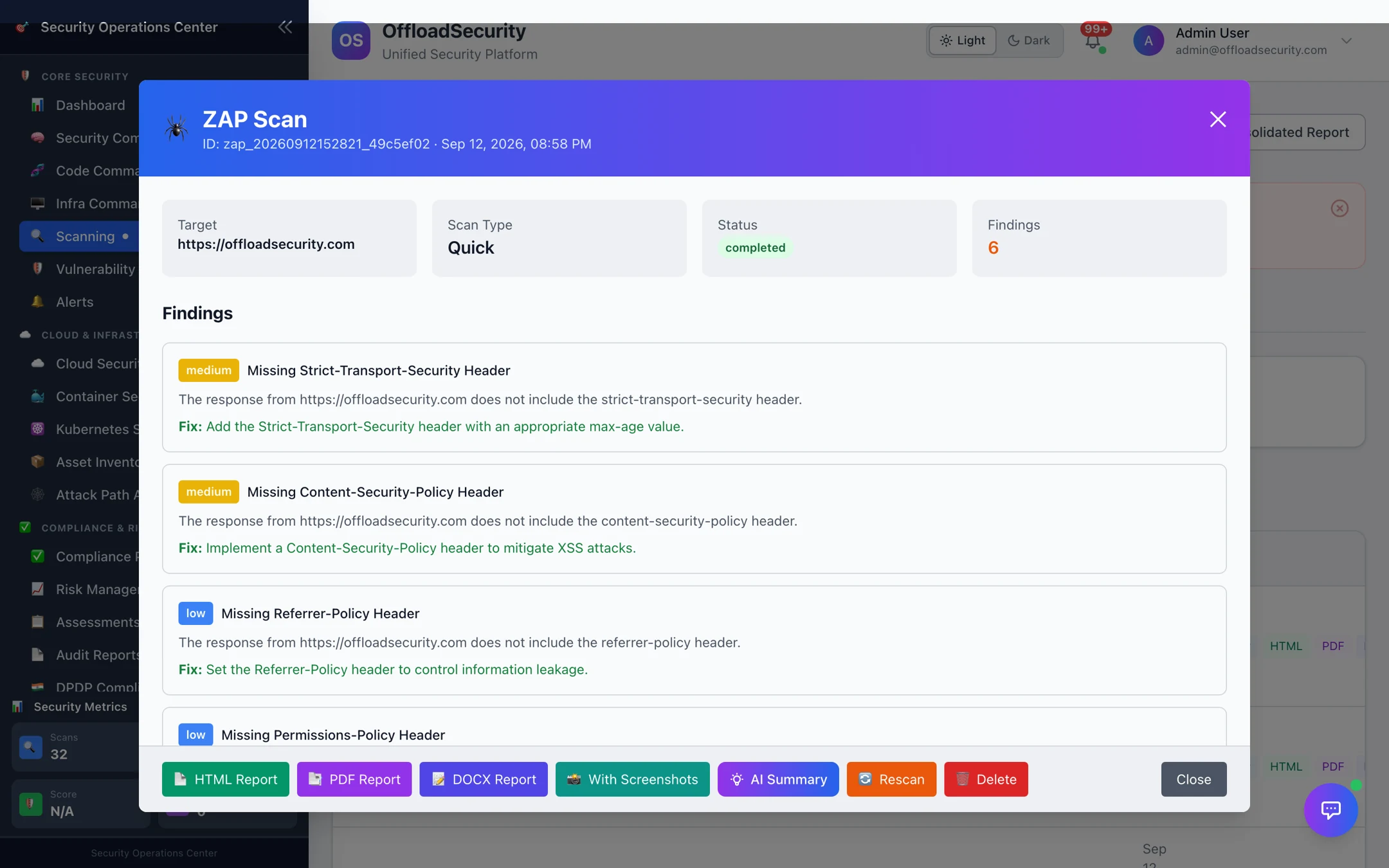
Open a run from the hub (View) to see the summary — target, type, status, finding count — and the findings: each with a severity, what was observed, and the fix. Web-scan findings carry the OWASP category; network findings list host, port, protocol, state and detected service; TLS findings list the protocol or cipher concerned. Export the run as HTML, PDF or Word, with screenshots for web scans, or ask for an AI Summary. Details in Scan Results.
Automating these scans
Every assessment is an API call (POST /api/native-scans/web-vulnerability, /network-discovery, /ssl-security, /security-headers, /nuclei/url-scan, /api-security-testing) that returns a scan_id you poll — see the Scanning API and, for pipelines, CI/CD & Automation. Recurring runs are configured in Scan Management & Scheduling.
Related
- Scan Results — the hub, reports, re-scan and consolidated reports.
- Infra Command Center — WAF testing and API load tests.
- SSL Certificate Monitoring — continuous expiry tracking, complementing the one-off TLS test.