SLA Management
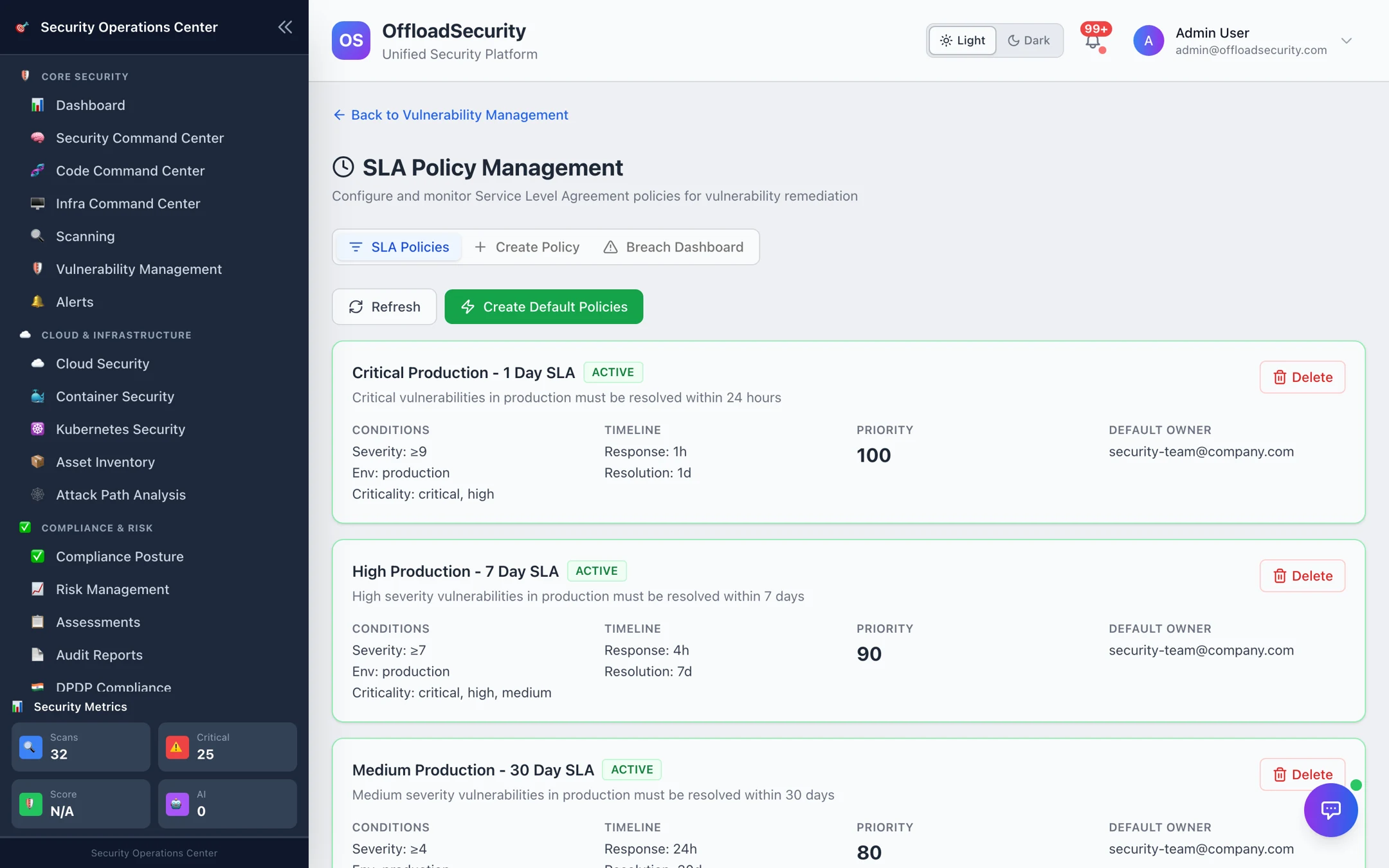
An SLA policy turns "we should fix criticals quickly" into a deadline on every finding. The platform matches each new occurrence to the most specific policy, starts its response and resolution clocks, checks for breaches every 15 minutes, notifies on breach, and escalates by the rules you define.
Where: Vulnerability Management → SLA Policies (opens SLA Policy Management).
How a policy works
| Part | What it does |
|---|---|
| Matching conditions | Which occurrences the policy applies to: severity (entered as a CVSS range — ≥ 9 critical, 7–9 high, 4–7 medium, below 4 low), environments (production / staging / development) and asset criticalities (critical / high / medium / low) from business context. |
| Timeline | Response time (hours to acknowledge) and resolution time (days to fix). The due dates are stamped on the occurrence when it is first seen. |
| Priority | When several policies match, the highest priority number wins — so a narrow "PCI-scoped critical, 12 hours" policy can sit above the general "critical, 1 day" one. |
| Default owner | Who is notified and assigned when a matching occurrence has no owner. |
| Escalation rules | After N hours past the breach, notify role X — for example security lead at 2 h and CISO at 8 h for production criticals. |
The default policies
Create Default Policies installs three production policies you can edit or add to:
| Policy | Matches | Respond | Resolve | Escalation |
|---|---|---|---|---|
| Critical Production – 1 Day | Critical severity in production on critical/high-criticality assets | 1 h | 1 day | Security lead at +2 h, CISO at +8 h |
| High Production – 7 Day | High severity in production on critical/high/medium-criticality assets | 4 h | 7 days | Security lead at +24 h |
| Medium Production – 30 Day | Medium severity in production (any criticality) | 24 h | 30 days | — |
Create or edit a policy
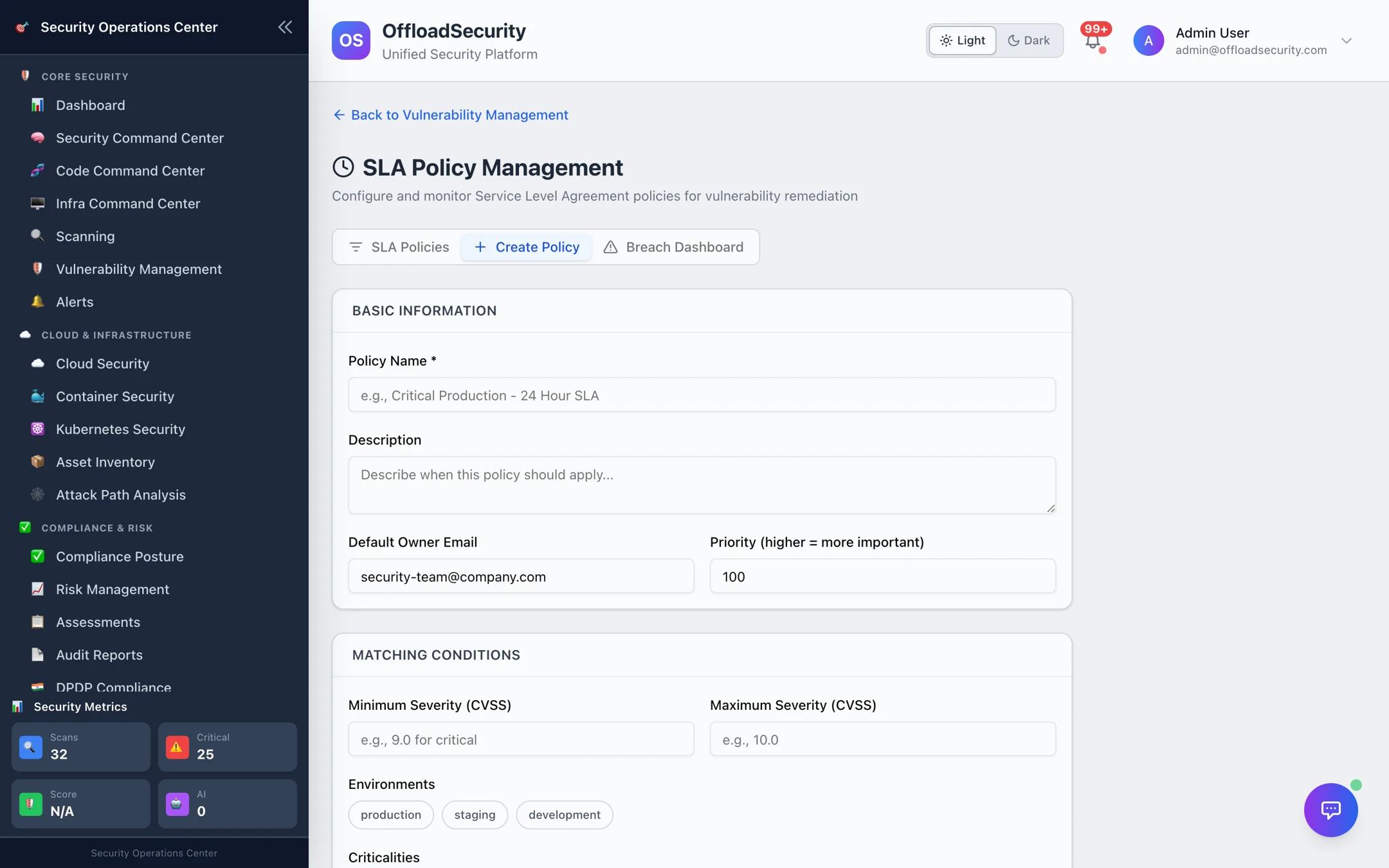
- Create Policy → name and description.
- Set the default owner email and a priority (higher = more specific / more important).
- Matching conditions: CVSS minimum and maximum, tick the environments and criticalities. Leave a condition empty to match all.
- Timeline: response hours and resolution days.
- Save. The policy applies to occurrences seen from now on; existing occurrences keep the due dates they were given.
The default policies only distinguish severity and environment. Set business context on your key assets (owner, criticality, data classification) and add policies that match critical assets — a medium on the payments database is not a medium.
Breach Dashboard
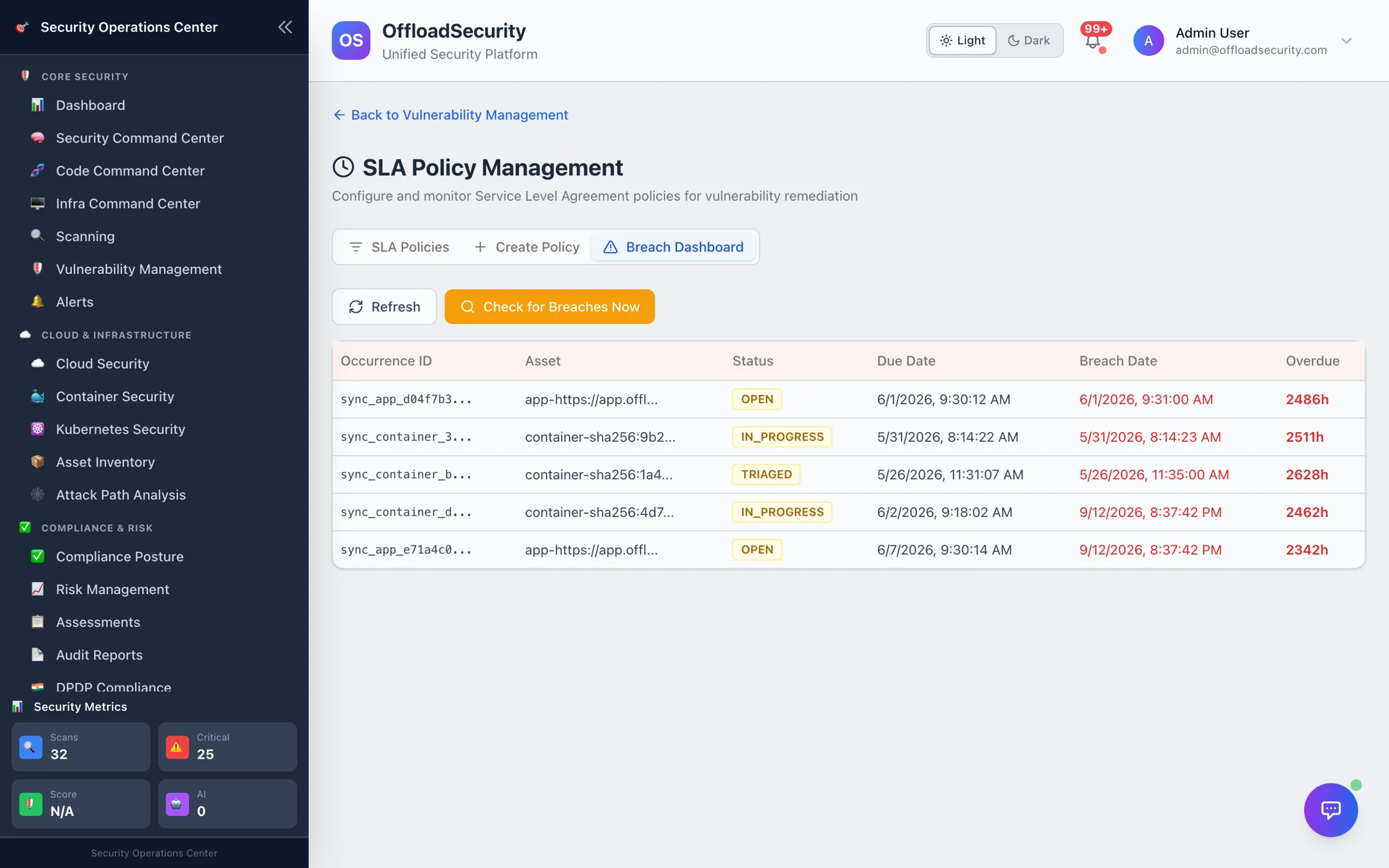
The Breach Dashboard lists every occurrence past its resolution due date with asset, status, due and breach dates, and how long it has been overdue. The enforcement job runs every 15 minutes; Check for Breaches Now runs it immediately. Each breach:
- is flagged on the occurrence (
lifecycle.sla.breached) and shown as SLA breached in every vulnerability view and the Overdue filter of the Triage queue; - raises one notification (email, Slack and in-app, per your notification settings) — idempotent, so a long-running breach does not re-notify every 15 minutes;
- enters escalation: as the hours past breach accumulate, each escalation rule fires once and notifies its target role, with the escalation level and history kept on the occurrence.
Resolving, verifying or accepting the occurrence clears its breach state; a reopened occurrence starts a fresh clock.
Related
- Triage Queue — the Overdue filter and per-item decisions.
- Raw Findings & Occurrences — SLA due dates per occurrence.
- Notifications — channels and recipients for breach and escalation messages.